View on-hand stock and value
Read the Inventory page: the valuation card, the Materials and Products tabs, their badges, search, sorting and paging, and the Adjust action on each row.
Inventory shows what you hold and what it's worth: every material and every product variation, valued at its weighted-average cost. It is also where you correct a count. A team member without money access sees the same page without any values. The valuation card, the Unit cost and Line value columns and the Subtotal lines are hidden, while On hand and Adjust stay.
Read the valuation card
Open Inventory in the sidebar. It opens on the Materials tab.
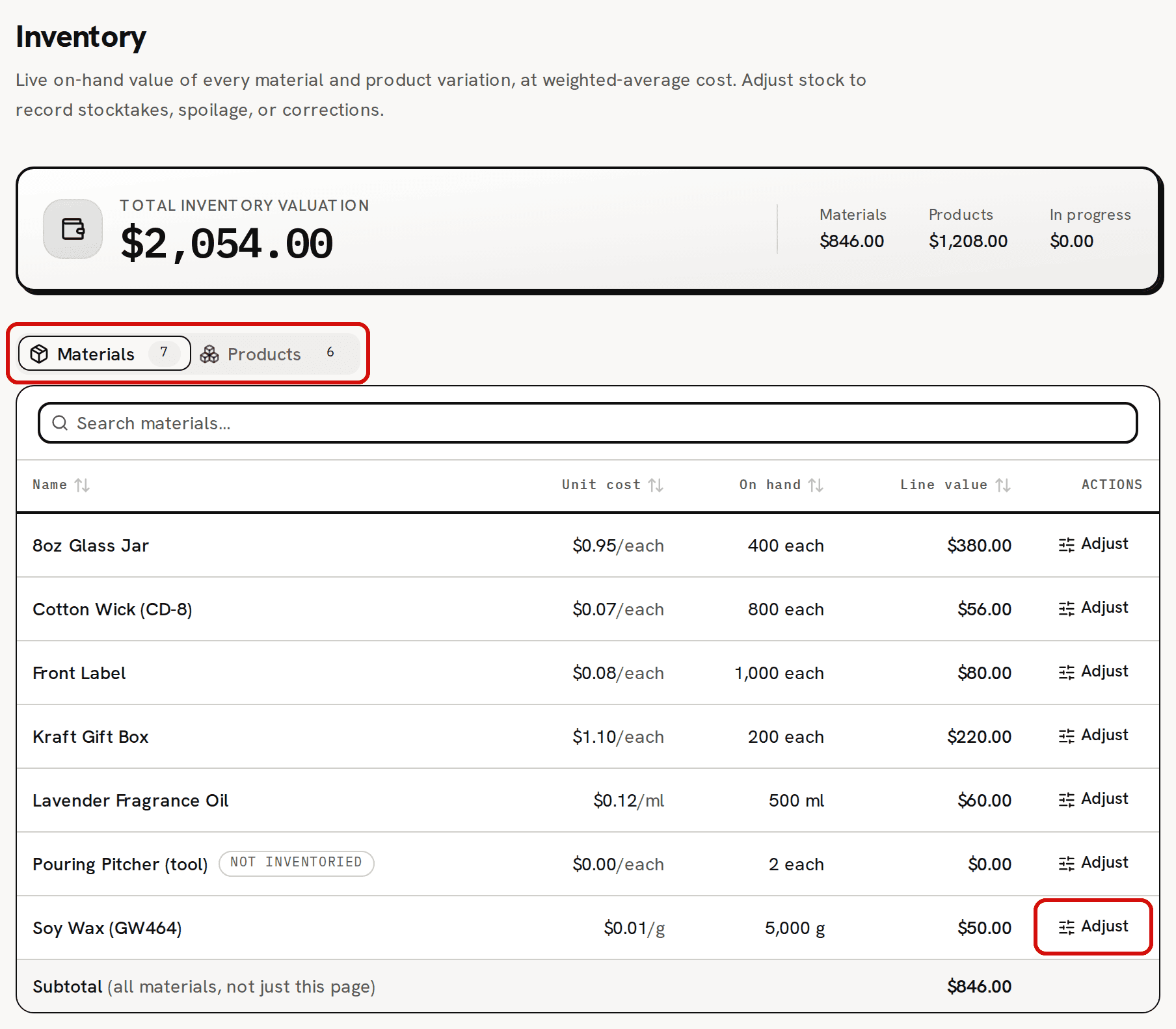
Materials: unit cost, on hand and line value, with Adjust on every row. Read the card at the top. Total inventory valuation is Materials plus Products. In the sample workspace that is $846.00 + $1,208.00 = $2,054.00.
Read In progress beside them. It is the value of what your started batches used, and it is not part of the total. While batches are running it reads In progress (1 batch), or the number of batches, with their value.
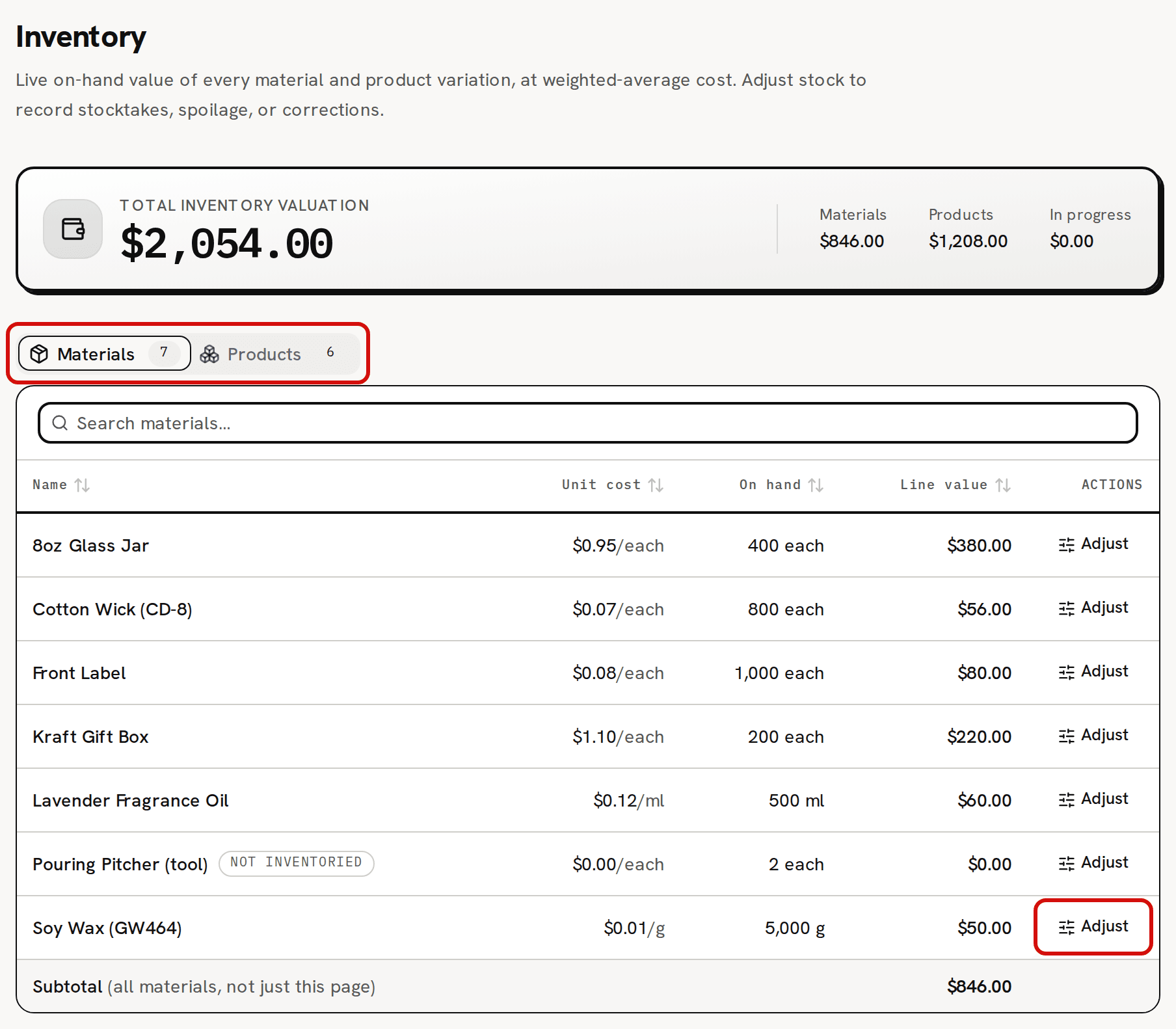
The card covers your whole workspace, whatever the table below shows.
Read the Materials tab
Read each row: Name, Unit cost per unit, such as $0.01/g, On hand, and Line value, which is on hand × unit cost. The unit shown is the material's Unit, which can differ from the unit you track it in.
Read the Subtotal line at the bottom. It is the value of all your materials, not only the rows on this page, and it equals Materials on the card.
A tool or piece of equipment, added with Track as inventory (uncheck for tools / equipment) unchecked, shows a Not inventoried badge and a Line value of $0.00. Trackost keeps its count, but it isn't part of your stock value. The sample Pouring Pitcher (tool) reads 2 each at $0.00.
Unit cost is shown to the cent, so a material that costs less than half a cent a unit reads $0.00 per unit. Trackost keeps and uses its exact cost.
Read the Products tab
Click Products above the table. The number on each tab is how many rows it has.
Read each row. There is one row per variation, grouped by product, with the default variation first and marked Default. Type reads Made when an active recipe makes the variation and Bought-in when none does.
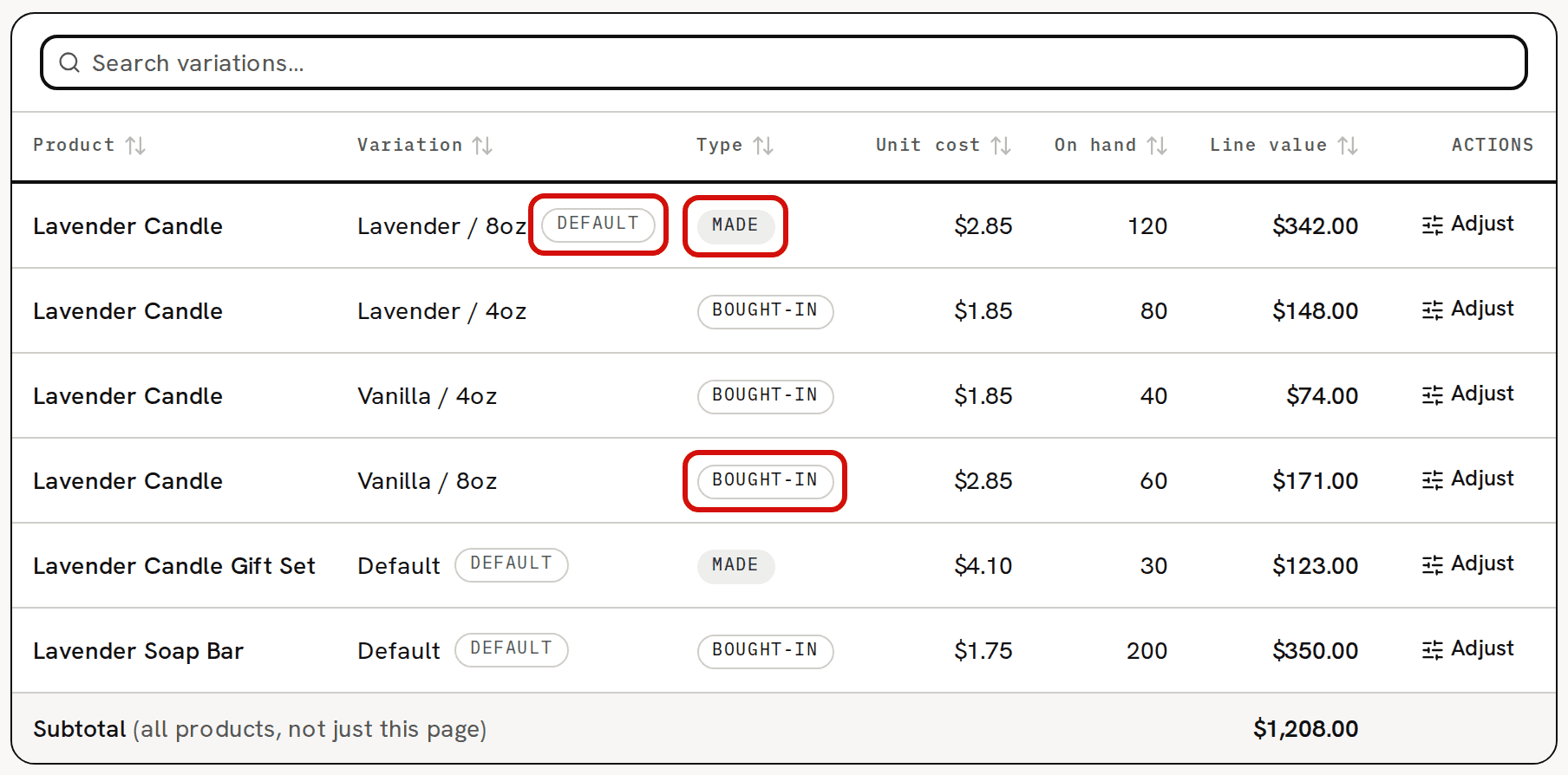
Products: one row per variation, grouped by product. Read On hand. When some units come from a batch whose recipe has cure days and are still curing, it reads like '120 on hand · 40 curing until Oct 7, 2026'. Curing units are counted in On hand and in the value.
Search, sort and page
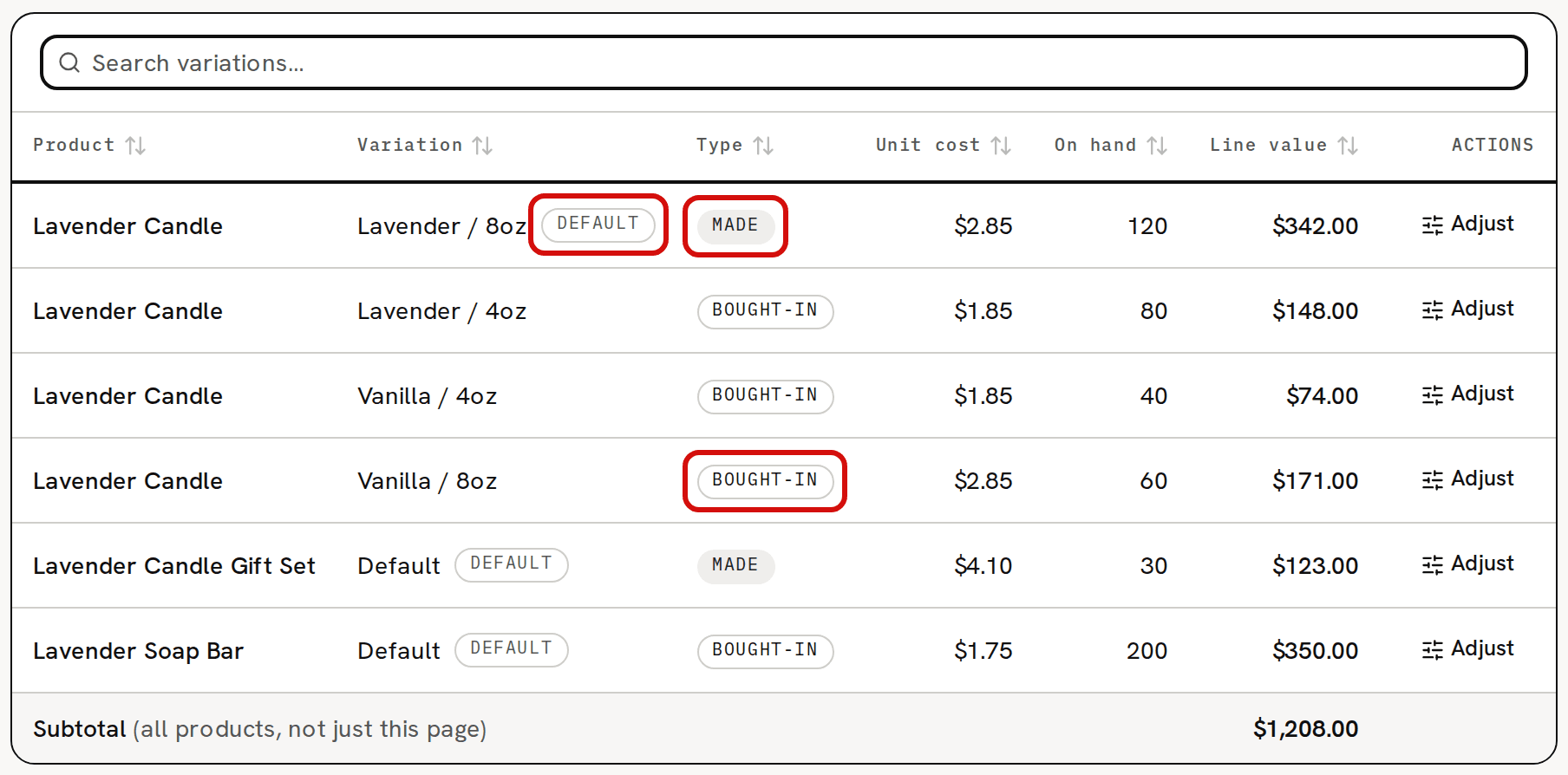
Type in the search box to show only the rows that match, such as "wax". Clear puts everything back.
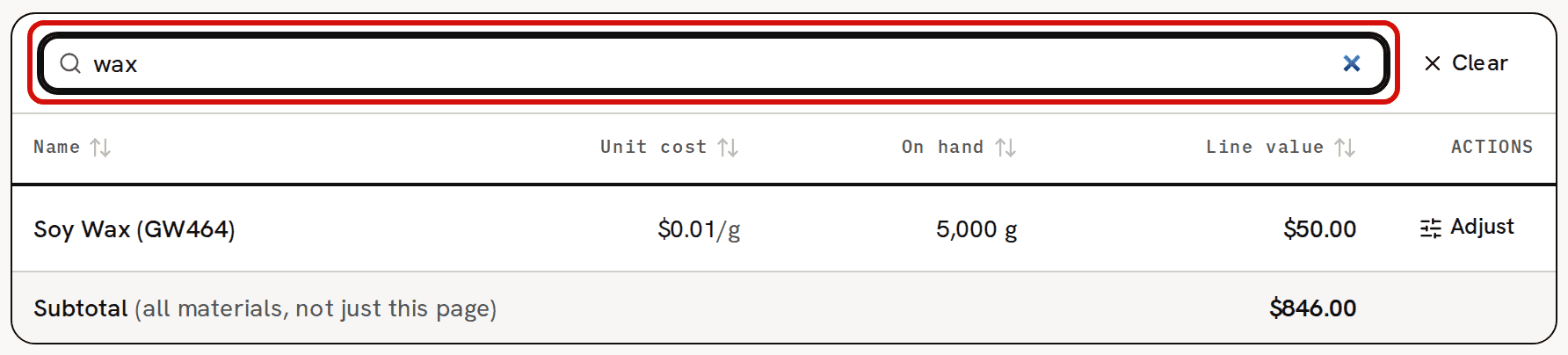
Search narrows the rows. The subtotal still covers everything. Click a column heading to sort by it, and click it again to reverse the order.
Past 20 rows, use Previous and Next under the table.
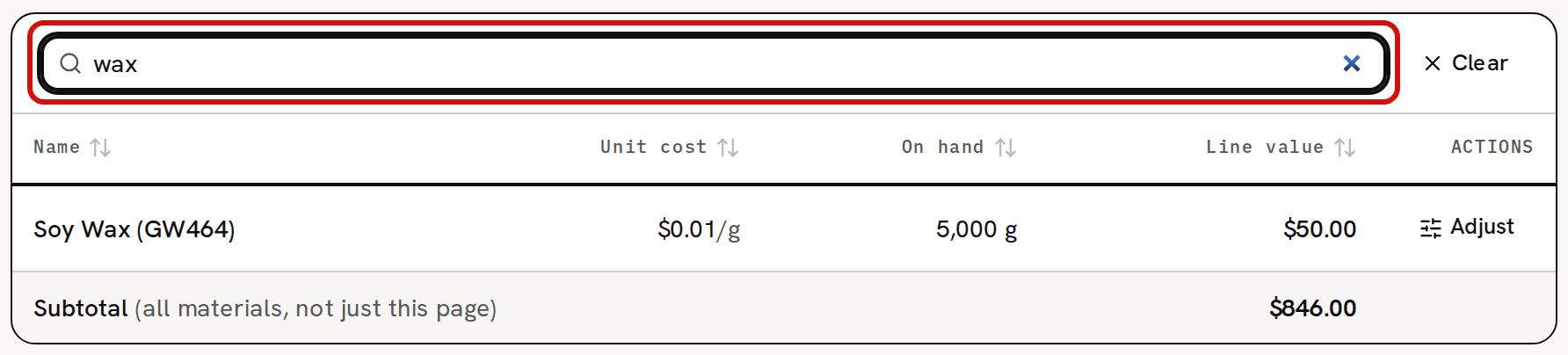
Searching, sorting and paging never change the Subtotal or the card. They always cover your whole workspace.
Open an item or adjust it
Click a row to open that material or product.
Click Adjust on a row to correct its count. Adjust stock walks through it.