Request your free migration
Tell Trackost what you are moving from and roughly how big your catalog is, and we email you to arrange moving your data in. It's free on every plan.
The Migration page asks 'Moving from Craftybase or a spreadsheet?' If you are, Trackost moves your materials, products, recipes and opening stock in for you, free on every plan. You ask with a short form, and we email you to arrange the move. There is nothing to upload in the app and no CSV import. This request is how a whole catalog comes in. Anyone in the workspace can send it, with or without money access. When your plan has ended, sending it is refused with 'Your plan has ended — subscribe to continue making changes.'
Open the form
Click Migration in the sidebar. It opens Settings › Migration. Step 2 of Get started has a Request free migration button that opens the same page.
Answer the questions
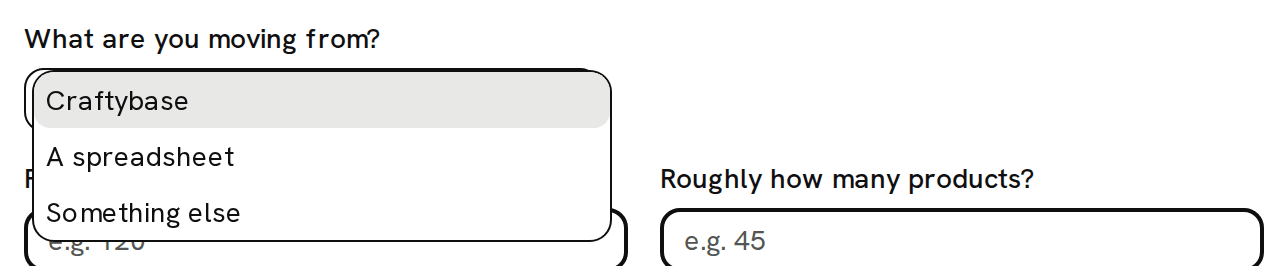
Under What are you moving from?, choose Craftybase, A spreadsheet or Something else. This is the only answer you have to give.
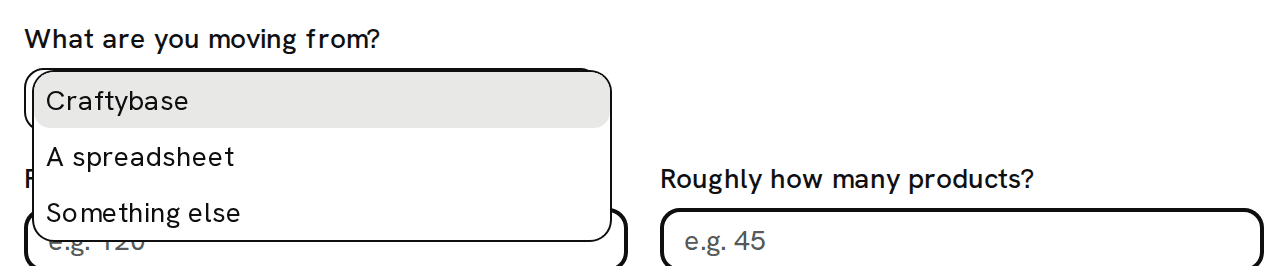
The tool you're moving from is the only answer you have to give. If you know them, fill Roughly how many materials? and Roughly how many products? with whole numbers, digits only. Leave a count blank if you're not sure.
Use Anything else we should know? (optional) for what helps us plan: the shops you sell on, anything unusual about your data, when you'd like to switch. It holds up to 2,000 characters.
Click Request free migration. 'Migration request sent' confirms it, and a Request sent card replaces the form.
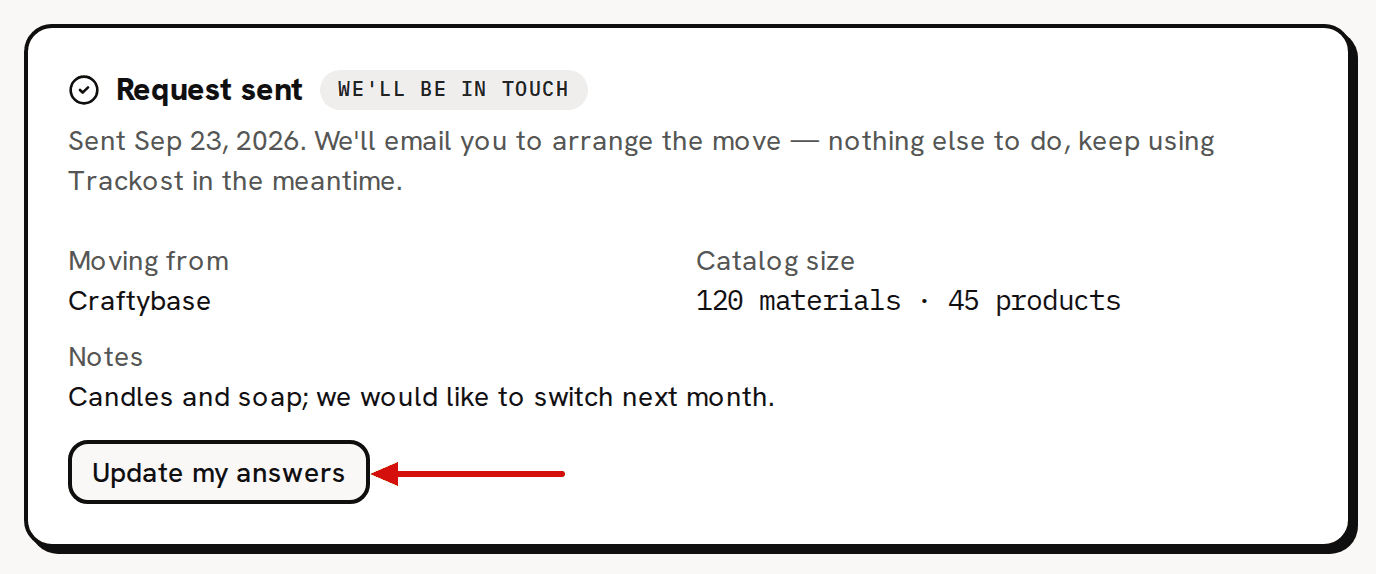
Nothing else to do: keep using Trackost while we arrange the move.
What you see afterwards
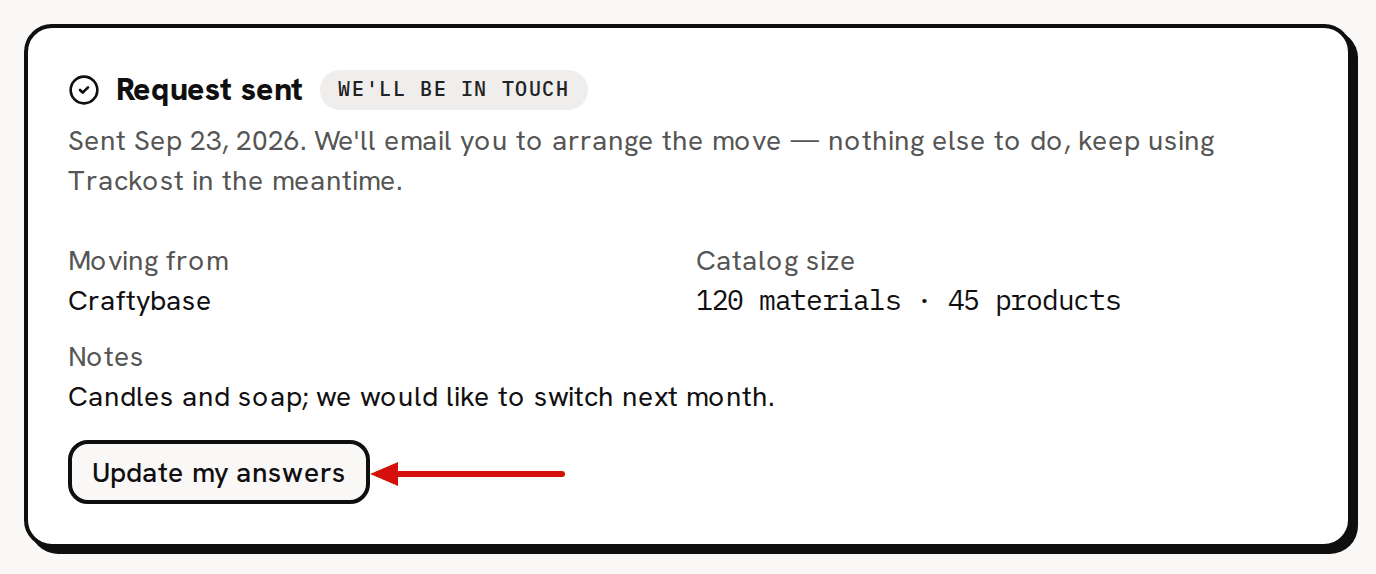
The Request sent card carries the badge We'll be in touch and the date you last saved your answers. It lists them under Moving from and Catalog size, and under Notes when you left one. There is nothing else to do. Keep using Trackost, and we email you to arrange the move.
Sending the request also completes step 2 of Get started, which then shows a Requested badge. It also counts as setting up your whole workspace. Get started jumps to 100% and Activated, and its last step reads 'Your data is in: materials, recipes and true costs are live in your workspace.' even though nothing has moved yet.

Update your answers later
A workspace has one migration request. Changing it replaces your earlier answers, it doesn't send a second request.
On Settings › Migration, click Update my answers. The form opens with your answers filled in.
Change what you need and click Save answers. 'Answers updated' confirms it. Cancel closes the form without saving. If you empty Anything else we should know? (optional) and save, your earlier note is removed.
If the form refuses to send
The message under the form says what to fix:
- 'Choose which tool you're moving from.' means What are you moving from? is still empty.
- 'Material count must be a whole number.' or 'Product count must be a whole number.' means a count has something other than digits in it, such as a decimal point, a comma or a word. Type 1200, not 1,200.
- 'Material count can't be negative.' or 'Product count can't be negative.' means a count is below zero.