Check if your price covers cost
Read the Pricing page, or a product's Pricing card, for full cost, list price, margin and a Covers or Below cost verdict, then fix a price that is too low.
Pricing puts every product variation's full cost beside its list price and tells you whether the price covers it. It shows money, so it needs money access. Without it, Pricing is not in the sidebar and the page shows 'Money access required'. If your trial or plan has ended, every page opens behind the plan wall, and a page left open in another tab refuses Set up default tiers and a price change with 'Your plan has ended — subscribe to continue making changes.'
Check every variation at once
- In the sidebar, under More, click Pricing.
- If the page says 'No pricing tiers yet', click Set up default tiers. The table appears once your workspace has tiers.
Read each row: Full cost, your List price, the Margin, and Covers?. A green Covers means the price is at or above full cost, and a price exactly equal to it counts. A red Below cost means every sale at that price loses money before fees. Unpriced means the variation has no list price yet.
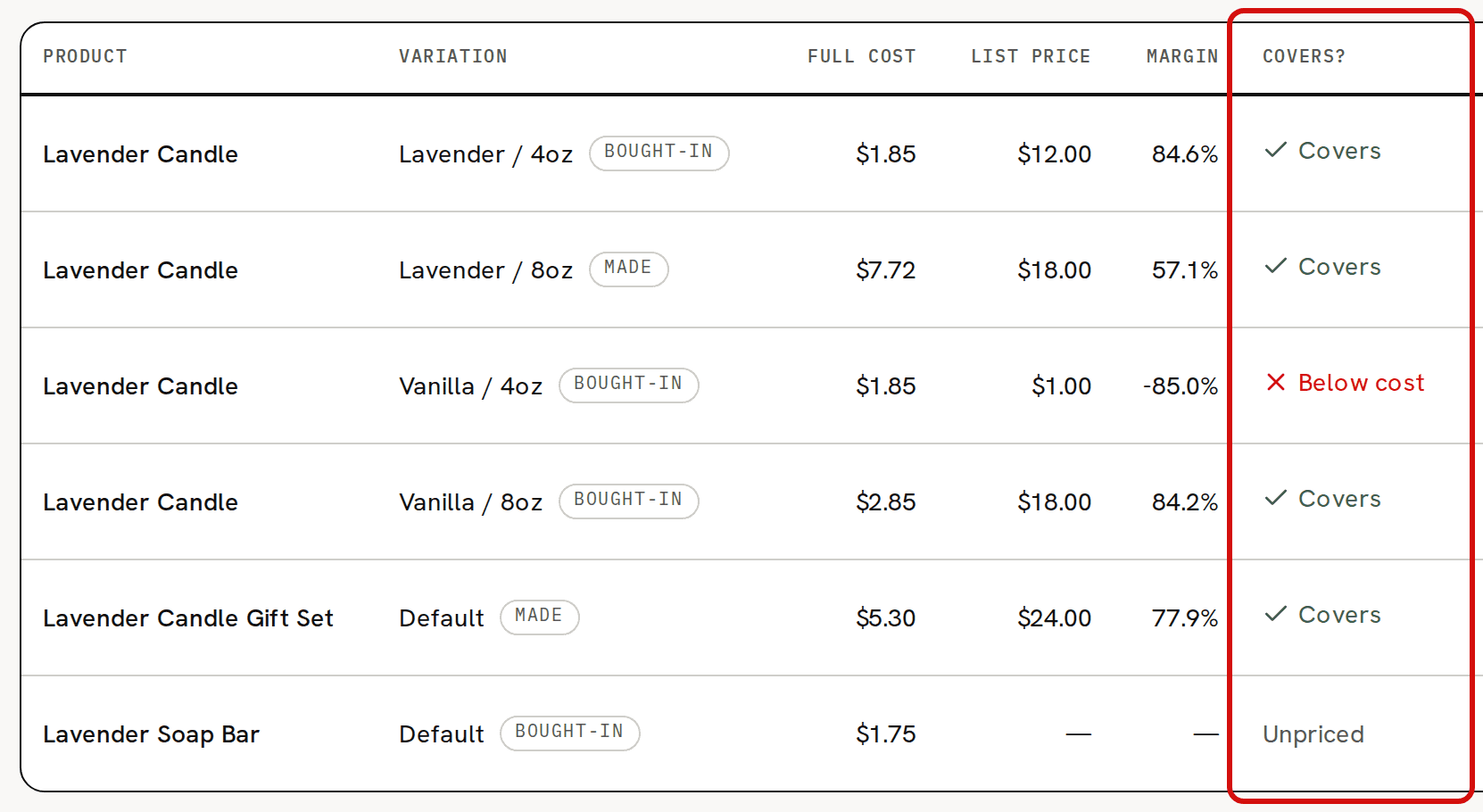
Three verdicts: Covers, Below cost and Unpriced.
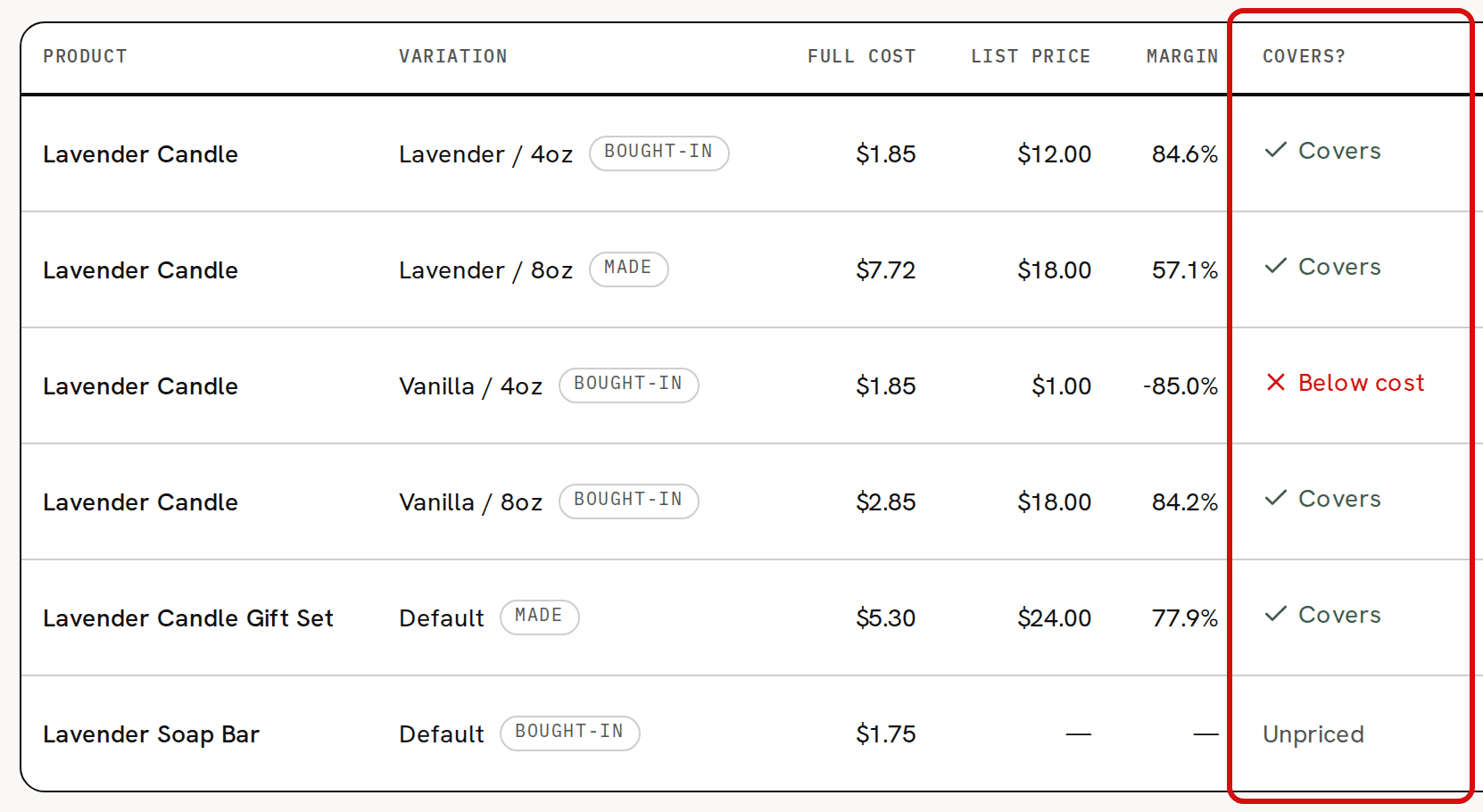
Margin is (list price − full cost) ÷ list price, so a price below cost has a negative margin.
A variation with no cost yet reads Covers with a 100.0% margin, because its full cost is $0.00. Check that its cost is real before you trust the verdict.
The page lists your variations by product name and shows at most 100. With more, a note under the table reads, for example, 'Showing the top 100 of 140 variations. Totals above cover all 140.' Archived variations are left out. To see one product's variations, archived ones included, use its Pricing card.
Check one product
- Open Products and click the product.
Scroll to the Pricing card. It has the same columns for this product's variations, with a Made or Bought-in badge on each.
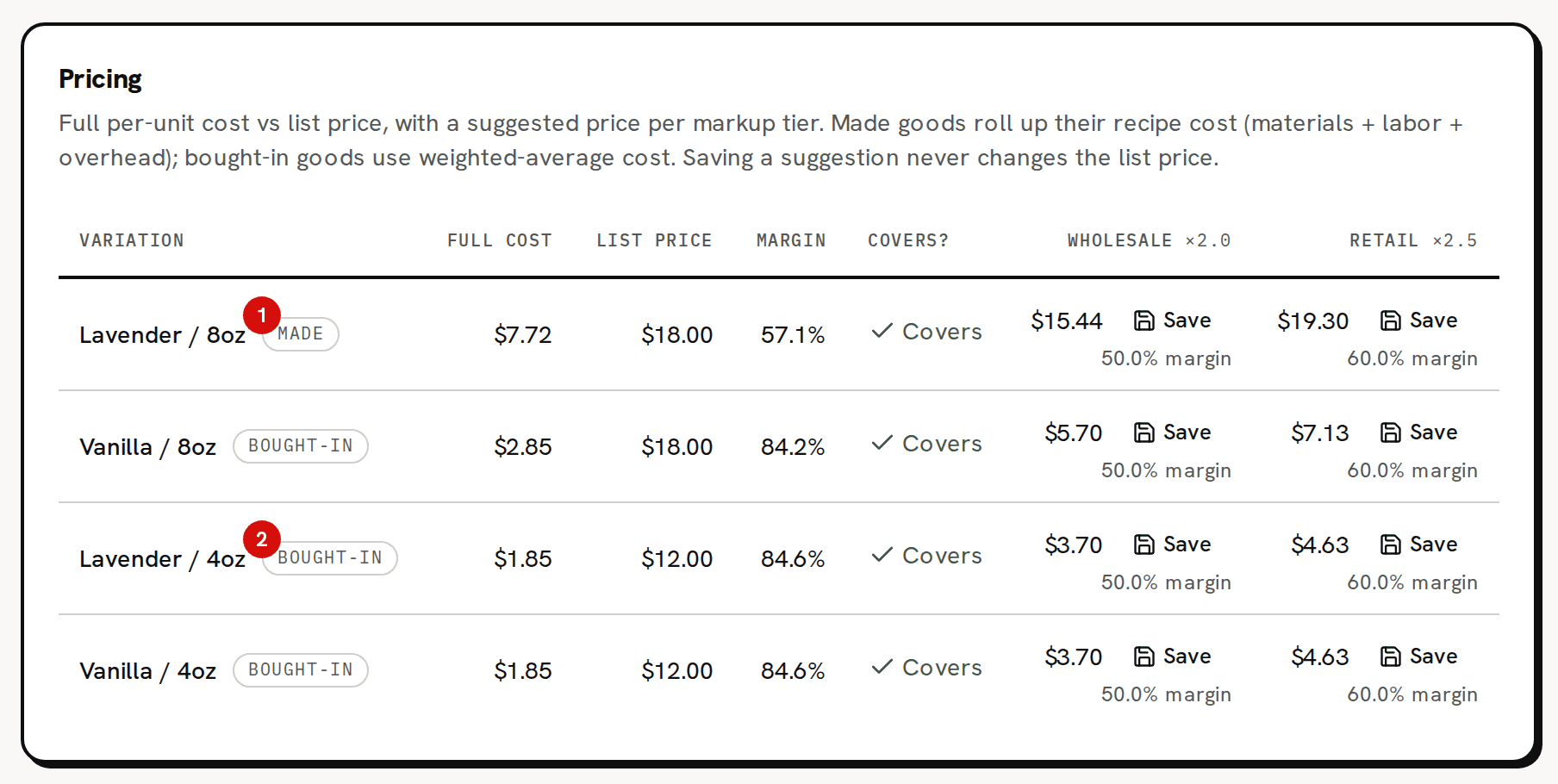
The same columns, for one product’s variations.
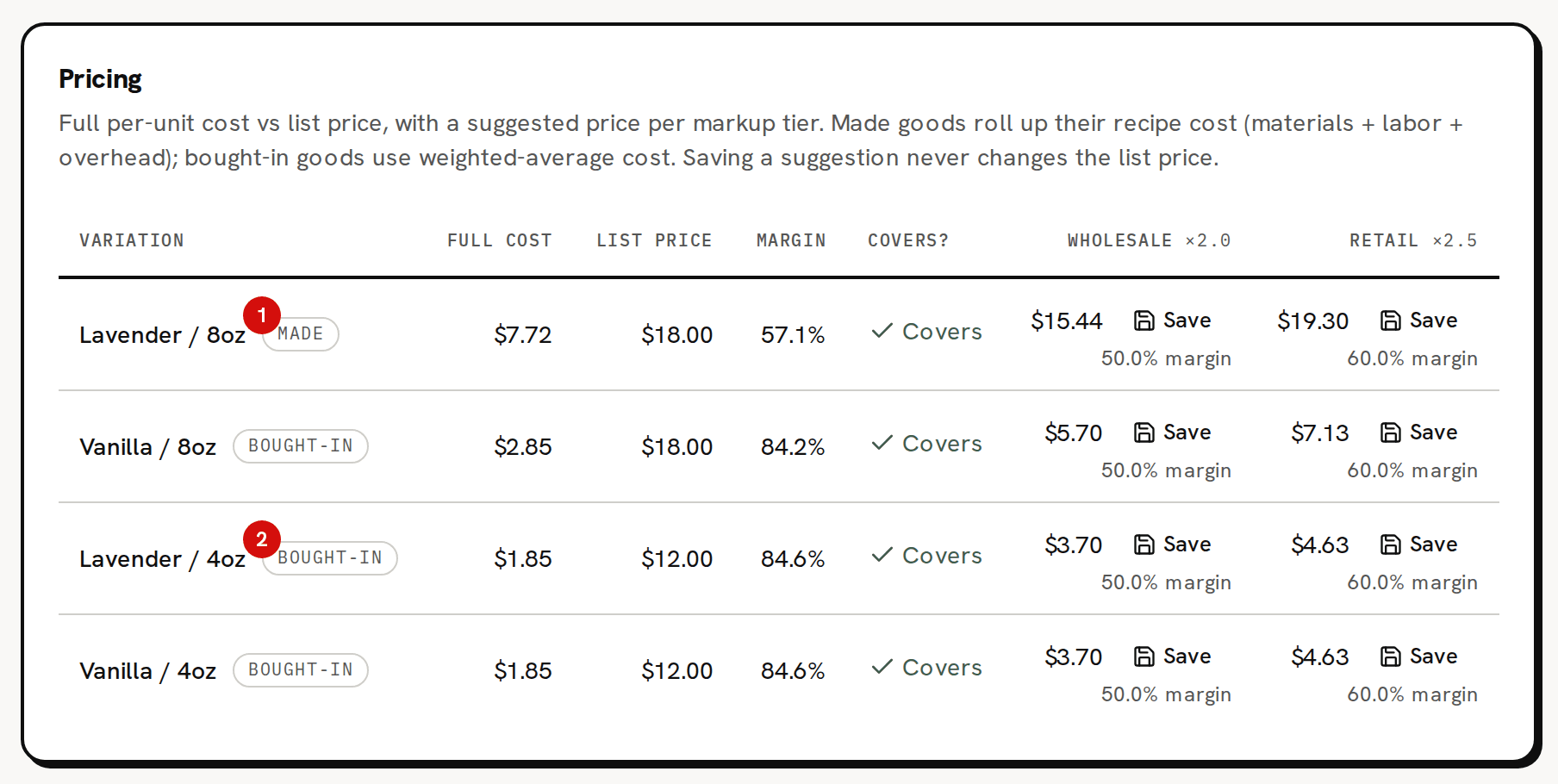
Made means the variation has a recipe, and its full cost is the recipe worked out at today's costs with labor and overhead. Bought-in means it has no recipe, and its full cost is the weighted-average cost of its stock. About full cost vs unit cost explains the difference.
Fix a price that is below cost
- Open Products and click the product.
- In the Variations card, click Edit on the variation's row.
- Type the new price in the Price box and click Save. You see 'Variation updated'.
Pricing reads the new list price at once. Saving a suggested price with Save in a tier column does not change the list price; only the variation's Price does.
If the price is right and the cost is too high, look at the cost instead. For a Made variation, the recipe's components, waste, labor minutes and overhead make up full cost. For a Bought-in one, it is what you paid for the stock you hold.
Why the dashboard and Margin Alerts read a little differently
The dashboard's alert for products sold below cost, and the Margin Alerts report, measure the price against a different cost from Pricing:
- For a Made variation, they use the recipe's materials and labor at today's costs, without the flat overhead.
- For a Bought-in one, they use its weighted-average cost, as Pricing does.
- The price is the list price, or the latest sale price when there is no list price.
On the sample candle, Lavender / 8oz, that cost is $7.52 and the margin 58.2%. Pricing adds the $0.20 of overhead: $7.72 and 57.1%. So Margin Alerts reads a little higher than Pricing for any variation with a recipe.