Add a variation (SKU) to a product
Add a new stockable version of a product with its own name, SKU, list price, status, low-stock limit and attribute values. Stock and cost start at 0.
A variation is one version of a product that you stock and sell, such as the 8oz Rose candle. Each one has its own SKU, price, stock and unit cost. Every product already has one, Default. Add a variation for each other version. Any member can add one. The price field is there only if you have money access. If your trial or plan has ended, the save is refused with 'Your plan has ended — subscribe to continue making changes.'
Add the variation
- Open the product from Products and scroll to the Add a variation card.
- Type the variation's Name, for example Rose / 8oz. It's required, and it can't be changed later.
- Type a SKU if you use item codes.
- Type the Price ($) you sell it at, for example 18.00. This is its list price. Leave it empty if you haven't priced it yet.
- Leave Status on Active. Type a Low-stock limit if you like. It shows in the Variations table's Low stock column, but no alert, list or report uses it.
If the product has attributes, pick a value in each picker that applies, such as 8oz for Size.
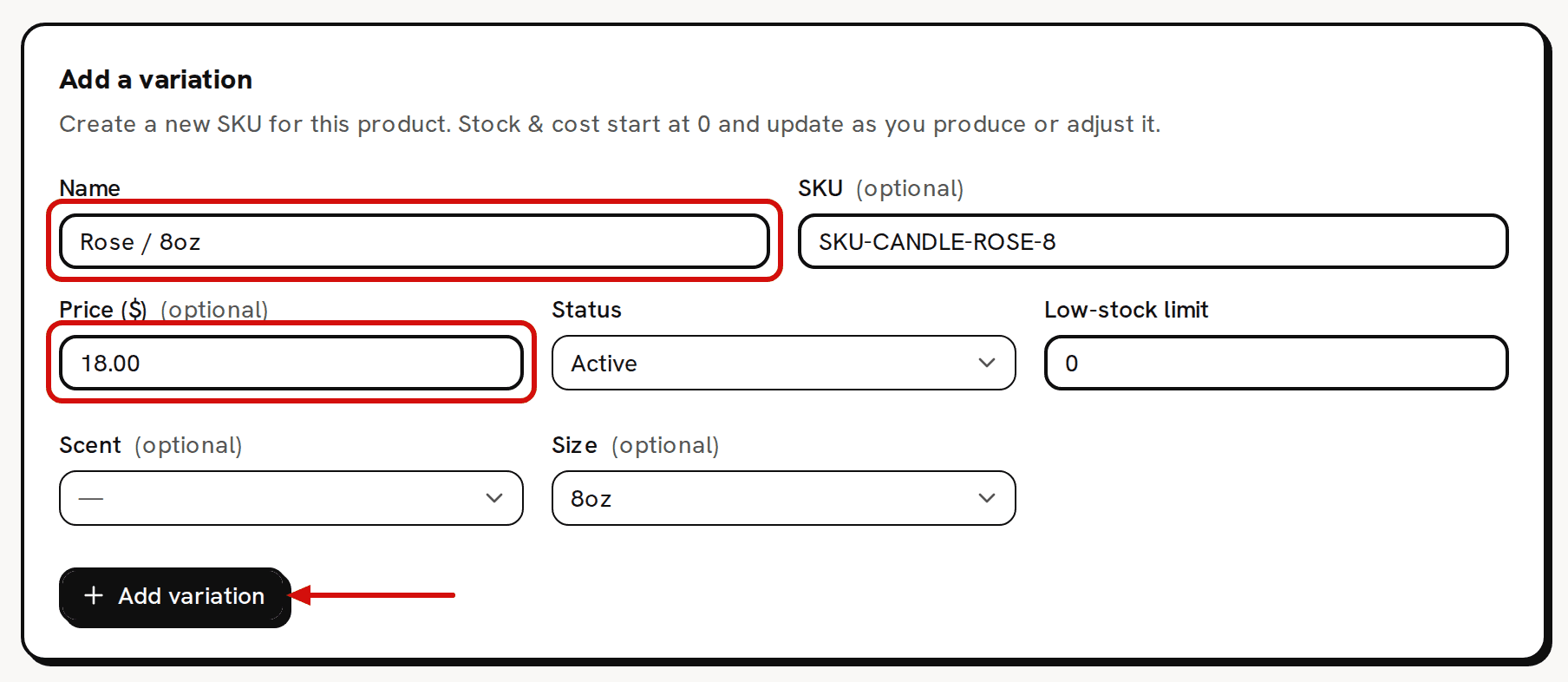
Stock and cost start at 0 and change as you make or adjust stock. Click Add variation. 'Variation added' confirms it, the form clears, and the new row appears in the Variations table.
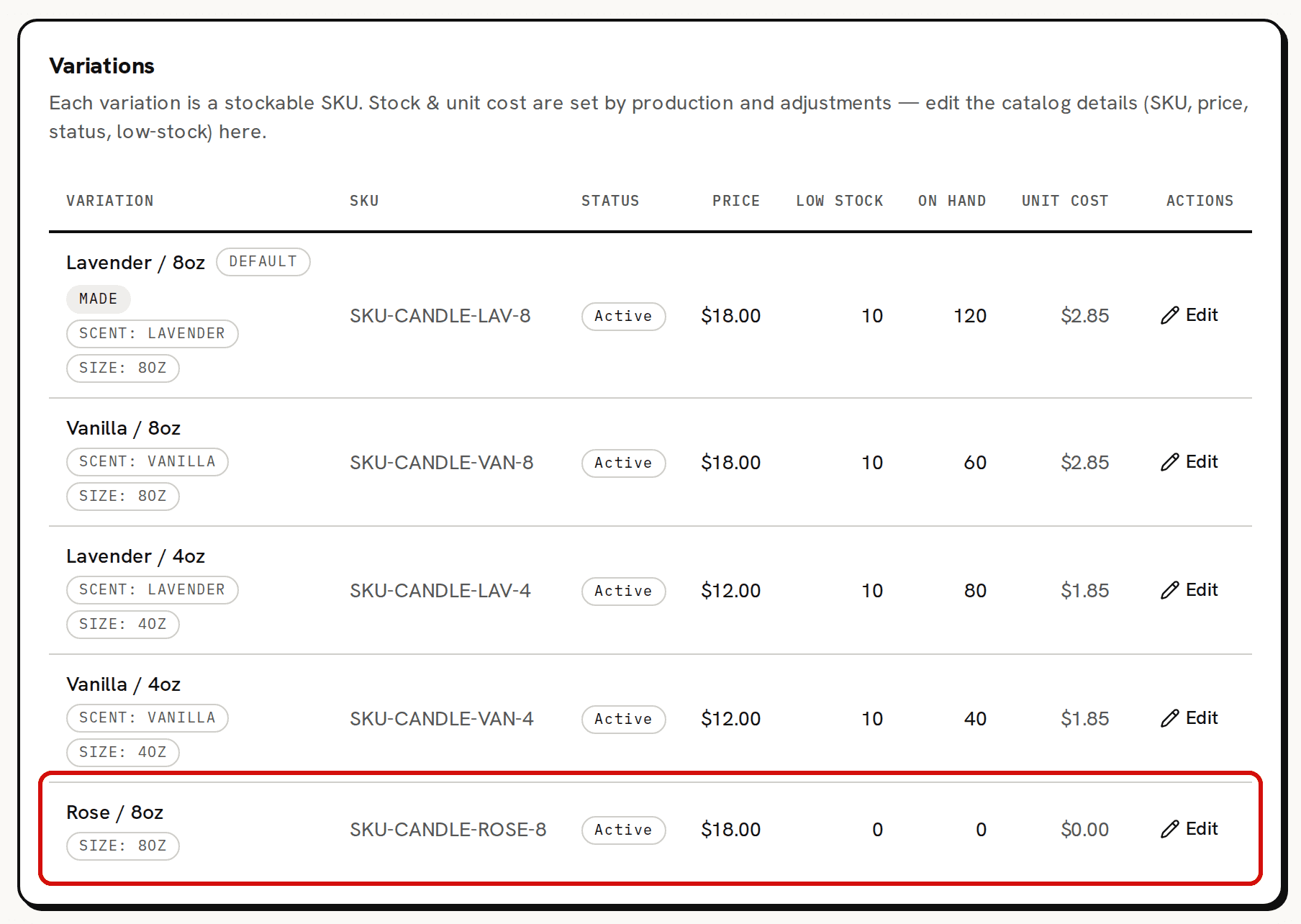
The new variation sits beside the others with 0 on hand and a $0.00 unit cost.
What starts at zero
The new variation joins the Variations table with 0 on hand and a $0.00 unit cost, and a badge for each attribute value you picked. On the Pricing card it reads Bought-in, with a Full cost of $0.00.
You never type stock or unit cost. They change when stock comes in:
- A variation you make gets them from batches. That needs a recipe, and only a product's Default variation can have one. The recipe page always opens the Default's recipe. A new variation you add here stays Bought-in.
- A variation you buy in or already hold gets them from an adjustment on Inventory with a cost basis. Bring your real stock into Trackost shows how.
If each version of a product you make needs its own recipe, add each version as its own product instead.
Field reference
- Name: required. Fixed once the variation is added.
- SKU: optional. You can change it later.
- Price ($): optional, only with money access. It's the list price that Pricing judges against the cost. Write it the way decimals are written in the language Trackost shows you: 18.00 in English. A member without money access doesn't see the field, and any price they send is never saved.
- Status: Active, Draft or Archived. Archived takes the variation off the Pricing page, the dashboard's stock lists and the product picker on a new order.
- Low-stock limit: a whole number, 0 by default. It is saved and shown, and nothing else uses it.
- One picker for each of the product's attributes. A dash means no value.
Change it later
Click Edit on the variation's row in the Variations table. The row's SKU, Status, Price and Low stock cells turn into fields. Change them, then click Save, or Cancel to leave the row as it was. 'Variation updated' confirms the save. The name, the attribute values, the stock on hand and the unit cost can't be edited there. Clearing the price leaves the variation unpriced.
Troubleshooting
- 'Name is required': the name is only spaces. An empty name is stopped by your browser before anything is sent.
- 'Enter a valid price (e.g. 12.00)': the price isn't an amount Trackost can read. In English, 12,50 is refused and 12.50 works. More than two decimals, such as 1.234, is refused too.