Add attributes (Scent, Size…) to a product
Give a product the attributes its variations differ by, such as Scent or Size, add values to each one, and pick them when you add a variation.
Attributes are the ways a product's variations differ: Scent, Size, Color. Each attribute has values, such as Lavender and Vanilla for Scent. When you add a variation, you pick one value for each attribute, and the variation shows them as badges like "Scent: Lavender". Attributes belong to one product, so each product gets its own. Any member can add them, with or without money access. If your trial or plan has ended, every save is refused with 'Your plan has ended — subscribe to continue making changes.'
What attributes are, and what they are not
Attributes are labels. They describe a variation you add, but they don't create variations for you. Adding Scent with three values and Size with two gives you no new variations until you add each one. They don't change any stock or cost either.
Add an attribute
- Open the product from Products and scroll down to the Attributes card. A product without attributes says so there.
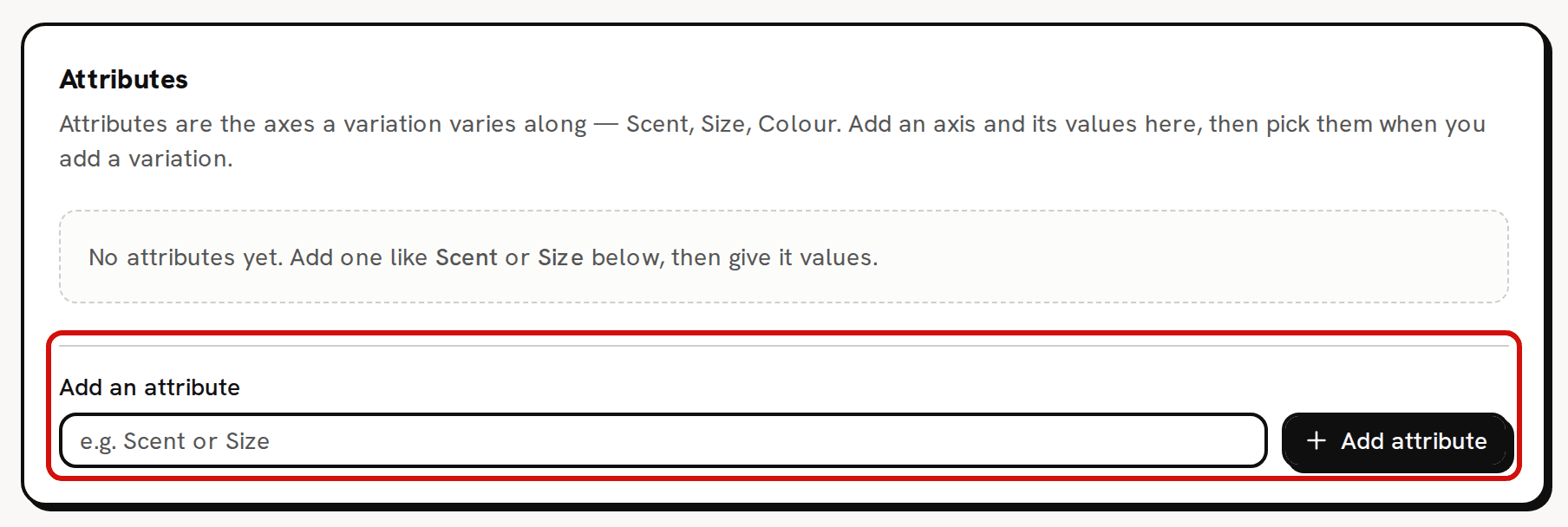
- Under Add an attribute, type the attribute's name, such as Scent.
Click Add attribute. 'Added attribute "Scent"' confirms it, and a Scent row appears with 'No values yet'.
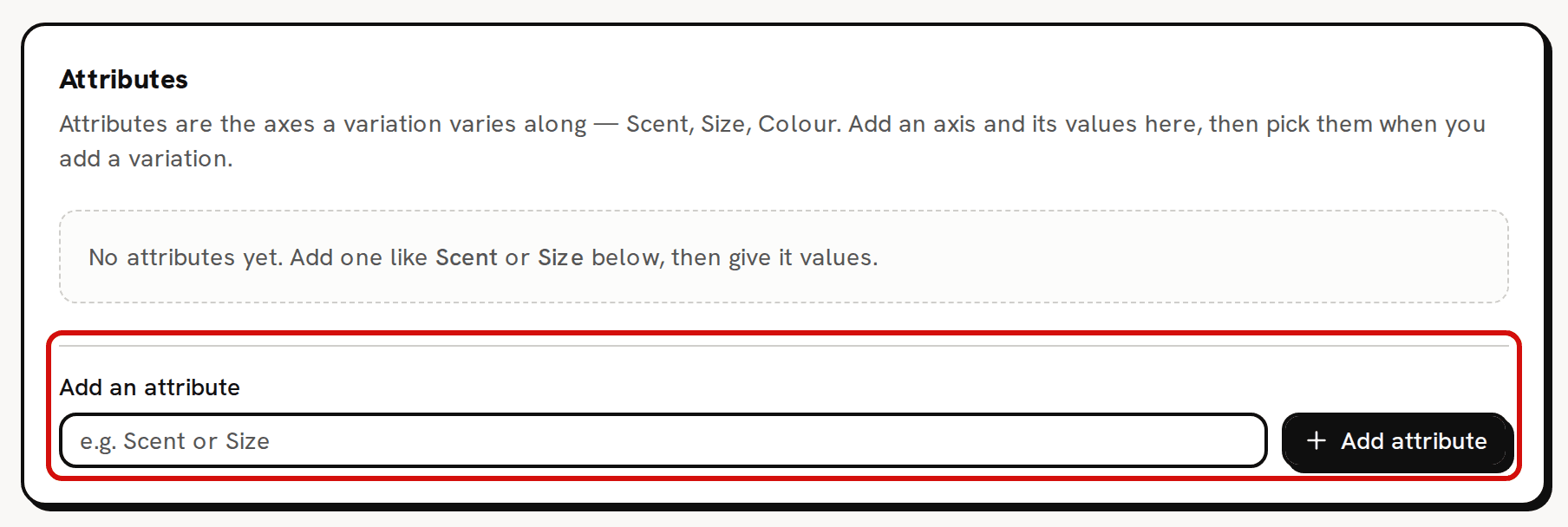
A product with no attributes yet. Add one, such as Scent or Size, then give it values.
Add values to an attribute
- In the attribute's row, type a value in Add a Scent value (the field is named after the attribute), such as Lavender.
Click Add value. 'Added "Lavender" to Scent' confirms it, and the value appears as a badge in the row. Repeat for every value and every attribute.
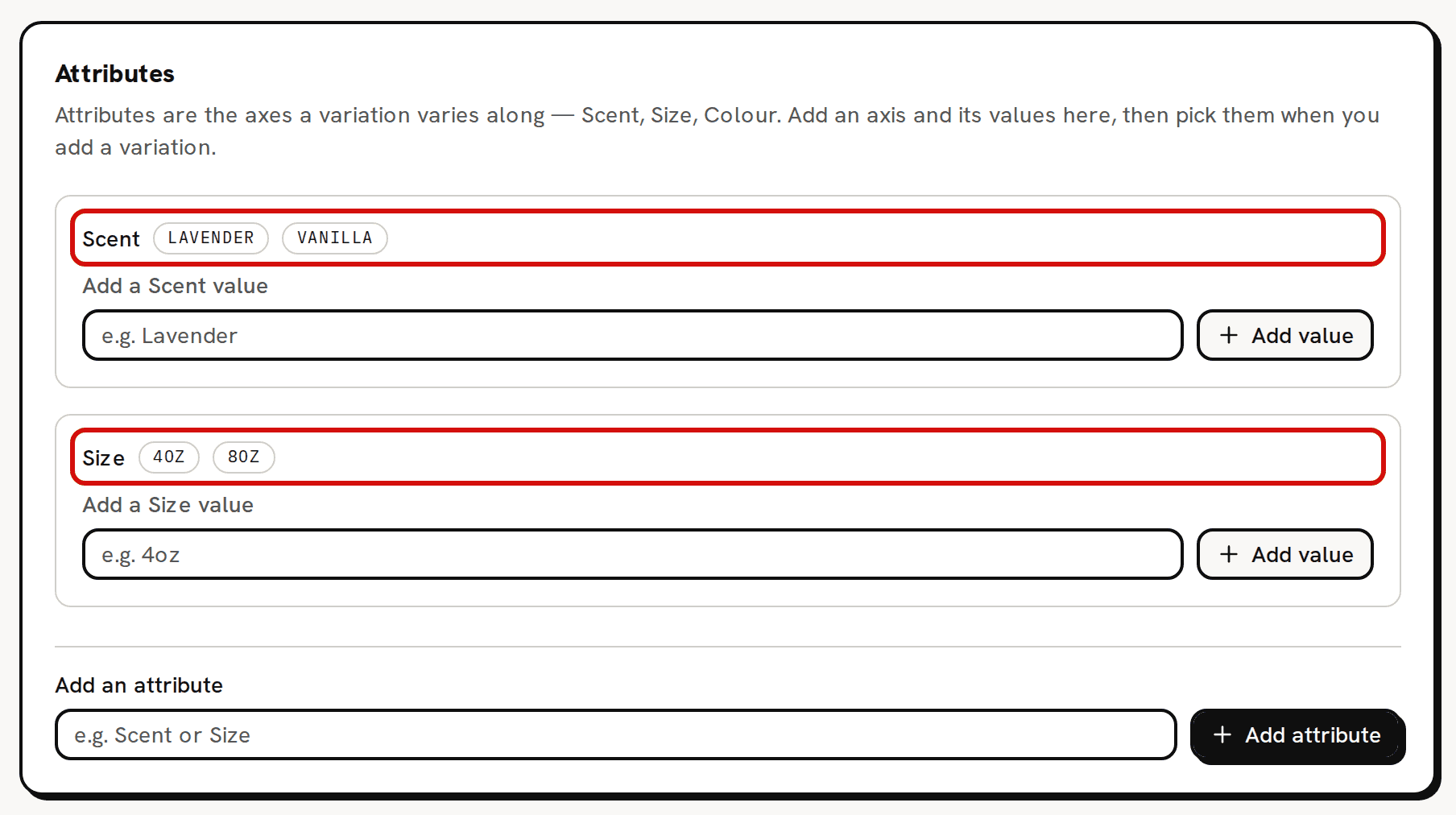
The sample candle: Scent (Lavender, Vanilla) and Size (4oz, 8oz).
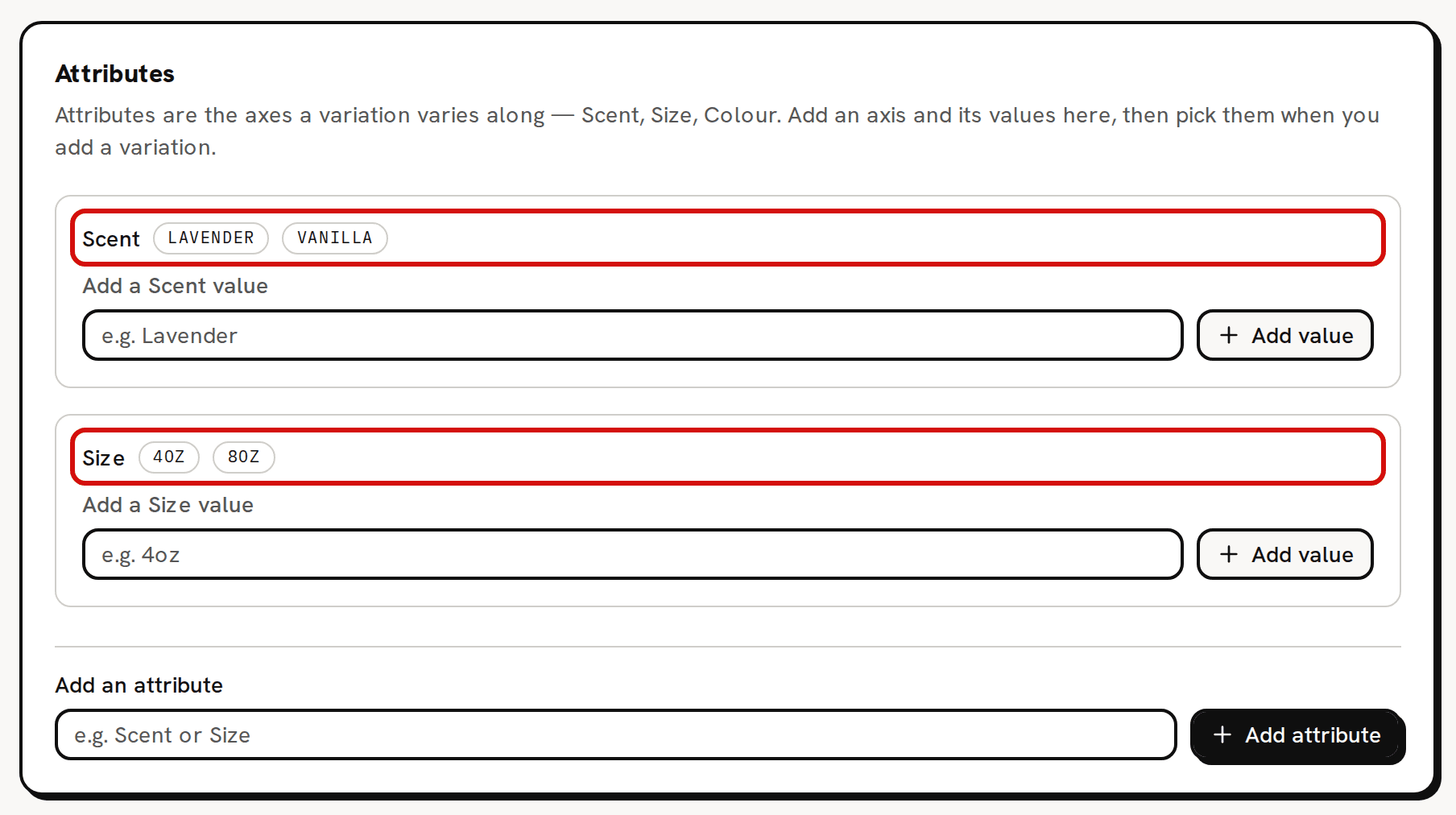
Values are listed in alphabetical order, whatever order you add them in.
Use them when adding a variation
Scroll up to the Add a variation card. It now has one picker for each attribute, labeled with the attribute's name. Each picker starts on a dash, which means no value.
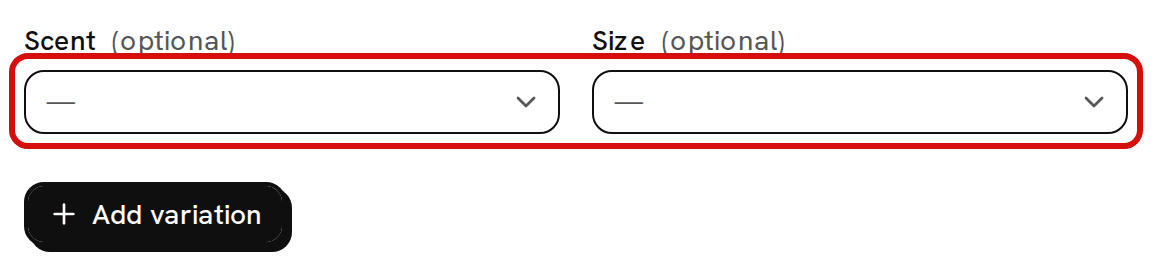
One picker per attribute appears once the product has an attribute. - Fill in the variation's Name and the other fields, and pick a value in each picker that applies.
- Click Add variation. The new row in the Variations table shows a badge for each value you picked, such as "Scent: Lavender" and "Size: 8oz".
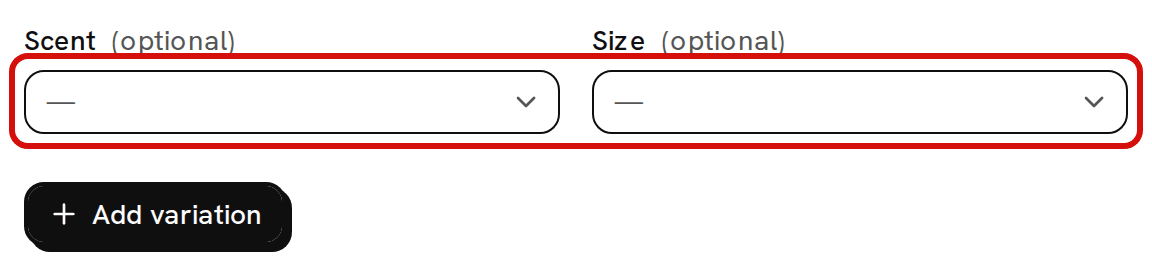
The pickers appear only once the product has at least one attribute. Variations you added before an attribute existed keep no value for it, and you can't give them one later. Add a variation (SKU) to a product covers the rest of the form.
Limits
- An attribute name must be new on this product, and a value must be new on its attribute. Capitals don't count, so "scent" clashes with "Scent". The refusal repeats what you typed. Adding scent to a product that has Scent is refused with 'This product already has an attribute named "scent".', and adding lavender to a Scent that has Lavender with '"Scent" already has the value "lavender".'
- A name made only of spaces is refused with 'Attribute name is required.', and such a value with 'Attribute value is required.' An empty field is stopped by your browser before anything is sent.
- Attributes and values can't be renamed, reordered or deleted.
- A variation's values are fixed when you add it. To give a version different values, add a new variation. The old one can't be deleted, but you can set its Status to Archived.