Add a product
Add a finished good with an optional SKU, category, pack size and photo, and see the Default variation Trackost creates for it.
A product is something you sell, whether you make it or buy it in to resell. Adding one creates the product and its first variation, Default, which is what you stock and sell. The form has no money field, so any member of your workspace can add a product. If your trial or plan has ended, the save is refused with 'Your plan has ended — subscribe to continue making changes.'
Before you start
- Pick the name you sell the product under. You can change it later.
- If the product comes in versions, such as scents or sizes, you add those as variations after saving. The product itself is only the name on the shelf.
- A Default SKU typed here goes onto the Default variation. It's the only time this form asks for a SKU.
Add the product
- Open Products in the sidebar and click Add product.
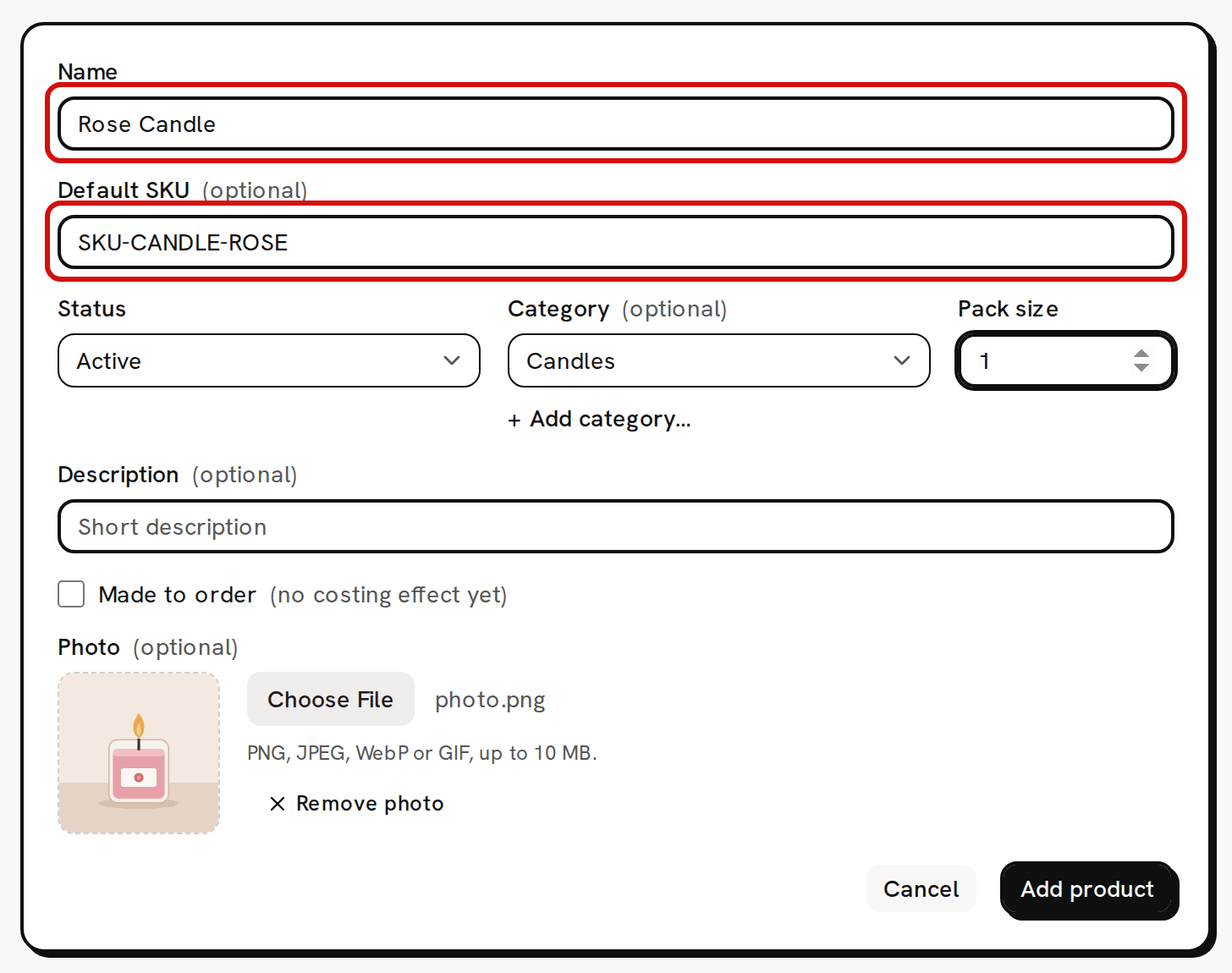
- Type the product's Name. It's the only field you must fill in.
- If you use item codes, type a Default SKU. It becomes the SKU of the product's first variation.
- Pick a Status. Active is already picked.
- Pick a Category, or click + Add category… under the picker, type a name and click Add category. The new category is picked for you, and every product in your workspace can use it.
- Leave Pack size at 1 unless you sell the product in packs. It only adds a "Pack of 3"-style badge.
- Add a Description if you like. Tick Made to order only as a note to yourself. The form marks it '(no costing effect yet)'.
Choose a Photo: a PNG, JPEG, WebP or GIF of up to 10 MB. A preview appears. Remove photo clears it.
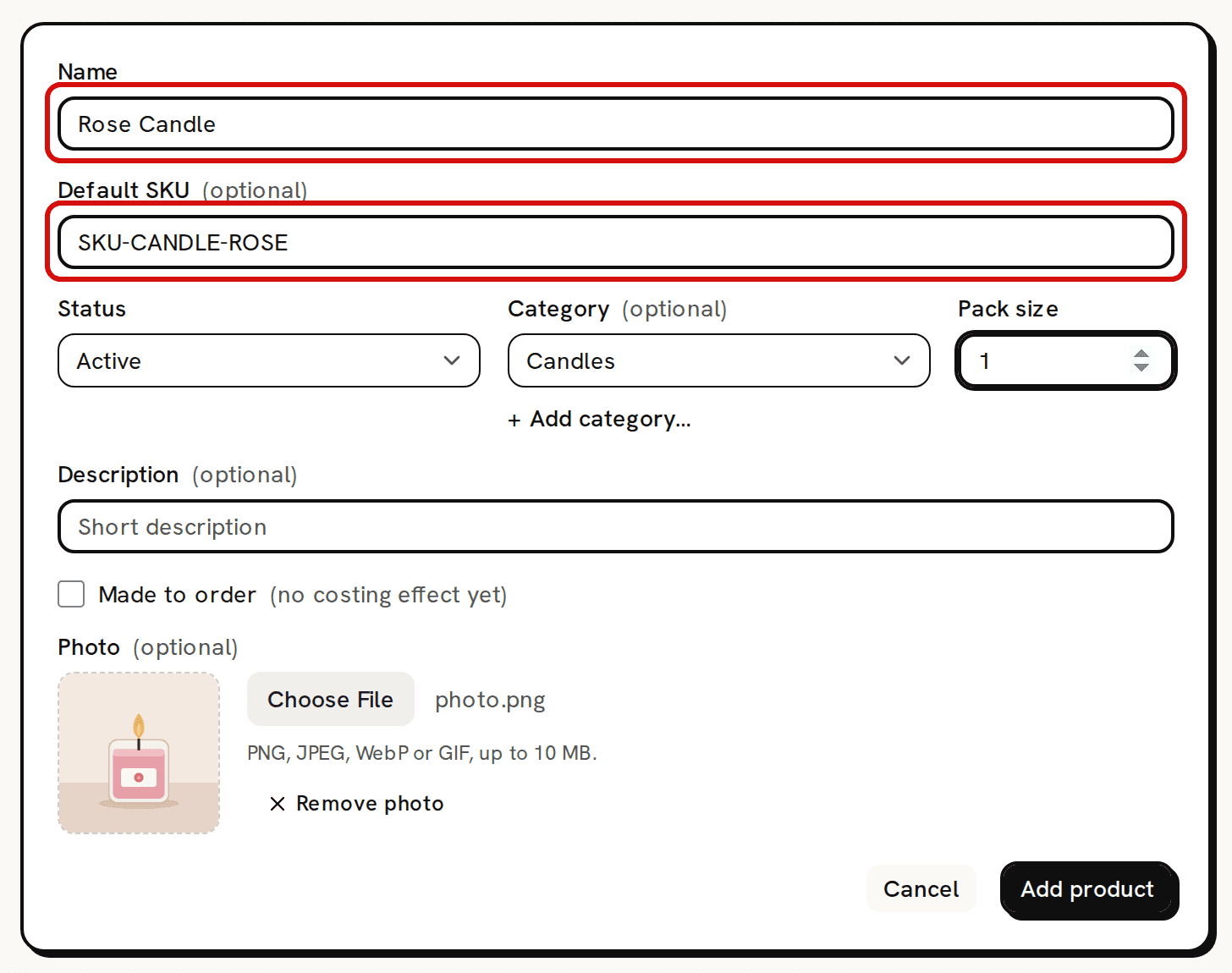
Only Name is required. Click Add product. The button reads 'Uploading…' while the photo goes up, then 'Saving…'. You see 'Product added' and land back on the Products list, where the new product has one row.

A new product arrives with one Default variation, at $0.00 and 0 on hand.

What gets created
That row is the product's Default variation:
- the SKU you typed as the Default SKU, or a dash;
- Bought-in as its type, because no recipe makes it yet;
- a Unit cost of $0.00 and 0 On hand;
- the photo as a thumbnail beside the name.
Stock and unit cost always start at 0. They change when you make a batch or adjust stock on Inventory, never by typing. The Default variation has no price yet. With money access, set one with Edit on its row on the product's page.
To change the product later, click Edit at the end of its row on Products. The product's own page has no Edit button. The edit form has every field except Default SKU, and saves with Save changes. A product can't be deleted. Set its Status to Archived to mark it as retired.
Field reference
- Name: required. You can change it later.
- Default SKU: optional, on this form only. It becomes the Default variation's SKU, which you change on the variation afterwards.
- Status: Active, Draft or Archived. Draft and Archived add a badge to the product, and none of them changes anything else.
- Category: optional. It groups your products.
- Pack size: a whole number, 1 or more. A pack size above 1 shows a badge. Selling one still takes one unit out of stock, and costs don't change.
- Description: optional. It shows under the product's name on its page.
- Made to order: stored with the product. It doesn't change how anything is costed.
- Photo: optional. PNG, JPEG, WebP or GIF, up to 10 MB.
Troubleshooting
- 'Name is required': the name is only spaces. An empty name is stopped by your browser before anything is sent.
- 'That category is not available in this workspace.': the category you picked can't be used for products. Pick another one, or add one with + Add category….
- 'Unsupported image type "image/bmp". Use PNG, JPEG, WebP or GIF.' or 'Image is too large (max 10 MB).': the photo can't be used, and the product isn't saved. Pick another photo, or click Remove photo and save without one.
- 'The photo upload failed (HTTP 500). Please try again.': the photo didn't reach storage, and the product isn't saved. Try again, or save without the photo and add it later from Edit.