TUTORIAL: Introduction to products
About 25 minutes: add your first product field by field, meet its Default variation, give it a scent and a size, and add a second variation with a price.
What are products and variations?
A product is something you sell: a candle you pour, a bar of soap you cut, a gift set you put together, or an item you buy ready-made and resell. In Trackost the product is the name on the shelf. What you count and sell are its variations, one for each version of it, such as a scent or a size. Each variation has its own SKU, price, stock and unit cost.
Every product has at least one variation. When you add a product, Trackost creates the first one for you and names it Default.
In this tutorial you add a Rose Candle, give it a scent and a size, add a second variation called Rose / 8oz, and read what the product's Pricing card makes of it.
Step 1: Open Products
- Click Products in the sidebar.
Click Add product at the top right.
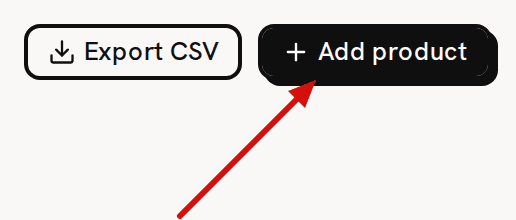
Add product is at the top right of Products.
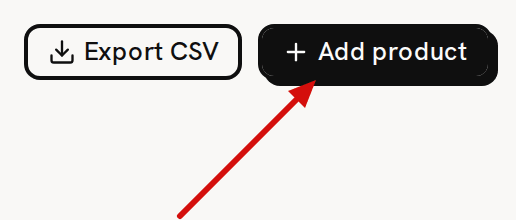
Export CSV, beside it, downloads your product list. It's there only if you have money access.
Step 2: The Add product form, field by field
Only the name is required. Everything else can wait.
- Type the Name: Rose Candle.
- If you use your own item codes, type a Default SKU, for example SKU-CANDLE-ROSE. It becomes the SKU of the product's first variation. This field is only on this form. Later you change the SKU on the variation itself.
- Leave Status on Active. Draft and Archived only add a badge to the product.
- Pick a Category, such as Candles. To make a new one, click + Add category… under the picker, name it and click Add category. The new category is picked for you.
- Leave Pack size at 1. A bigger number only adds a "Pack of 3"-style badge. Selling one still takes one unit out of stock.
- Add a Description if you like. Leave Made to order unticked. The form marks it '(no costing effect yet)', and it doesn't change how anything is costed.
Choose a Photo: a PNG, JPEG, WebP or GIF of up to 10 MB. A preview appears, with Remove photo to clear it.
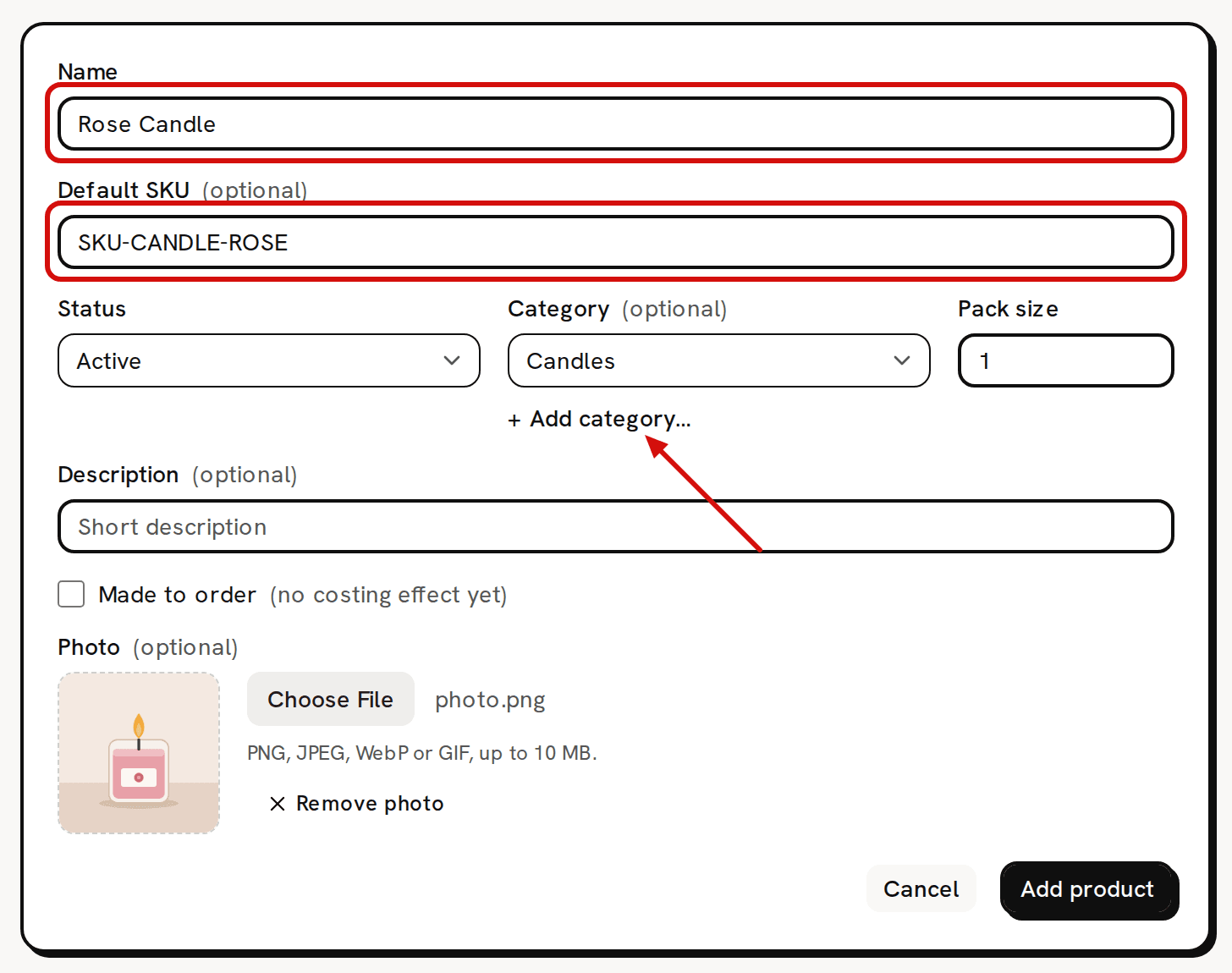
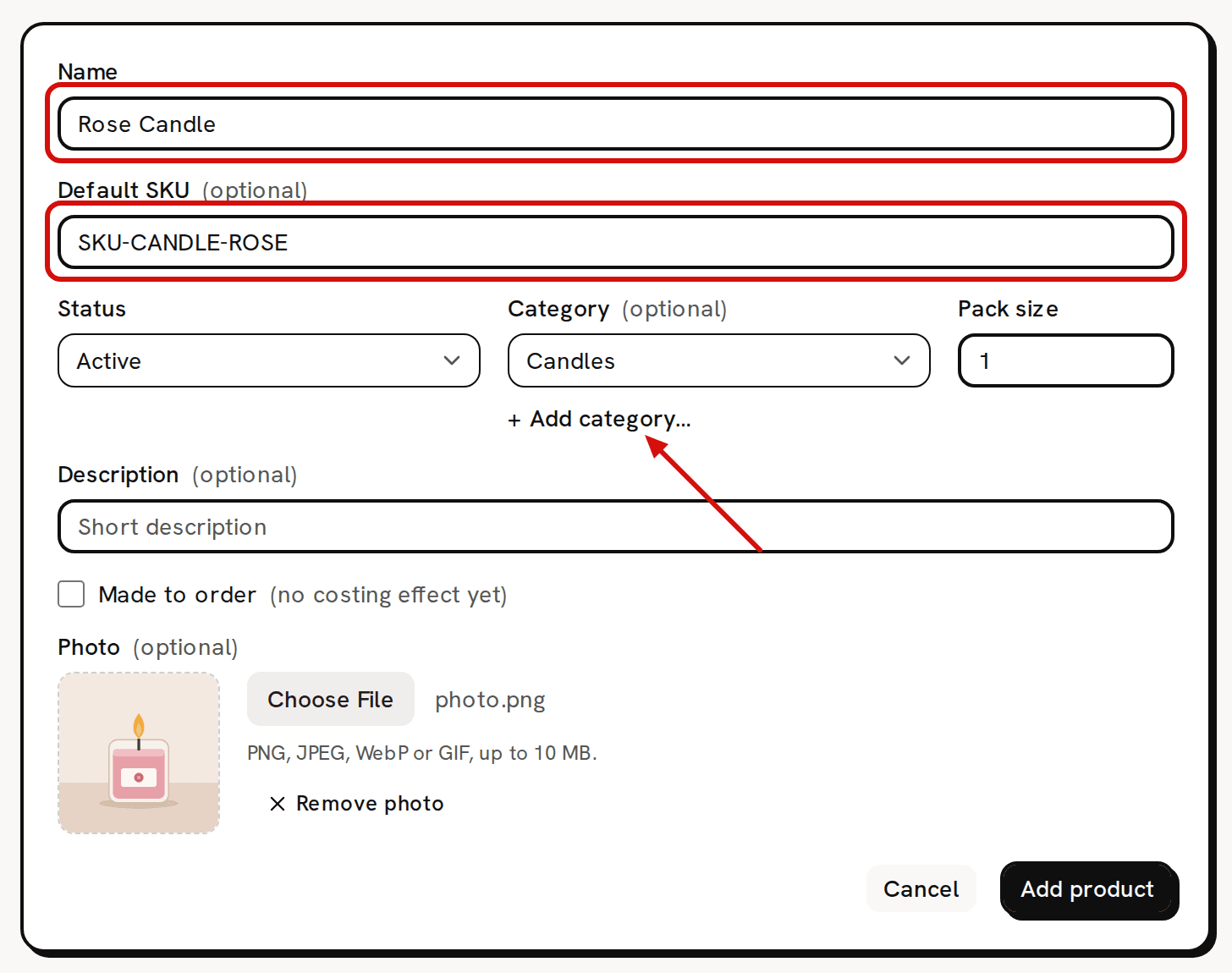
Only Name is required. The Default SKU goes on the product’s first variation. - Click Add product. The button reads 'Uploading…' while the photo goes up, then 'Saving…'. You see 'Product added' and land back on the list.
Step 3: Your first variation is created for you
- Click the Rose Candle row on the list. Anywhere on the row opens the product.
The Variations card at the top has one row, Default. It carries the SKU you typed, the status Active, no price yet, 0 on hand and a Unit cost of $0.00.
You never type stock or unit cost. They change when you make a batch or adjust the stock on Inventory. The row's Edit button changes its SKU, status, price and low-stock limit, and nothing else. Its name stays Default. A variation can't be renamed, and nothing on this page can be deleted.
This page has no Edit button for the product itself. To change the product's name, status, category, pack size, description or photo, go back to Products and click Edit at the end of its row.
Step 4: Add attributes (Scent, Size)
Attributes are the ways your variations differ, such as scent and size. They are labels. Adding one creates no variations and changes no cost.
- Scroll down to the Attributes card.
- Under Add an attribute, type Scent and click Add attribute. A Scent row appears, with 'No values yet'.
- In Add a Scent value, type Rose and click Add value. Add Lavender the same way.
Add a second attribute, Size, with the values 8oz and 4oz.
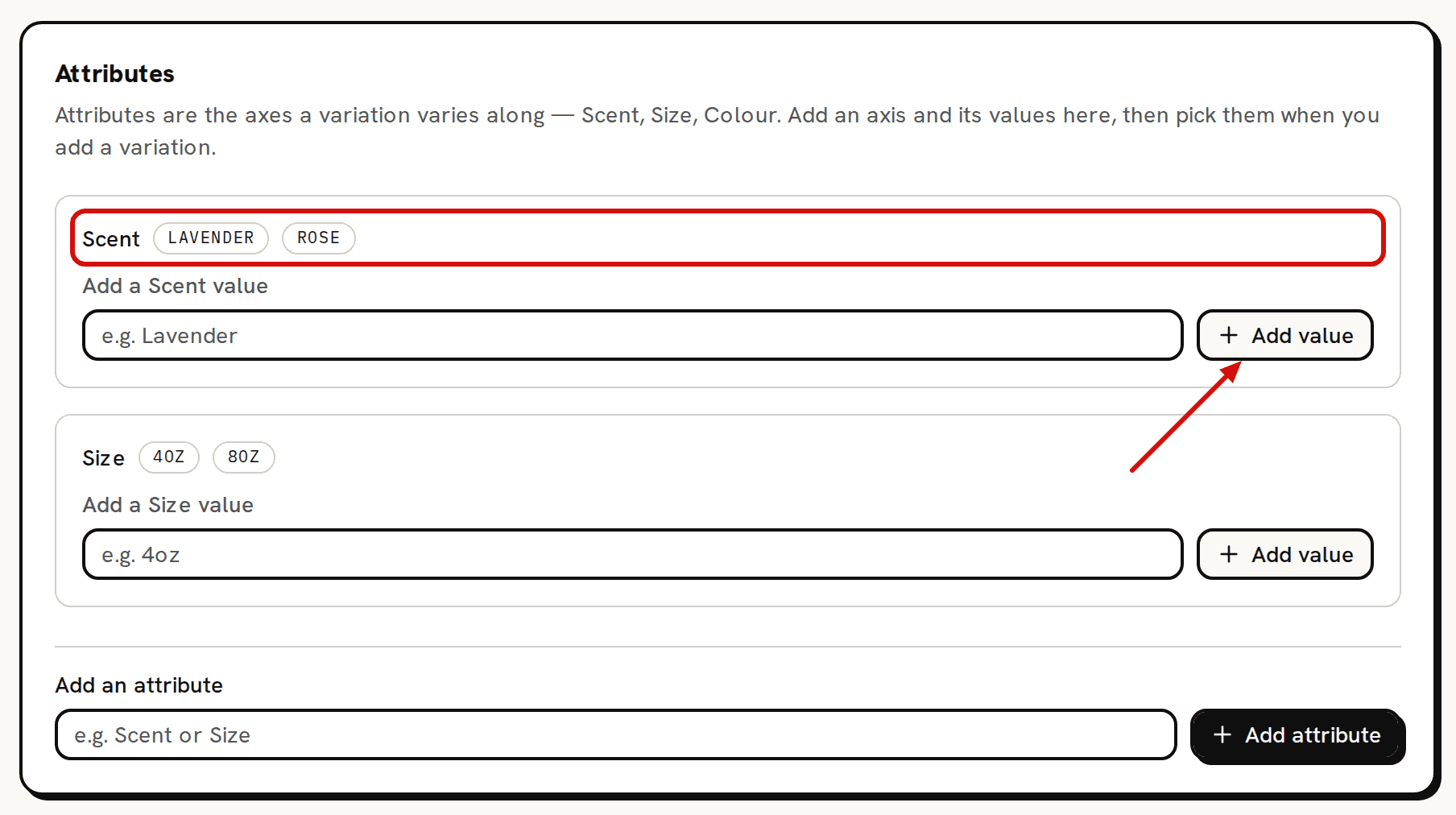
Attributes are the ways your variations differ, such as scent and size.
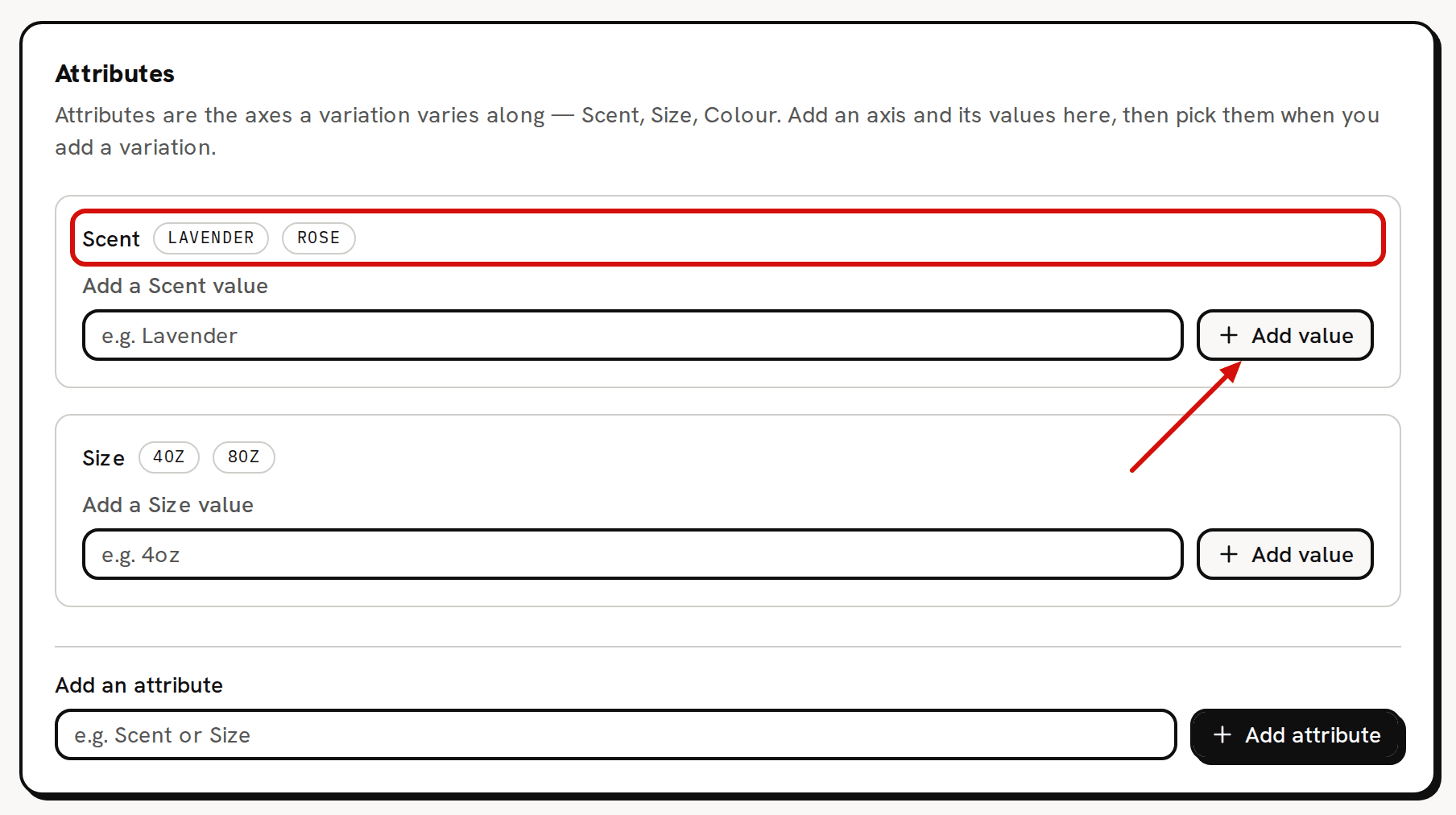
Each attribute lists its values in alphabetical order.
Step 5: Add a second variation with its own SKU and price
- Scroll up to the Add a variation card. It now has one picker for each attribute, Scent and Size.
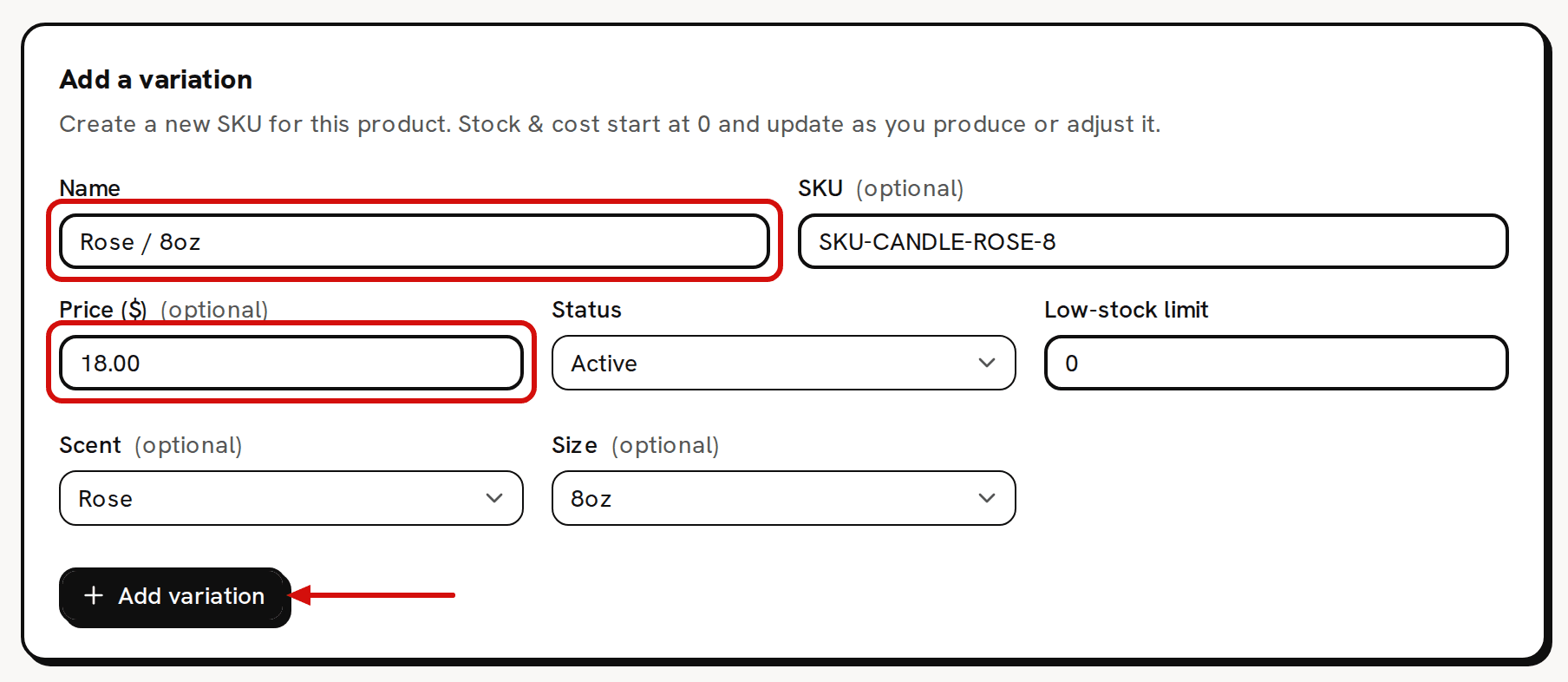
- Type the Name: Rose / 8oz. Choose it with care, because a variation can't be renamed.
- Type a SKU, for example SKU-CANDLE-ROSE-8.
- Type the Price ($) you sell it at: 18.00. This is the list price. Write it the way decimals are written in the language Trackost shows you: 18.00 in English. You see this field only if you have money access.
- Leave Status on Active and Low-stock limit at 0. The limit shows in the table's Low stock column, but no alert, list or report uses it.
Pick Rose in the Scent picker and 8oz in the Size picker.
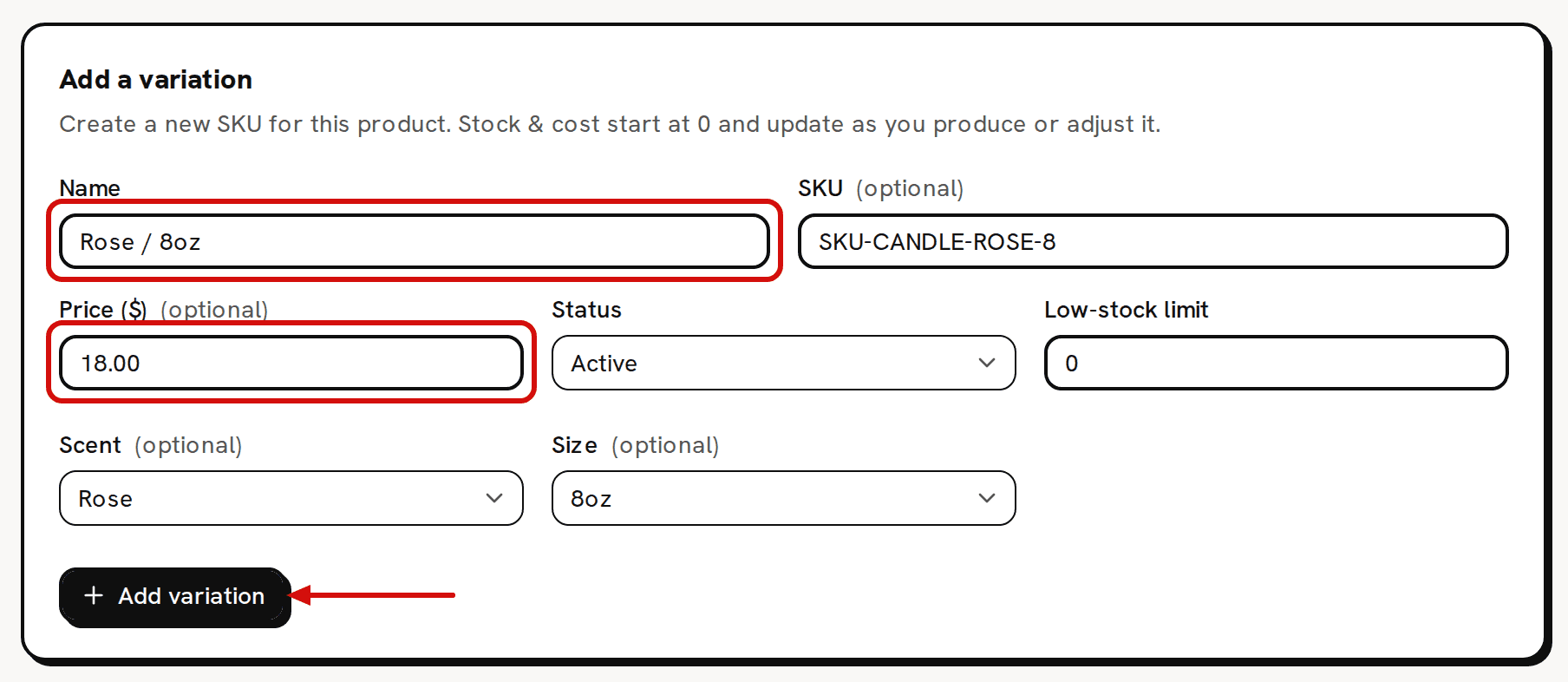
Stock and cost start at 0 and change as you make or adjust stock. - Click Add variation. 'Variation added' confirms it. Rose / 8oz joins the Variations table with 0 on hand, a $0.00 unit cost and two badges, "Scent: Rose" and "Size: 8oz".
Step 6: Read the Pricing card
The Pricing card compares what each variation costs you with the price you sell it at. It's there only if you have money access.
Scroll down to the Pricing card at the bottom of the page.
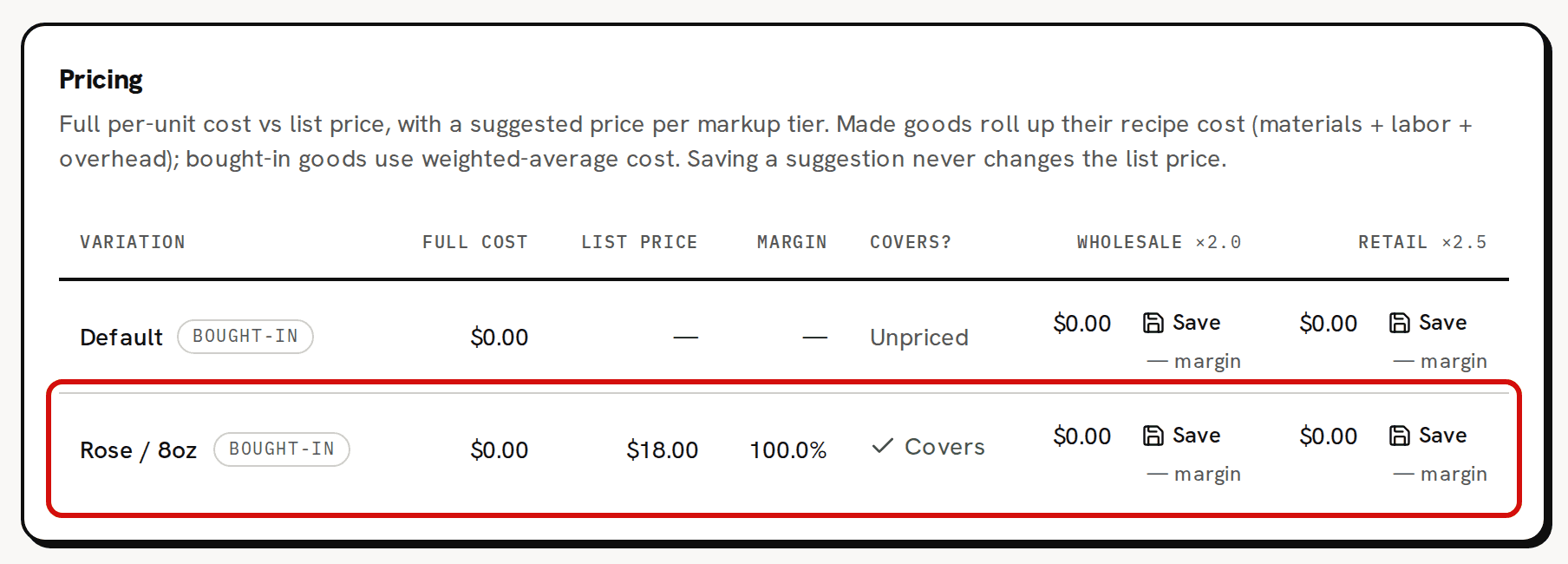
A new variation’s full cost is $0.00 until stock with a cost reaches it.
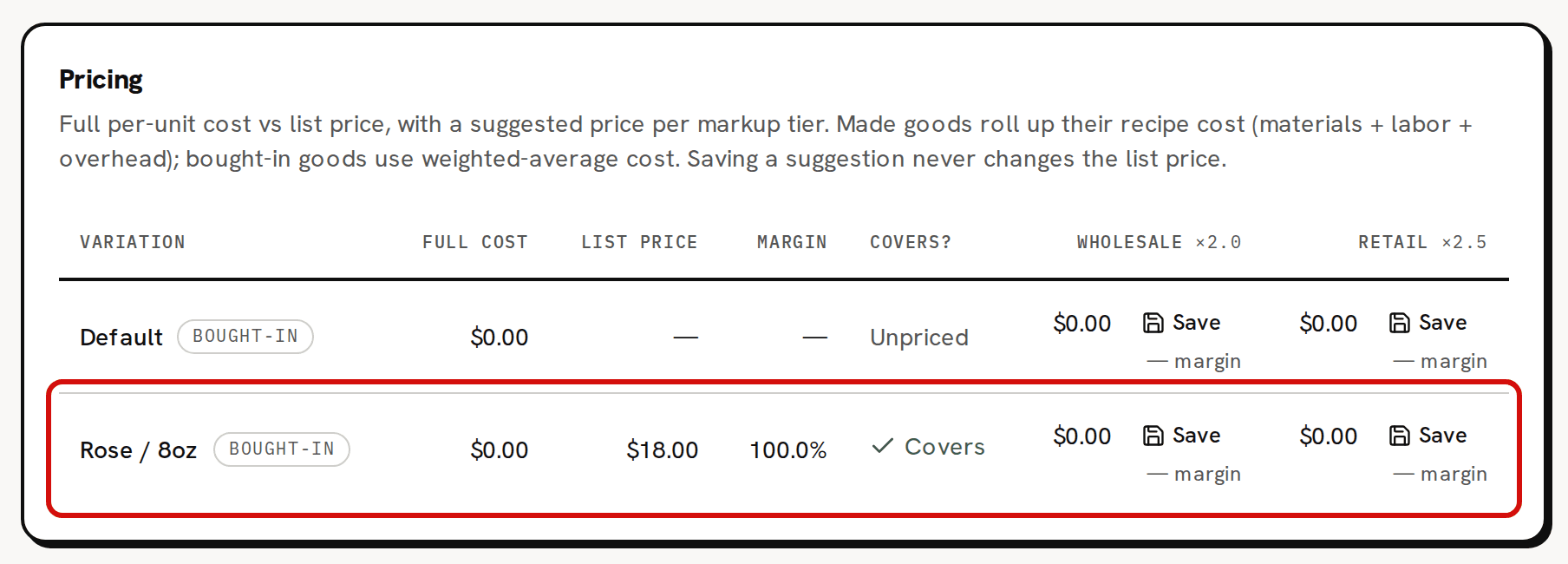
Both rows read Bought-in, with a Full cost of $0.00:
- Full cost is what one unit costs you. For a bought-in variation, it is the unit cost of the stock you hold, and Rose Candle holds none yet.
- Covers? checks the list price against the full cost. Default reads Unpriced, because it has no price. Rose / 8oz reads Covers, with a 100.0% margin, only because $18.00 is more than $0.00. Don't trust that verdict until the cost is real.
- If your workspace has markup tiers, the columns after Covers? suggest a price for each one. A new workspace has none until you click Set up default tiers on Pricing. Saving a suggestion keeps a record of it and never changes your list price.
A variation becomes Made once a recipe makes it, and its full cost is then the recipe's cost: materials, labor and the recipe's overhead. Only a product's Default variation can have a recipe, because the recipe page always opens the Default's recipe. So Rose Candle's Default can become Made, and Rose / 8oz stays Bought-in. A bought-in variation gets its cost from the stock you bring in with a cost basis, as Bring your real stock into Trackost shows.
If your trial or plan has ended, every save on these pages is refused with 'Your plan has ended — subscribe to continue making changes.'
What you have now
- A product, Rose Candle, with a photo, a category and two variations, Default and Rose / 8oz.
- Two attributes, Scent and Size, that label the variations.
- A list price on Rose / 8oz, and a Pricing card that will judge it once the variation has a real cost.
Next, give a product its recipe: TUTORIAL: Introduction to recipes.