About products and variations
How Trackost splits a product into a catalog entry and the variations you stock, and where each variation's stock, cost, SKU and price live.
The short answer
- A product is the name you sell under. Its variations are the versions you stock and sell, and each one has its own SKU, price, stock and unit cost.
- Every product has at least one variation. Adding a product creates one named Default.
- A variation is Made when a recipe makes it, and Bought-in when it doesn't. Only a product's Default variation can have a recipe.
- Nothing here can be deleted, and a variation's name and attribute values can't be changed once you add it. Archived is how you retire something.
A product is a header, a variation is a SKU
The product holds what describes the whole thing: its name, status, category, description, pack size and photo. Everything you count lives on its variations: the SKU, the list price, the stock on hand, the unit cost, the low-stock limit and the recipe.
A candle that comes in two scents and two sizes is one product with four variations. A bar of soap that comes one way is one product with one variation.
The Default variation
When you add a product, Trackost creates its first variation and names it Default. It takes the Default SKU you typed on the product form, starts with 0 on hand and a $0.00 unit cost, and is listed first under its product.
The Default can't be renamed, deleted or made into an ordinary variation. It is also the only variation that can have a recipe.
Made vs Bought-in
Made or Bought-in belongs to each variation, not to the product. A variation is Made when a recipe makes it. Every other variation is Bought-in, which means you resell it and its cost is the cost of the stock you hold. You never set it by hand.
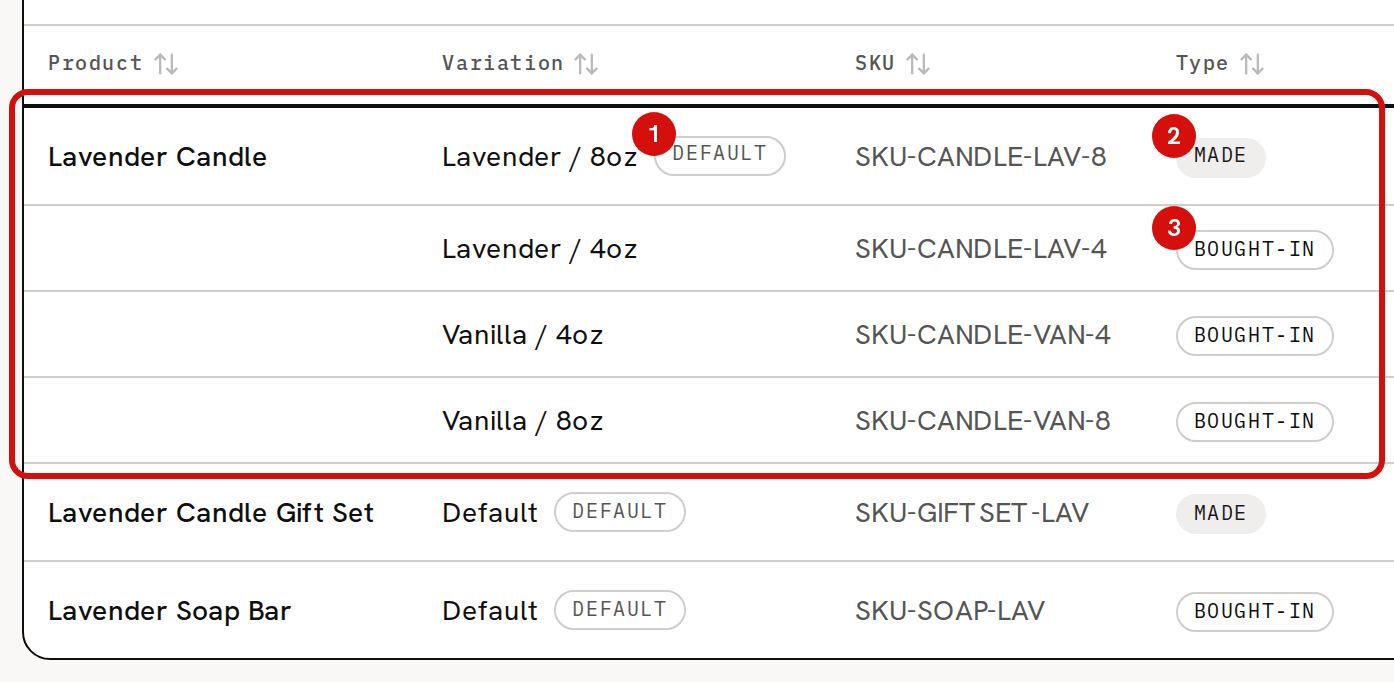
In the sample workspace the Lavender Candle has four variations, and only Lavender / 8oz, its Default, is Made. Vanilla / 8oz, Lavender / 4oz and Vanilla / 4oz read Bought-in, because no recipe makes them.
Only the Default variation can have a recipe. The Build links on the other variations' rows on Recipes open the Default's recipe, and saving there changes the Default's recipe. If two versions of something you make need different recipes, add each one as its own product.
What each column on the Products page means
Each product takes one row per variation, Default first. Click anywhere on a row to open the product.
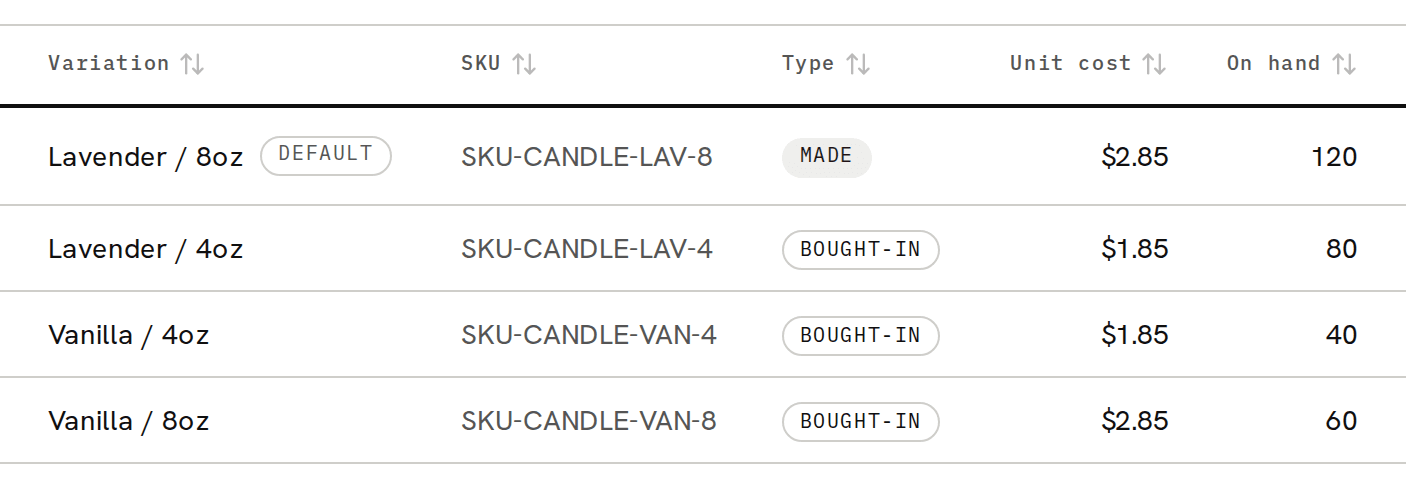
- Variation and SKU: the variation's name and code. The Default badge marks the first one.
- Type: Made or Bought-in.
- Unit cost: what one unit of the stock you hold cost you on average, its weighted-average cost. It moves when a batch of it is completed and when you adjust stock in with a cost basis on Inventory. It is not the recipe cost. The sample Lavender / 8oz shows $2.85 here, while its recipe works out at $7.52 a candle today and Pricing shows a Full cost of $7.72, recipe overhead included. You see this column only with money access.
- On hand: how many you have.
- The actions at the end of the product's first row: Build recipe, only once one of its variations has a recipe, and Edit, which opens the product's own edit form. The product page itself has no Edit button.
The search box finds products by any of their variations' names or SKUs, and the column headings sort the list. The pager counts products, 20 to a page, so a page can hold more than 20 rows.
Status, pack size and made-to-order

- Status on a product is Active, Draft or Archived. Draft and Archived add a badge to the product and nothing else.
- Status on a variation works the same way, with one difference. An Archived variation leaves the Pricing page, the dashboard's stock lists and the product picker on a new order. It stays on Products and on the product's page. Archiving is how you retire a variation, because nothing can be deleted.
- Pack size draws a "Pack of 3"-style badge. It changes nothing else. Selling one still takes one unit out of stock.
- Made to order is stored with the product. The form marks it '(no costing effect yet)', and it changes nothing in how the product is costed.
Attributes and values
Attributes are the ways a product's variations differ, such as Scent or Size, each with its values, such as Lavender and Vanilla. You add them on the product's page and pick them when you add a variation, which then shows badges like "Scent: Lavender" and "Size: 8oz".
Attributes are labels. They don't create variations for you and they don't change any cost. Neither attributes nor their values can be renamed, reordered or deleted, and a variation's values can't be changed after you add it.
Where to go next
- TUTORIAL: Introduction to products walks through a first product from start to finish.
- Add a product and Add a variation (SKU) to a product cover each form field by field.
- Add attributes (Scent, Size…) to a product covers attributes.