Build a recipe
Open a product's recipe, add the components one run uses, set the yield and labor minutes, check the live cost and save version 1.
A recipe tells Trackost what one run of a product uses, so it can cost every unit you make. Add the product and its materials first. Any member can build a recipe, but only members with money access see its costs and its overhead. If your trial or plan has ended, the save is refused with 'Your plan has ended — subscribe to continue making changes.'
Open the recipe page
- Open Recipes in the sidebar.
- On the product's row, click No recipe — build one, Build at the end of the row, or anywhere on the row.
The header reads 'No recipe yet for Default. Build the first version below.', with the name of the product's Default variation. The recipe is always the Default variation's, whichever of the product's rows you click.
Products has a Build recipe button on a product's row too, but only once the product has a recipe. A first recipe starts from Recipes.
Add the materials one run uses
- Click Add component. A row appears with Type set to Material.
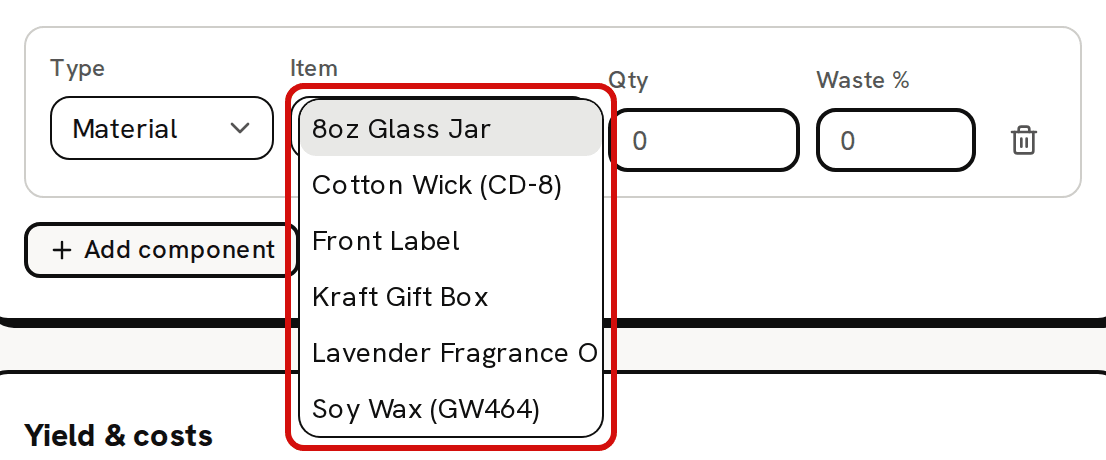
Under Item, open Select a material and pick the material. The list offers only materials you track as inventory. Tools never appear, because their cost is already booked as overhead when you buy them. A long name can be cut short, because the list is only as wide as the Item field.
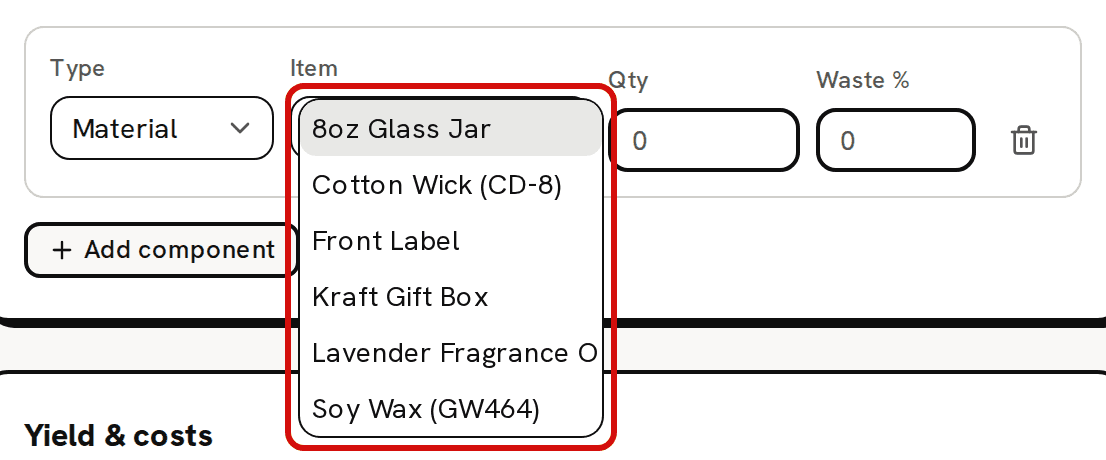
Only materials you track as stock are offered. - Type the quantity one run uses in the Qty field. Once you pick a material it reads the unit you track that material in, such as Qty (g), Qty (ml), Qty (oz) or Qty (each). Trackost doesn't convert, so enter grams for a wax you buy by the kilogram.
- Repeat Add component for every material. The trash icon at the end of a row removes it.
To put another product inside this one, such as a candle in a gift set, set the row's Type to Product variation and pick it under Select a variation. The list shows every other product's variations. While the variation you pick has stock, the recipe counts it at the unit cost of that stock. When it has none, the recipe uses that variation's own recipe cost.
Set yield and labor
- In Yield & costs, type the Yield (units per run): how many finished units one run makes. It starts at 1.
- Type the Labor (minutes) for the whole run. Trackost prices it at your labor rate and always includes it in the cost.
Set yield, labor minutes and overhead explains how each one changes the cost.
Optional: overhead and waste
- Type an Overhead ($) if each run has a flat cost that isn't a material. It shows on its own line, With overhead:, and never enters the unit cost or a batch's cost.
- Type a Waste % on any row you lose some of. 10% on 200 g counts as 220 g. Waste raises the cost, and it raises the stock each batch takes out too.
Check the live cost
About half a second after each change, the Live cost card works the cost out again, with a small spinner beside its title. Unit cost (incl. labor) is what one unit costs to make at your materials' costs today. Cost breakdown lists each component's share.
While the card shows an error, Save recipe version can't be clicked. The errors are:
- 'Waste % must be 0 or greater': a waste is negative.
- 'This selection creates a cyclic recipe (a product can't contain itself). Remove it.': two products contain each other.
- 'A selected item is missing cost data — pick a different item.': a product variation you picked has no stock and no recipe, so it has no cost.
Save the recipe
Click Save recipe version. The note beside it is 'Saving creates a new recipe version.'
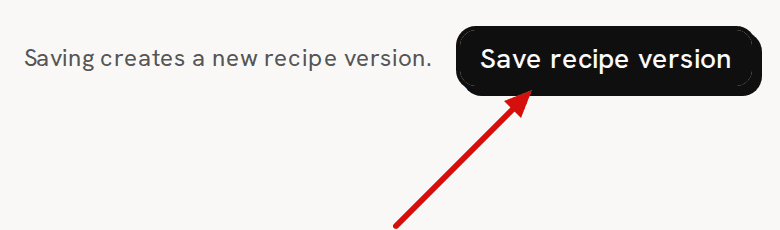
Every save is a new version. - 'Recipe saved as a new version' confirms it. The header now reads 'Editing recipe v1 for Default; saving creates a new version.', with a v1 active badge.
If something is missing, nothing is saved and the reason shows above the button:
- 'Yield quantity must be greater than 0'
- 'Add at least one component'
- 'Every component row must have an item selected'
- 'Every component quantity must be greater than 0'
What happens next
- The variation is Made on Recipes and Products, and Recipes shows its unit cost.
- You can plan batches of it on Production. Each batch takes its cost from the recipe and your materials' costs when it starts.
- Pricing uses the recipe's cost, overhead included, as the variation's Full cost.
- Nothing about your stock changes. Saving a recipe moves no stock and writes nothing to your ledger.
To change the recipe later, see Edit a recipe (saving creates a new version).