Edit a recipe (saving creates a new version)
Change a recipe's components, yield, labor or overhead, see what v2 active means, and why batches you already made keep their old cost.
Trackost never changes a recipe in place. Each save creates a new version and makes it the active one, and batches you already made keep the cost they were made at. Any member can edit a recipe, but only members with money access see its costs and its overhead. If your trial or plan has ended, the save is refused with 'Your plan has ended — subscribe to continue making changes.'
Open the recipe
- Open Recipes in the sidebar.
Click Edit on the variation's row, or anywhere on the row. The header names the version you're editing and the variation it belongs to, such as 'Editing recipe v1 for Lavender / 8oz; saving creates a new version.' A badge at the right shows v1 active.
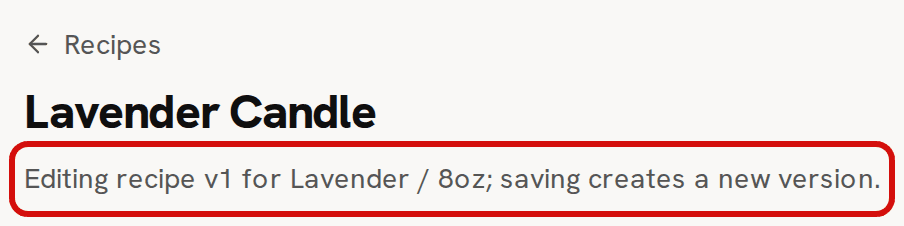
The header names the version you are editing and the variation it belongs to.
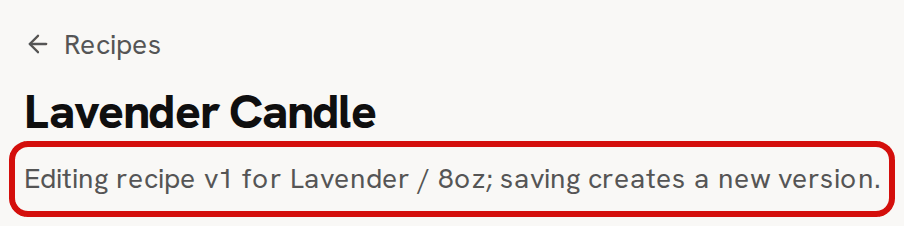
The recipe page always opens the product's Default variation's recipe. On a product with several variations, the Build and Edit links of every row open that same recipe, and saving changes the Default's recipe.
Make your changes
Change what you need. Nothing is saved until you click Save recipe version, and the Live cost card works the cost out again about half a second after each change.
- Change a quantity, a Waste % or the item on a row.
- Add a row with Add component, or remove one with the trash icon at the end of the row.
- Change the Yield (units per run), Labor (minutes) or Overhead ($).
A recipe needs at least one component. If you remove the last row and save, the save is refused with 'Add at least one component'.
Save a new version
Click Save recipe version. 'Recipe saved as a new version' confirms it, and the header and the badge move to the next version, v1 to v2.
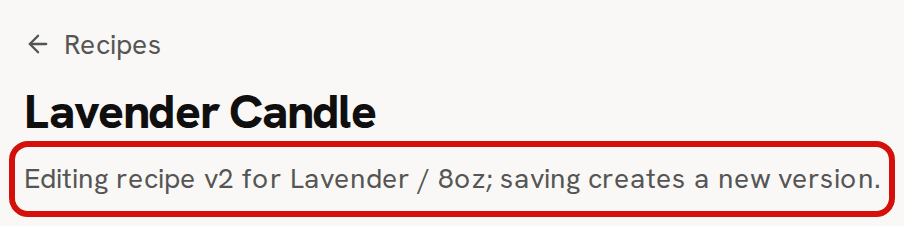
After a save the recipe is version 2. Batches already made keep what they cost.
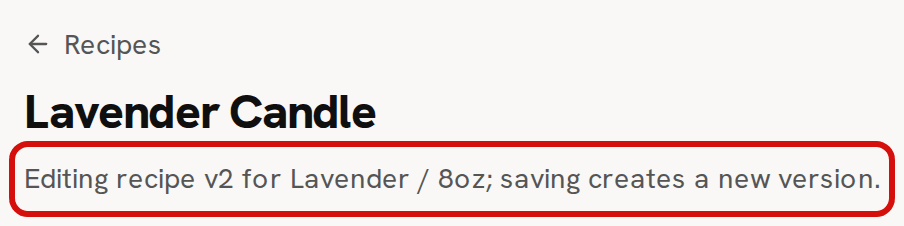
On the sample candle, raising Soy Wax from 200 g to 210 g adds $0.10 of wax a run. The unit cost moves from $7.52 to $7.62, and With overhead: from $7.72 to $7.82.
What changes and what doesn't
- Batches you plan from now on use the new version. A batch takes its costs, materials and labor, when you start it.
- Batches you already made keep the version and the cost they were made with, and so does the stock they made. Sales you already fulfilled keep their cost too.
- A batch you already planned or scheduled keeps the version it was planned with, even if you start it after this save.
- Recipes, the recipe page and Pricing show the new cost straight away. So do the dashboard's checks for products priced below their cost.
- Saving a recipe moves no stock and writes nothing to your ledger. It leaves batches you already made alone, with one exception. A save that turns Cure days on (from 0 to above 0) gives this variation's batches completed within that many days a date they are ready to sell from, and the confirmation says how many, for example '1 completed batch now cures until its finish date.'
There is no screen that lists old versions, and no way to restore one. To go back, enter the old values again and save. That save becomes the next version, v3. A recipe can't be deleted either.
Why a batch's cost can differ from the recipe's live cost later on is explained in About a batch's unit cost and total cost.