Create a manual order
Record a sale by hand: order details, one line per product variation, shipping, tax and fees. Then create it, and fulfill it to see its true profit.
A manual order is a sale you enter yourself: a market stall, a commission, a sale by message. Creating it records the sale and changes nothing else. No stock moves, nothing is costed and nothing reaches your reports' costs until you fulfill it.
Creating an order needs money access. Without it, Create order refuses with 'Creating an order requires money access.' If your trial or plan has ended, every page opens behind the plan wall, and a page left open in another tab refuses with 'Your plan has ended — subscribe to continue making changes.'
Before you start
Each line of an order is a product variation, so add your products first. With none, the Variation box reads 'No products yet' and can't be used. The order can't be edited after you create it, so have the prices, shipping and fees at hand.
Create the order
Open Orders in the sidebar and click New order.
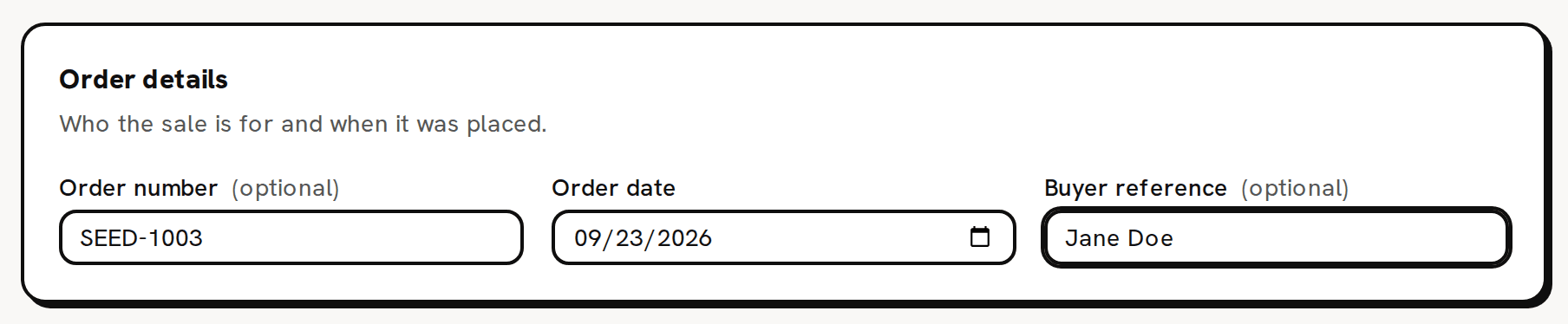
New order is at the top right of the Orders page. Under Order details, type an Order number and a Buyer reference if you want them. Both are optional. Check the Order date. It starts on today's date in UTC, not in your own time zone, so in the Americas it can already show tomorrow's date in the evening.
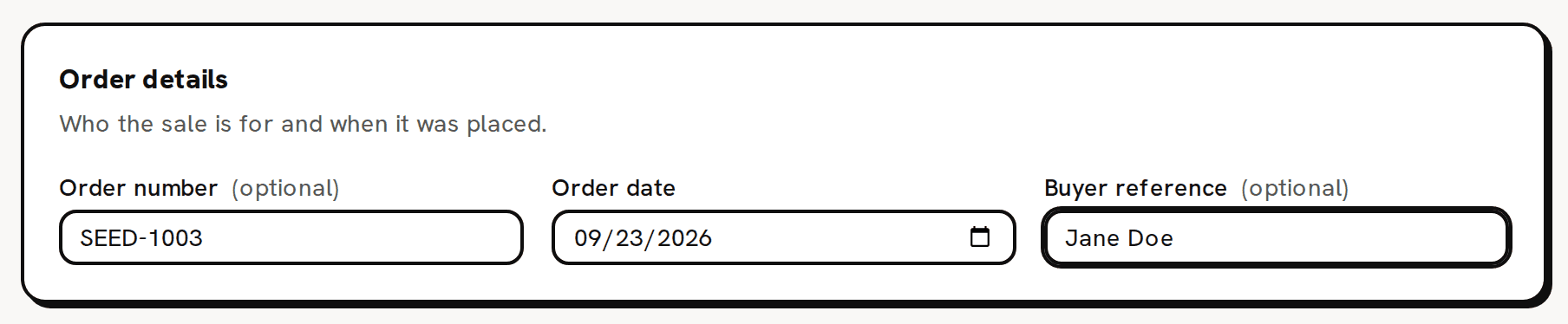
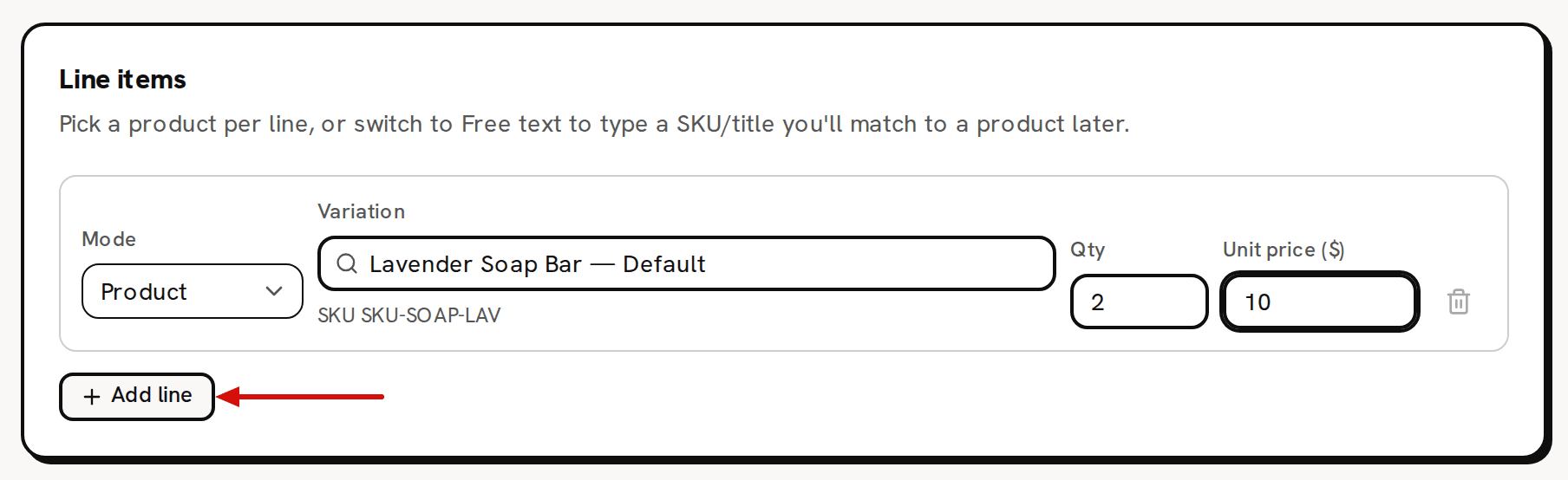
Order number and buyer reference are optional. The order date starts on today. - Under Line items, click into the Variation box and type part of the product's name or SKU. Pick the variation from the list. Its SKU appears under the box.
- Type the quantity in Qty and the price of one unit in Unit price ($).
For each other product on the sale, click Add line and fill in the new line the same way. To take a line off, click the trash icon at the end of it. You can't remove the only line.
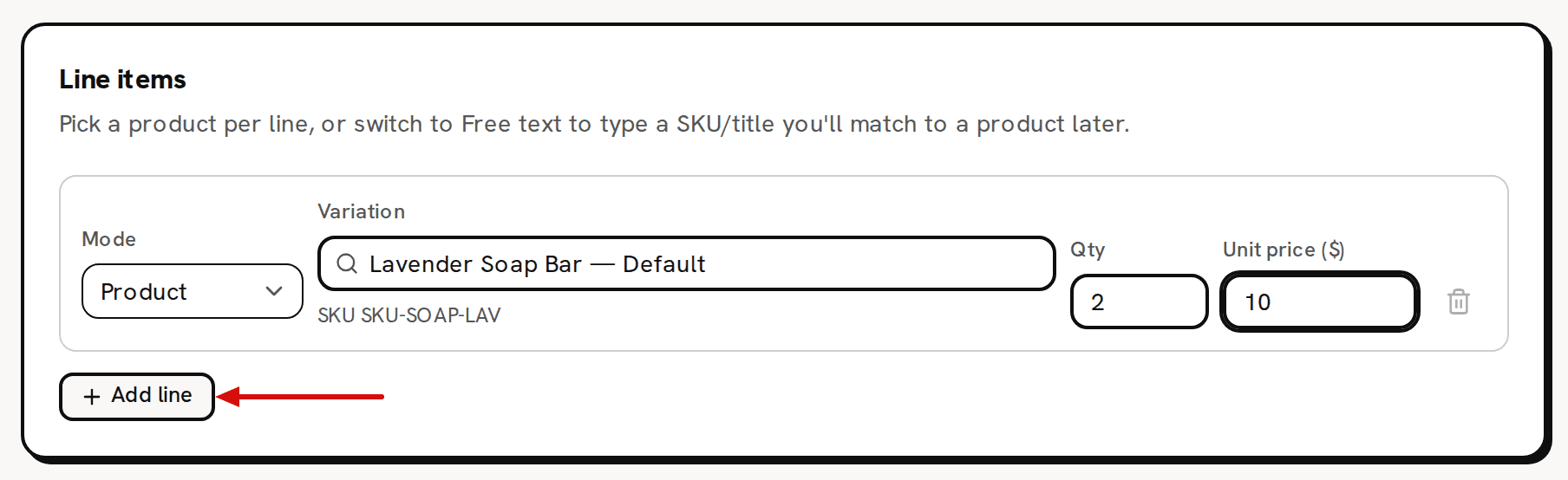
The picked variation’s SKU shows under the box. Add line adds another line. - Under Charges, type what the buyer paid in Shipping ($) and Tax ($), and what the sale cost you in fees in Fees ($): payment processing, platform or market fees. Each starts at 0.
- If you like, under Notes & delivery, set a Due date, write Internal notes for yourself, or a Customer message for the buyer. The customer message prints on the invoice and the packing slip. Internal notes never print.
Click Create order.
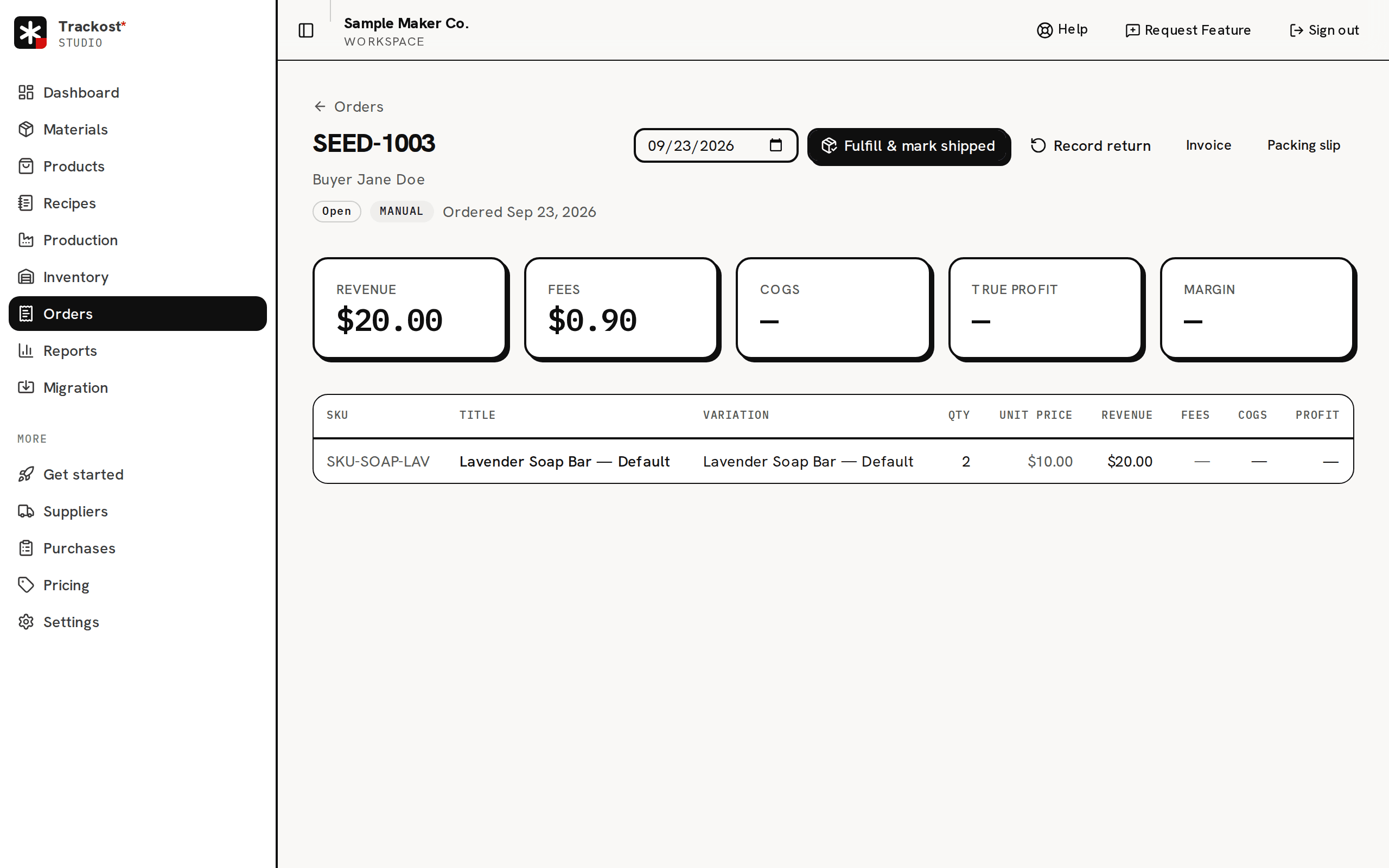
Create order saves the sale as Open. Nothing is costed yet. You see 'Order created' and land on the new order's page. Its status is Open.
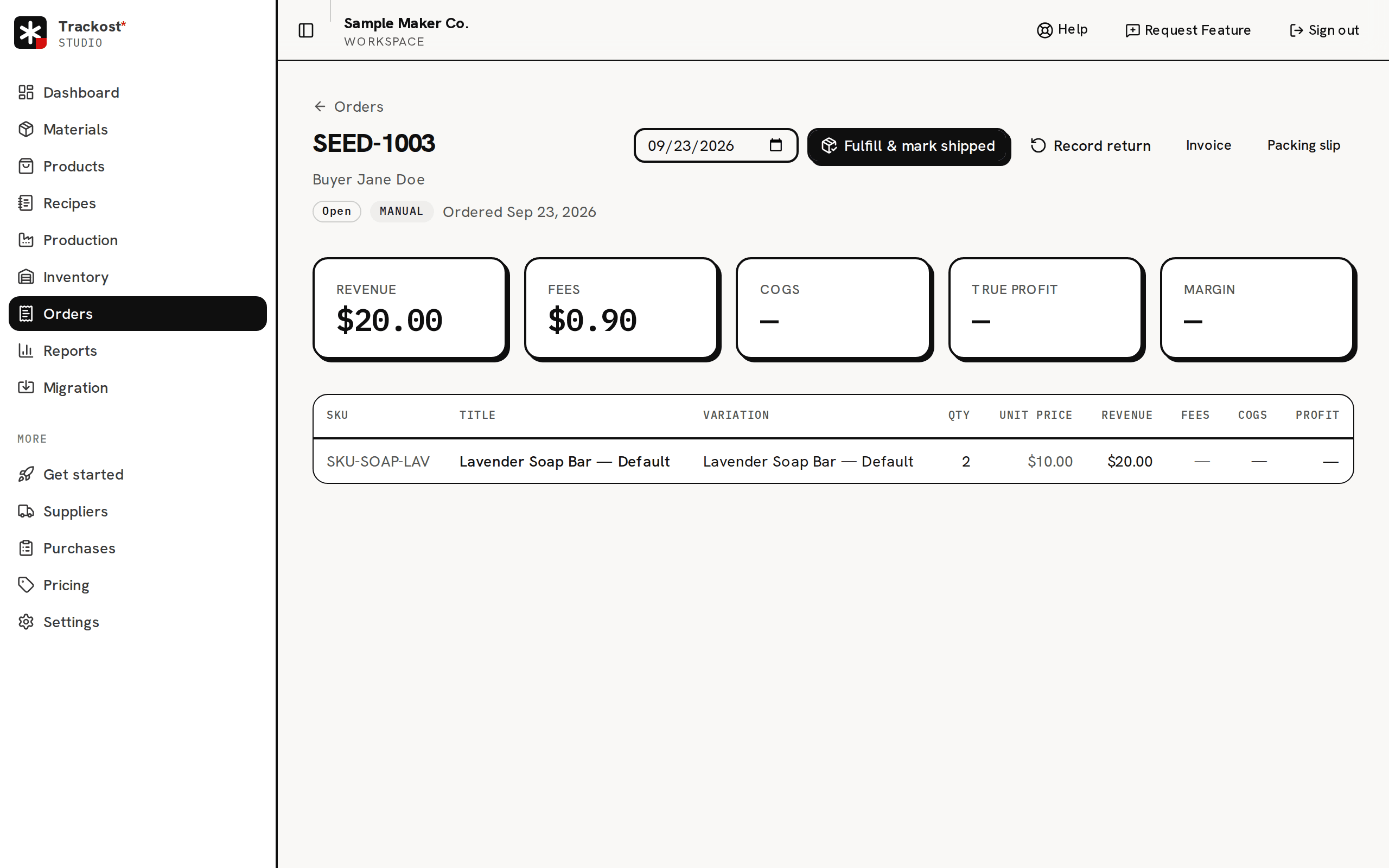
A new order: nothing is costed until you fulfill it.
What happens next
The new order shows Revenue, the sum of its lines, and Fees. COGS, True profit and Margin read '—': nothing is costed until you fulfill the order. When the goods leave, fulfill the order. Fulfilling takes the units out of stock and fixes each line's cost.
Shipping and tax add to the order's Total. Fees don't. They are what the sale cost you, and they come off its true profit when you fulfill it.
The order date files the order in the order reports, such as Orders Summary. Your profit reports count the sale on the ship date you pick when you fulfill it.
If Trackost refuses the order
Nothing is created until every field is valid. The message names the line that needs fixing:
- 'Line 1 needs a product selected': the line's Variation box is empty. Pick a variation from the list; typing its name isn't enough.
- 'Line 1 quantity must be greater than 0'.
- 'Line 1 unit price is not a valid dollar amount'.
- 'Shipping is not a valid dollar amount', and the same for Tax ($) and Fees ($).
Type amounts with a point before the cents: 12.50, or 1,234.50 with a comma between thousands. A comma before the cents, as in 12,50, is refused rather than read as 1,250. So are more than two decimals and negative amounts.
Tips
- Check everything before you click Create order: the order can't be edited, canceled or deleted afterwards. About orders says what to do about a wrong one.
- One order can hold several lines of the same product, and lines of different products.
- A line can also be typed as free text: set its Mode to Free text and type a SKU and a Title. If the SKU is exactly a variation's SKU, same capitals included, the line is matched to it when you create the order. Otherwise it has no cost until you match it to a product on the order's page.
- The order is in your workspace's currency, shown beside Create order. It can't be changed per order.