TUTORIAL: Introduction to orders
About 20 minutes: record a market sale by hand, fulfill it to see COGS and true profit, print the invoice and packing slip, then record a return.
What orders do
An order is a sale. You record it with what you sold, at what price, and what shipping, tax and fees came with it. Nothing about your stock or your costs changes when you create it. Fulfilling it is the step that counts. Trackost takes the units out of stock, fixes the cost of goods sold (COGS) from what those units cost you, spreads the fees over the lines and shows the true profit.
In this tutorial you sell two lavender soap bars at a market. You record the sale, fulfill it, print its papers and take one bar back. The pictures use the sample Lavender Soap Bar, which your workspace doesn't have. Record a sale you really made, with one of your own products: an order can't be edited, canceled or deleted afterwards.
Creating an order needs money access. A team member without it can open the form, but Create order refuses with 'Creating an order requires money access.' They can still fulfill an order and print its packing slip. They don't see the money cards, Record return or Invoice. If your trial or plan has ended, every page opens behind the plan wall, and a page left open in another tab refuses creating, fulfilling and returning with 'Your plan has ended — subscribe to continue making changes.'
Part 1: record the sale
- Open Orders in the sidebar and click New order.
- Under Order details, type SEED-1003 in Order number and Jane Doe in Buyer reference. Both are optional. Leave Order date on today.
Under Line items, click into the Variation box and type Soap. Pick Lavender Soap Bar — Default · SKU-SOAP-LAV from the list.

Type part of a name or SKU, then pick the variation. - Type 2 in Qty and 10 in Unit price ($).
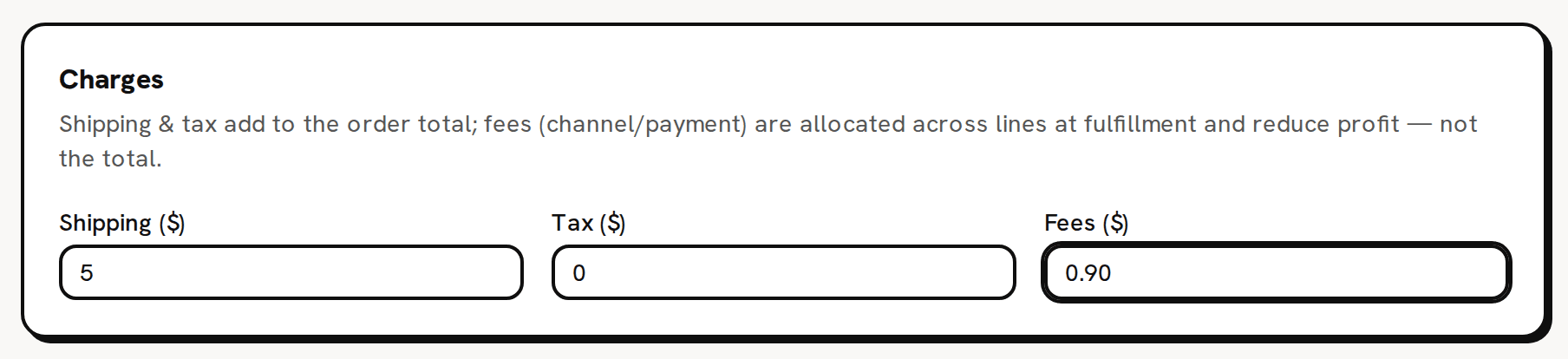
Under Charges, type 5 in Shipping ($) and 0.90 in Fees ($). Leave Tax ($) at 0. Shipping and tax add to the order's total. Fees don't. They are what the sale cost you, and they come off your profit.
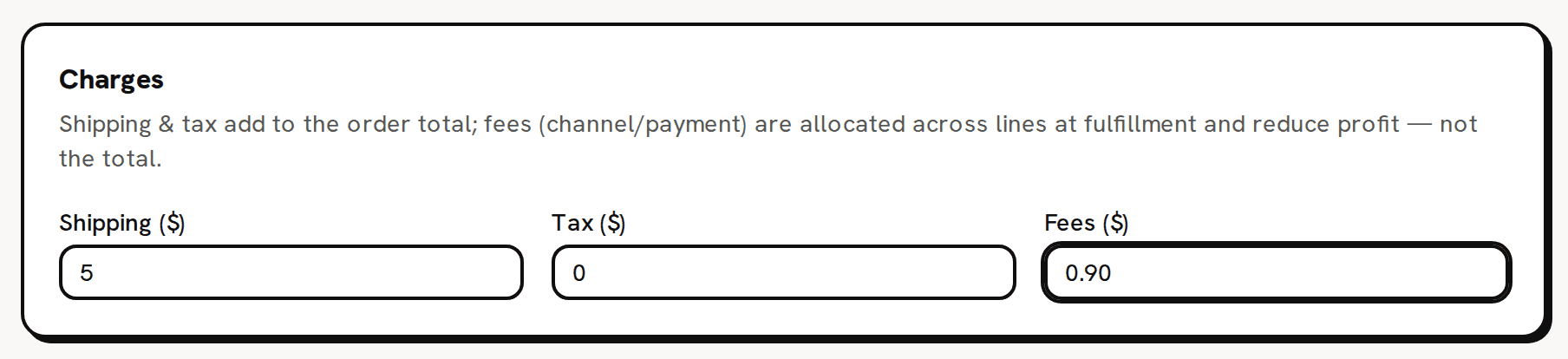
Shipping and tax add to the total. Fees come off your profit. - If you want a note printed for the buyer, type it in Customer message under Notes & delivery.
- Click Create order. You see 'Order created' and the order's page. Its status is Open, Revenue is $20.00 and Fees is $0.90. COGS, True profit and Margin read '—' because nothing has been costed yet.

Part 2: fulfill it
Fulfilling means the goods have left. The date beside the button is the ship date, and the sale is counted on that day in your profit reports. It can't be undone.
Check the date beside Fulfill & mark shipped. It starts on today's date.

Check the ship date, then click Fulfill & mark shipped. - Click Fulfill & mark shipped. You see 'Order fulfilled' and 'True profit $15.60 (COGS snapshotted, fees allocated).' The status becomes Fulfilled.

Reading COGS, fees and true profit
Read the five cards along the top of the order.

Revenue $20.00 − fees $0.90 − COGS $3.50 = true profit $15.60.

- Revenue is what you sold: 2 bars at $10.00, so $20.00. Shipping and tax are not revenue.
- COGS is $3.50: the 2 bars times the soap's weighted-average cost when you fulfilled, $1.75 a bar.
- Fees is the $0.90 you typed.
- True profit is $20.00 − $0.90 − $3.50 = $15.60.
- Margin is true profit divided by revenue: 78.0%.
The $3.50 is fixed now. If the soap's cost changes later, this order keeps $3.50. The lines table under the cards shows the same figures line by line.
Part 3: print the invoice and packing slip
- Click Invoice. The invoice shows your business details, Bill to, the items with their prices and the totals.
- Click Print / Save as PDF. Your browser's print window opens. Choose your printer, or save as PDF from there. Trackost doesn't store or email the file.
- Click Back to order, then Packing slip. It lists the items and quantities with no prices, for the box. Print it the same way.
Both papers print only the buyer reference under Bill to and Ship to, or the order number when there is no buyer reference, because an order has no address field. If you need an address on the paper, put it in the buyer reference or the customer message. Your logo and business details come from Invoice branding on Settings.
The invoice's totals list Subtotal, Shipping, Tax and Fees, then Total. The Total is $25.00: subtotal, shipping and tax. The fees line is printed above it but is not part of it, and your buyer can see it.
Part 4: record a return
The buyer brings one bar back unused.
- On the order's page, click Record return.
The soap line is filled in with both bars and a $20.00 refund. Change Qty to return to 1. Refund ($) follows the quantity and becomes 10.00.

Return one of the two bars. The refund follows the quantity. - Leave Restock the returned units (add them back to inventory) ticked, because the bar goes back on the shelf.
- Click Record return. You see 'Return recorded' and 'Refunded $10.00 · COGS reversed $1.75.' The order's status becomes Partially refunded, and the return is listed under Returns history.

The five cards at the top don't change after a return. The order still reads $20.00 of revenue and $15.60 of true profit. The return is counted in Returns history and in the reports that read your ledger, the Profit dashboard and Profit & Loss. There, revenue goes down by the $10.00 refund and COGS by $1.75.
What you have now
- A manual order, SEED-1003, that is Partially refunded.
- One soap bar sold. The other is back in stock. The soap's count went down by 2 when you fulfilled and up by 1 with the return.
- A true profit per order that you can compare across your sales on the Orders page.
An order can't be edited, canceled or deleted after you create it. About orders explains what to do about a wrong one.