Record a customer return
Reverse a sale: choose how many units came back, the refund and whether to restock. Trackost reverses stock, COGS and revenue through your ledger.
A return records units a buyer sent back and the money you gave back. Trackost takes the refund off your revenue, and either puts the units back into stock with their cost or writes their cost off as a loss. The order itself keeps its original figures; the return is listed under it.
Recording a return needs money access. Without it, the order's page has no Record return button, the return page shows 'Money access required', and the action refuses with 'Recording a return requires money access.' If your trial or plan has ended, every page opens behind the plan wall, and a page left open in another tab refuses with 'Your plan has ended — subscribe to continue making changes.'
Before you start: fulfill first
If the goods left and you never fulfilled the order, fulfill it first, then record the return.
Record the return
Open the fulfilled order from Orders and click Record return.

Record return stays available while any unit can still be returned. The page lists every line that still has units to return. Each one is filled in with all of its units and a refund of its unit price times that quantity, and restock is ticked.
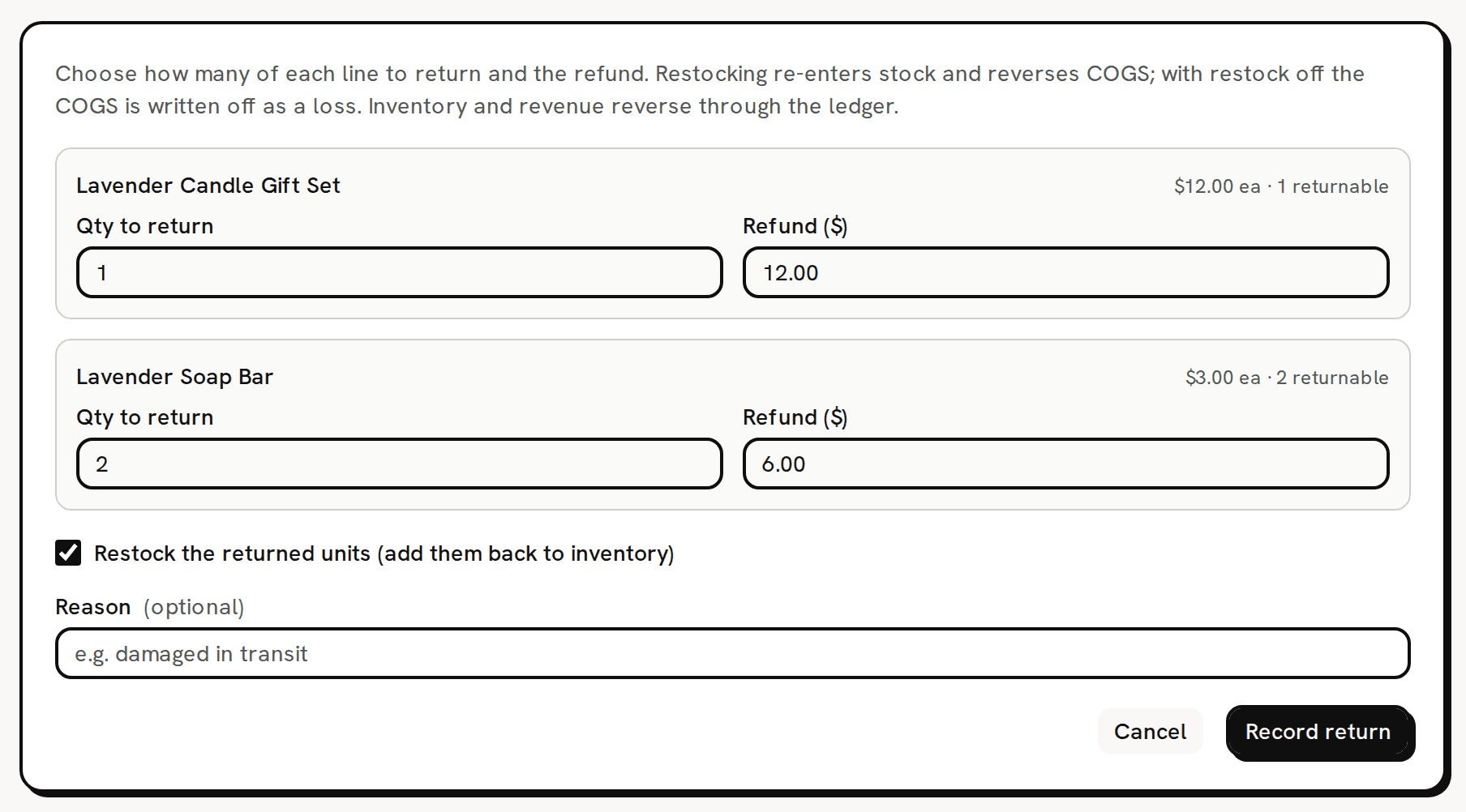
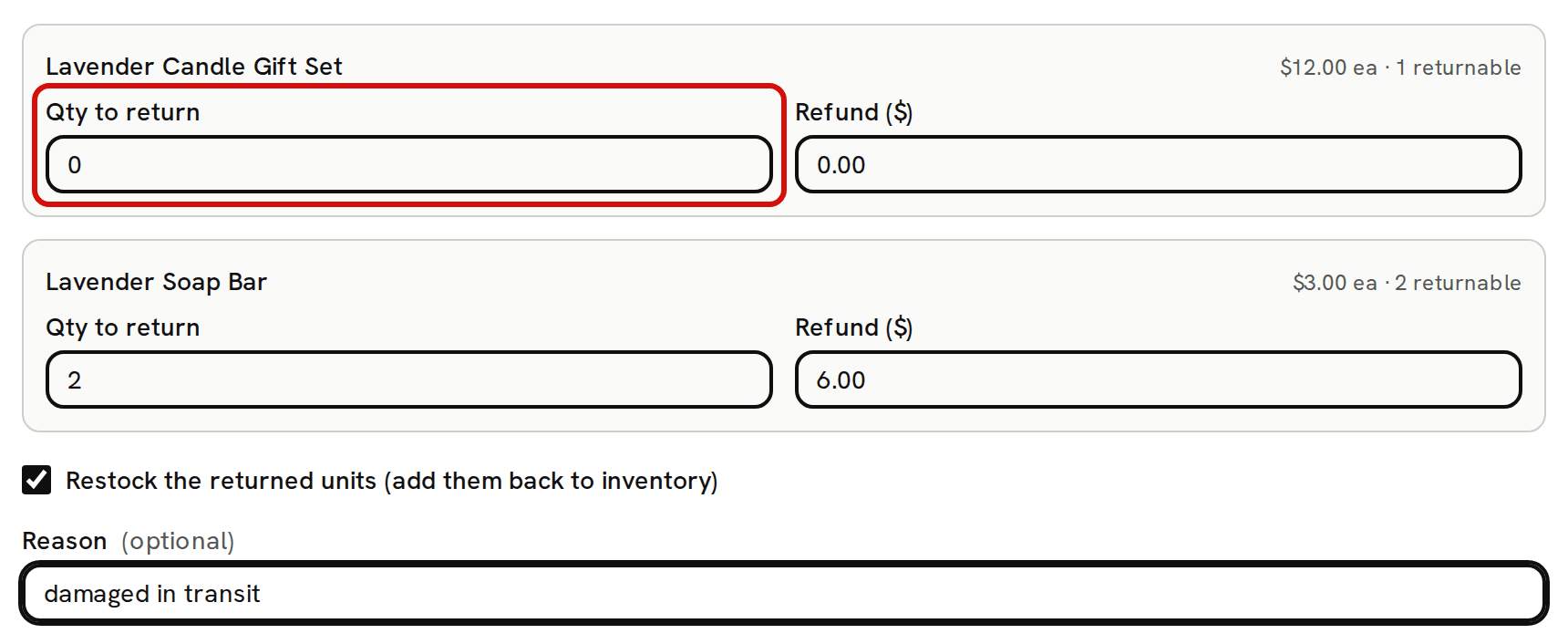
Every line starts filled in with all of its units and its refund, with restock on. - Set Qty to return on each line to the number of units that came back. Set it to 0 on every line that didn't come back. A line left as it is gets returned in full.
- Check Refund ($) on each line. It follows the quantity until you type in it. Type what you refunded, even if it is less than the price, or 0 for an exchange.
- Leave Restock the returned units (add them back to inventory) ticked if the units can be sold again. Untick it if they are damaged or gone. The choice covers every line in this return.
Type a Reason if you want one, for example damaged in transit.
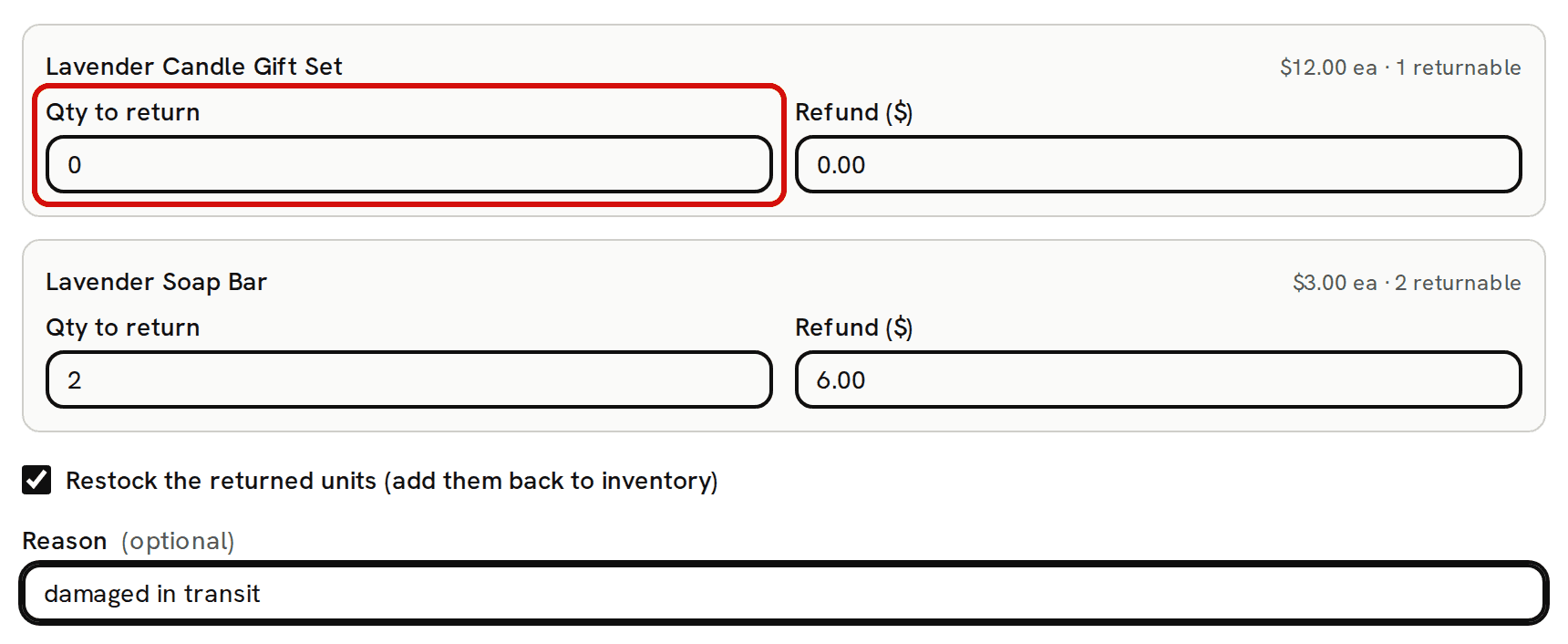
Set every line that didn’t come back to 0. Click Record return. You see 'Return recorded' with the refund and the cost, for example 'Refunded $6.00 · COGS reversed $3.50.' With restock off, it reads 'COGS written off' instead. You are back on the order, which is now Partially refunded, or Refunded once every unit has come back. The return is listed under Returns history.
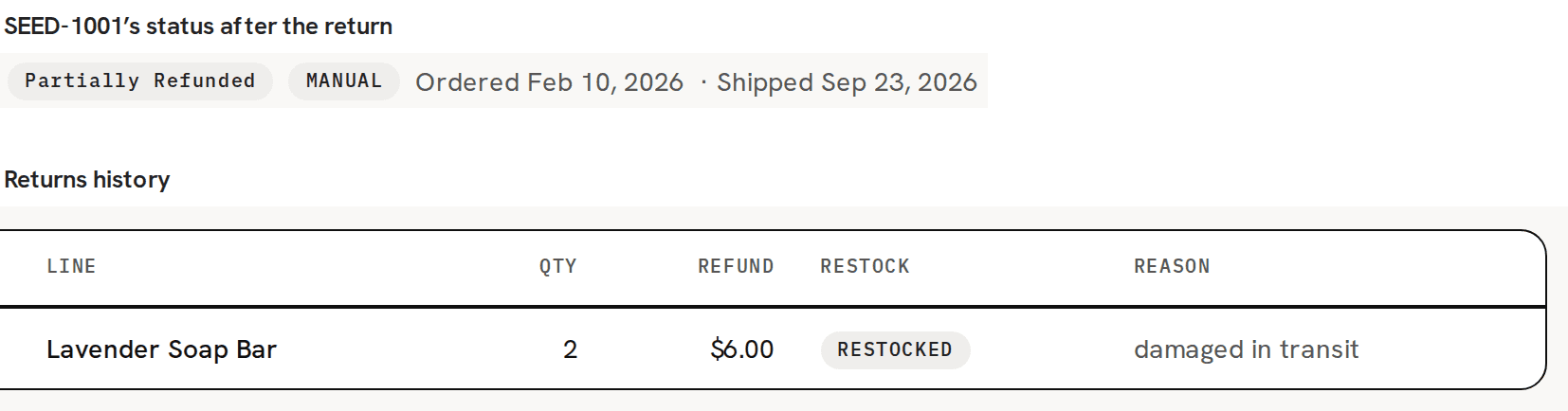
The order is Partially refunded, and the return is listed with its refund.


To restock some lines and write off others, record two returns, one with restock ticked and one without.
What changes, and what doesn't
The return is dated the day you record it; there is no date field. It isn't checked against your inventory start date.
With restock ticked:
- the units go back into the variation's stock;
- the COGS the order recorded for those units is taken back, at the cost the order was fulfilled at;
- revenue goes down by the refund.
Restocking doesn't change the variation's weighted-average cost. The units come back, and the average stays as it is.
With restock unticked:
- stock doesn't change;
- revenue goes down by the refund;
- the units' cost is written off as a loss.
What never changes after a return:
- the order's five cards, its lines table and its True profit on the Orders page, which keep the fulfilled figures;
- the fees on the order, because a return doesn't give fees back.
The reports that read your ledger include the return: the Profit dashboard, Profit & Loss, Sales vs Expenditure and Schedule C (COGS). The order reports, such as Orders Margin, show the sale as it was fulfilled.
Full and partial returns
You can return an order in several goes. Each line offers the units not yet returned, so you can never return more than was ordered. The return that brings a line back in full takes back exactly the COGS still left on it, so the returns on a line always add up to its COGS to the cent. Once every unit is back, Record return can't be clicked.
Quantities to return are whole numbers. A line sold in a fraction, such as 1.5, can never be returned in full, so sell in whole units.