About materials
What a material is in Trackost, what the Materials list and a material's page show, and how stock and unit cost are kept for you. You never type them.
The short answer
- A material is anything you buy and use up to make products. Trackost keeps how much of it you have and what one unit cost you on average.
- You never type stock or unit cost. Opening stock, purchases, vendor credits, batches and inventory adjustments move them.
- A tool, such as a pouring pitcher, is a material that isn't tracked as inventory: its purchases are booked as overhead.
- There is no way to delete or archive a material.
What counts as a material?
Anything you buy and then use up in what you make: wax, oils, butters, fragrance, dye, wicks, jars, tins, labels, boxes. If a recipe calls for it, it is a material.
What you sell is a product, not a material. A product you make gets its cost from the materials its recipe uses. A product you buy in ready-made to resell is a product too.
What does the Materials list show?
Open Materials in the sidebar. Each row is one material: its Name and SKU, then the four columns numbered in the picture.
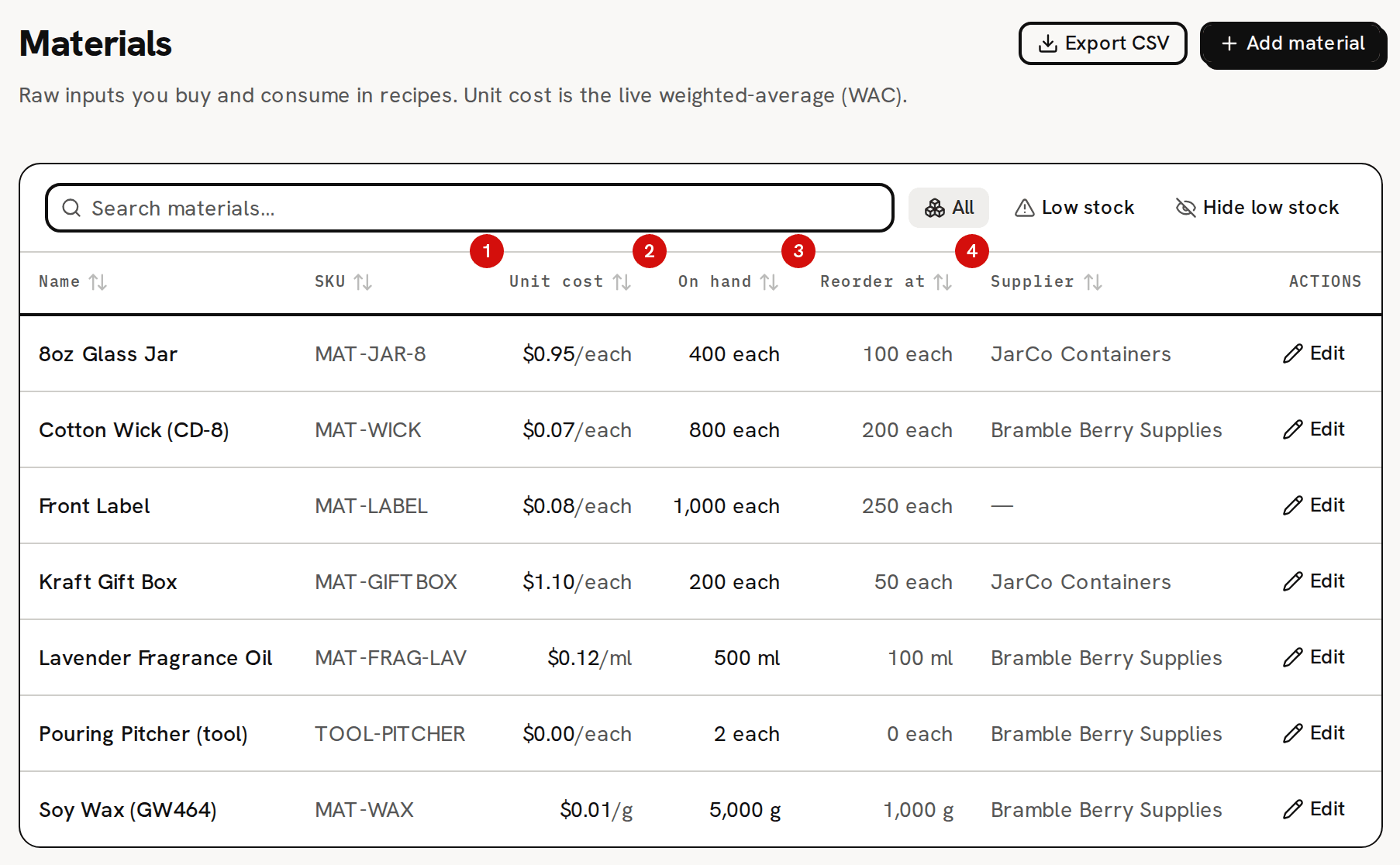
- Unit cost: what one unit of the material cost you on average, its weighted-average cost, per the unit after the slash.
- On hand: how much you have now.
- Reorder at: the reorder threshold you set.
- Supplier: the material's usual supplier.
A material whose On hand is at or below its Reorder at number gets a red Low stock badge, a tinted row, and a place at the top of the list. The buttons above the table switch between All, Low stock (with a count) and Hide low stock. A material you add with nothing on hand counts as low stock straight away, because 0 is at or below any threshold, including 0.
Type in the search box to find a material, click a column heading to sort by it, and use the pager below the table when you have more than 20. Click anywhere on a row to open the material. The Edit button at the end of the row opens its edit form instead.
Export CSV at the top downloads the list as a spreadsheet file.
What's on a material's page?
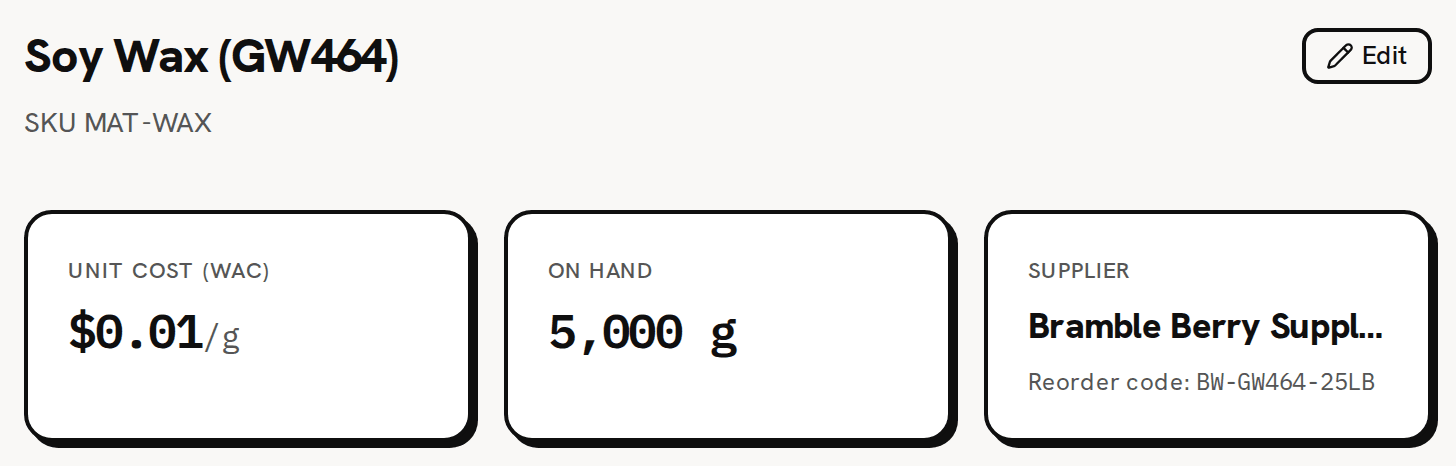
At the top, three cards:
- Unit cost (WAC): the weighted-average cost of one unit, shown rounded to the cent.
- On hand: the stock you hold.
- Supplier: its usual supplier, with the material's vendor reorder code under it if you entered one.
Below them are two forms, Record purchase and Record vendor credit, then two tables: Purchase history, one row per purchase with the WAC after it, and Vendor credit history.
Where do stock and unit cost come from?
Only these five things change them:
- Opening stock, entered once when you add the material. It sets the first unit cost and doesn't appear in Purchase history.
- Purchases: a quick purchase on the material's page, or a purchase order when you receive it. Each one adds stock and re-averages the unit cost.
- Vendor credits: returning material to your supplier takes that stock out and takes the credit off its value, which re-averages the unit cost.
- Batches: making a batch takes the materials its recipe uses out of stock, at their current unit cost.
- Inventory adjustments, from Adjust on the Inventory page: a stocktake count, spoilage or a correction.
The edit form shows On hand and Unit cost (WAC) as read-only numbers with the note 'Stock & unit cost move only via purchases and adjustments.' There is no field to type them into. About weighted-average cost (WAC) explains how each of these moves the cost.
What about tools and equipment?
When you add a material, the box Track as inventory (uncheck for tools / equipment) is checked. Uncheck it for a tool: a pouring pitcher, a thermometer, a mold you reuse.
A tool still has a count on hand, but its purchases are booked as overhead, a business expense, rather than stock value. A purchase never changes its unit cost, it is left out of your inventory's value, and it can't be a component of a recipe. You choose this once, when you add the material. It can't be changed afterwards.
Can I group, delete or archive materials?
You can group them with a Category, picked on the material's form, and give each one a usual Supplier.
You can't delete a material, and there is no archive button. Materials are never removed, so every purchase and batch that used one keeps its history. A material may show an Archived badge, but nothing in the app sets it.
Who can see costs?
A team member without money access sees the list and each material's page without any cost. The Unit cost column, the Unit cost (WAC) card, the Record purchase and Record vendor credit forms and Export CSV are not shown to them.
What you can do next
- Add a material, field by field.
- Buy in one unit, track in another, for materials you buy by the kilogram and use by the gram.
- Record a quick purchase on a material when you restock.