Add a material
Create a raw material with its name, unit, supplier and reorder threshold, and if you like, the stock you already hold and what it cost.
Add each raw material you buy and use in your recipes. Only the name and the unit are required. If you already have some on your shelf, you can enter it as opening stock in the same form.
If your trial or plan has ended, Trackost refuses the save with 'Your plan has ended — subscribe to continue making changes.'
Before you start
- To pick the material's supplier, add the supplier first under More › Suppliers. The material form can't create one. See Add a supplier.
- If you buy the material in one unit and use it in another, kilograms and grams for example, read Buy in one unit, track in another first.
- Decide whether it is a tool. You make that choice once, on this form.
- Make sure you want the material before you save it. A material can't be deleted or archived afterwards. You can only edit its details.
Add the material
- In the sidebar, click Materials, then Add material at the top right.
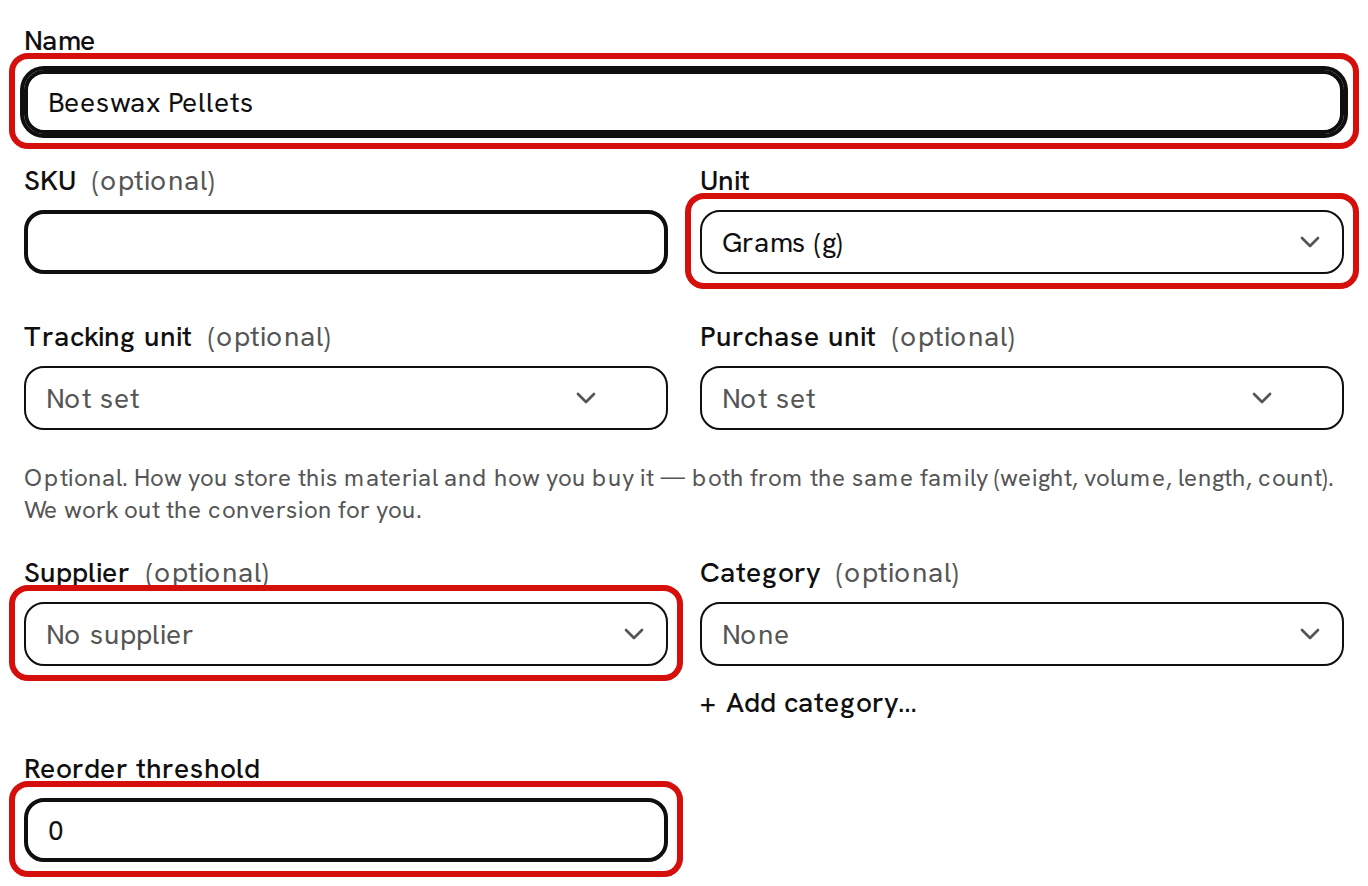
Type a Name. If you use your own item codes, type one in SKU.
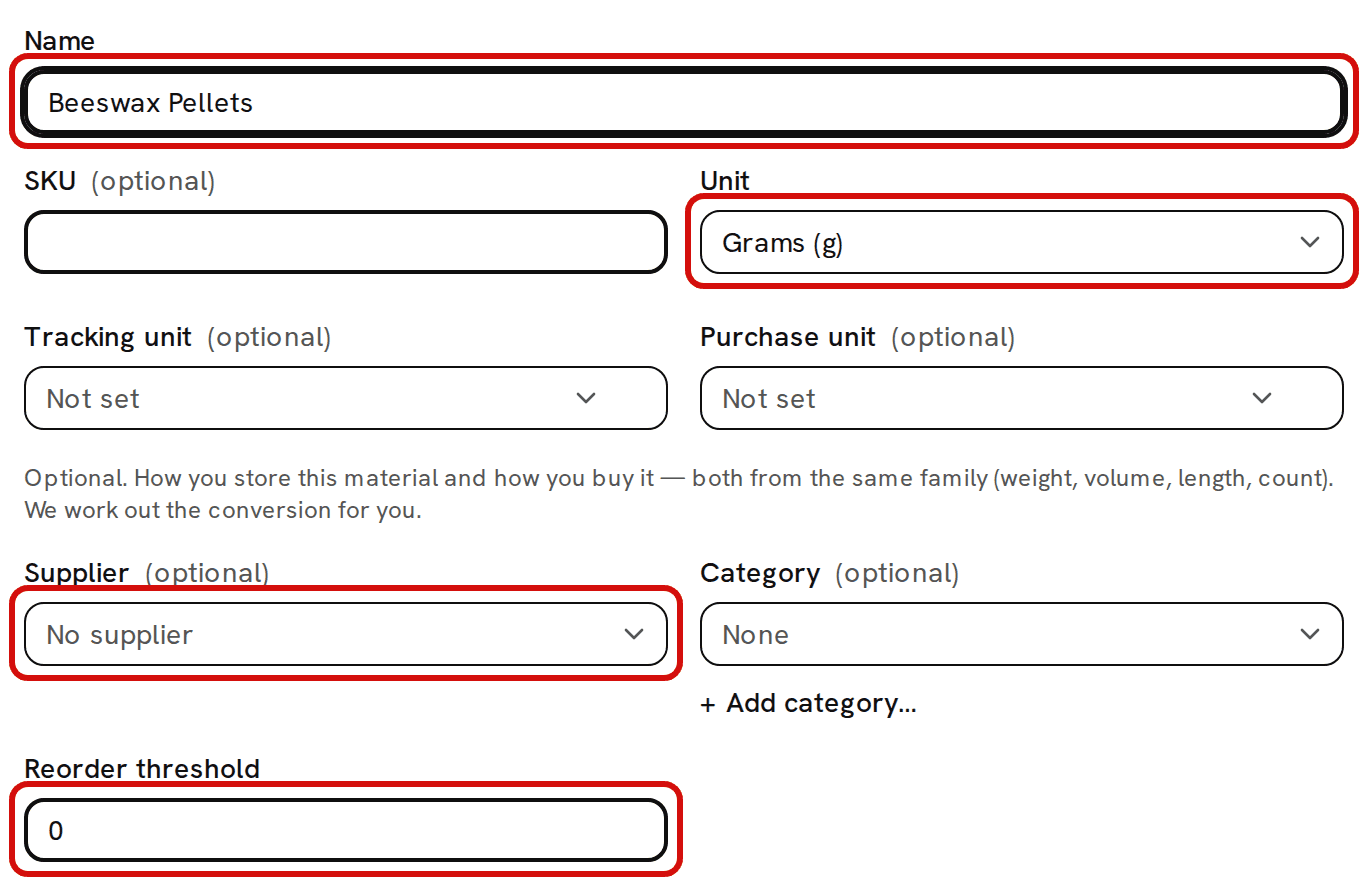
Only Name and Unit are required. - Choose the Unit you count this material in: Grams (g), Milliliters (ml), Ounces (oz) or Each.
- Pick a Supplier if the material has a usual one.
- Set a Reorder threshold, in the same unit. When the amount on hand drops to this number or below, the material is flagged Low stock. At 0 it is flagged only when it runs out.
- Leave Track as inventory (uncheck for tools / equipment) checked, unless this is a tool.
Optional: opening stock and cost
If you already hold some of this material, enter it now. Trackost uses it to set the material's first unit cost.
- Type the Opening quantity, in the unit you count in. The field shows no unit and never converts from a purchase unit.
- Type the Opening total cost ($): what you paid for that whole quantity, not the price per unit. 500 g that cost $25.00 in total is 500 and 25.00.
Opening stock is recorded as an opening adjustment dated today, not as a purchase, so it doesn't appear in the material's Purchase history.
Only a team member with money access sees the Opening stock (optional) section. Trackost refuses opening stock from anyone else with 'Setting opening stock value requires money access.' They can still add the material with nothing on hand.
Opening stock is also checked against your inventory start date. If that date is later than today, the opening stock can't be booked: the material is saved with nothing on hand and the page shows an error instead of a message. Leave the section empty in that case and record the stock with Record purchase on the material's page, with a Date on or after your inventory start date.
Save the material
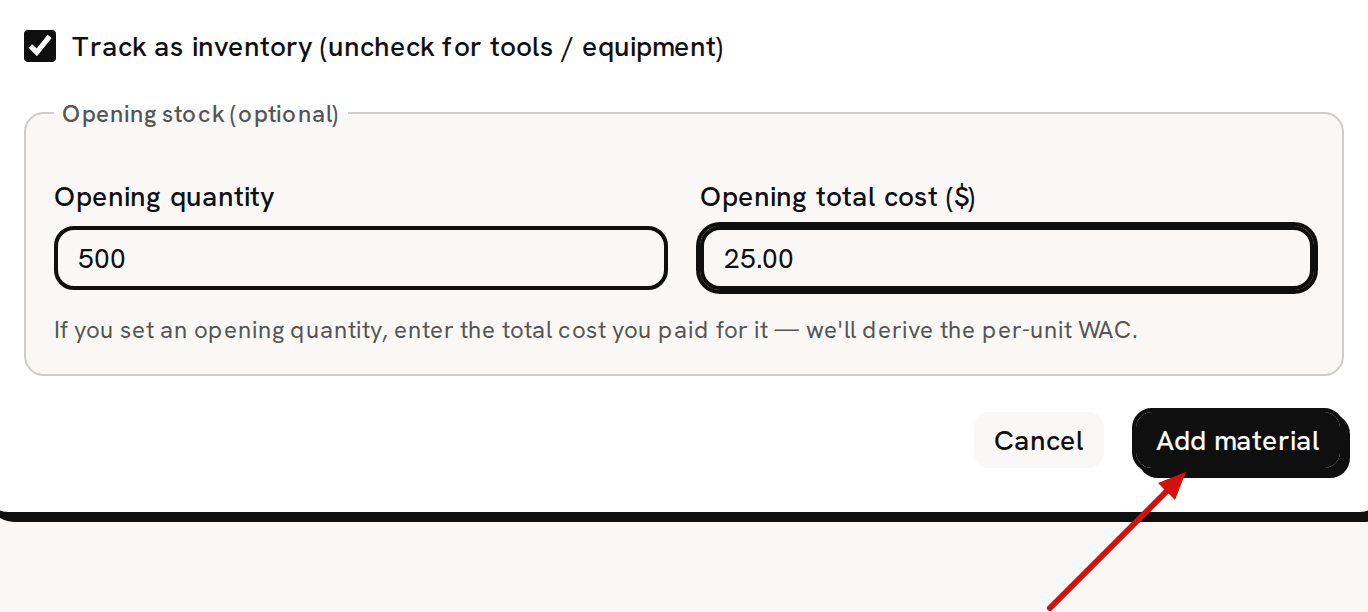
Click Add material.
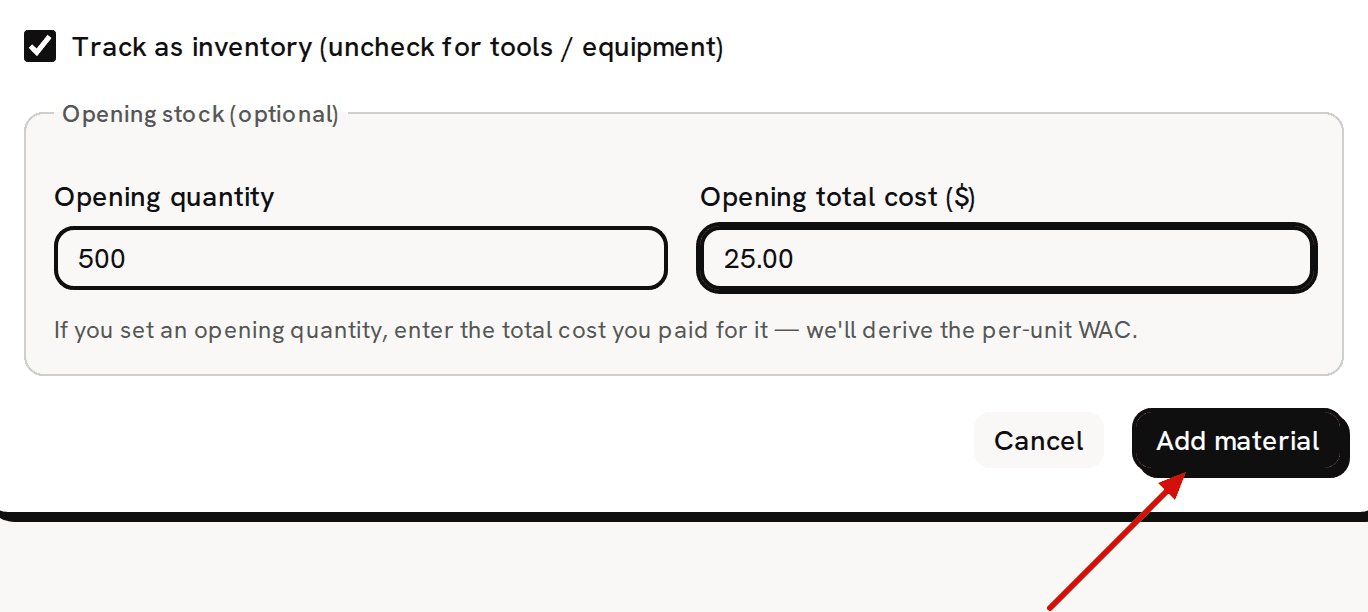
Click Add material to save. You see 'Material added' and go back to Materials, where the new material has its own row.

The new material in the list, with its opening stock and unit cost.

What happens next
- With opening stock, the material's Unit cost is the opening total divided by the opening quantity: $25.00 ÷ 500 g is $0.05 a gram.
- Without opening stock, it starts at 0 on hand and $0.00. Because 0 is at or below any reorder threshold, including 0, it shows Low stock and sits at the top of the list until you record some stock.
- From now on, only purchases, vendor credits, batches and inventory adjustments change its stock and unit cost. See About materials.
Every field explained
- Name (required): what you call the material. A name of only spaces is refused with 'Name is required'.
- SKU (optional): your own code for it.
- Unit (required): the label printed after the material's quantities and costs, even when you pick a tracking unit, so keep the two matching. If it's missing, the save is refused with 'Unit is required'.
- Tracking unit and Purchase unit (optional): the unit you count it in and the unit you buy it in, from the same family. Tracking units per purchase unit is the conversion between them.
- Supplier (optional): its usual supplier. Its quick purchases and vendor credits start with this supplier picked.
- Category (optional): a group of your own. + Add category… makes a new one.
- Reorder threshold: the low-stock line. A negative number is refused with 'Reorder threshold must be a non-negative number'.
- Vendor reorder code (optional): the supplier's catalog code, copied onto purchase orders.
- Photo (optional): a PNG, JPEG, WebP or GIF up to 10 MB.
- Track as inventory (uncheck for tools / equipment): checked for anything that goes into a product; unchecked for a tool. It can't be changed later.
- Opening quantity and Opening total cost ($) (optional): the stock you already hold. A quantity without a valid total is refused with 'Opening cost is required (valid dollar amount) when opening quantity is set'.