About the inventory start date
The day Trackost starts counting your stock. Purchases, batches, adjustments and shipments dated before it are refused, so your opening stock value stays true.
The short answer
- The inventory start date is the first day Trackost counts your stock. Purchases, batches, adjustments and shipments dated before it are refused; customer returns are not checked.
- Set it on or before the day you count what you hold. The first of the month is safest: a start date of today can refuse what you record early in the day.
- You set it in step 1 of Get started. Settings has no field for it.
What is the inventory start date?
It is the day your records in Trackost begin. The stock you count on that day, with what it cost, is your starting point, and every purchase, batch and sale after it moves those numbers. A transaction dated before the start date would change stock you never counted, so Trackost refuses it.
You set it in Get started: open More › Get started in the sidebar, choose Your business, fill Inventory start date and click Save profile. Settings › General has no field for it.

What does it block, and what doesn't it?
Trackost refuses each of these when its date is before the start date:
- a purchase recorded with a material's Record purchase, and stock received on a purchase order;
- a vendor credit;
- a batch, when you start it, complete it, or use Make it now;
- a stock adjustment, including opening stock on a new material;
- the ship date you give when you fulfill an order.
It doesn't check a customer return, a batch you schedule for a later day, or an order's Order date.
A purchase date or ship date you pick on the start date itself is allowed. The ship date box starts out filled with the UTC date, so early in your day it can show yesterday: check it before you fulfill. What you record without picking a date, a batch, an adjustment or a purchase left undated, is dated by the UTC calendar (Greenwich time), not your own time zone. If you are ahead of UTC, in Europe, Asia or Australia, something you record in the first hours of your day counts as the day before, and on your start date itself it is refused.
How do I choose the date?
Pick a date on or before the day you count your stock: the first of this month is safest, or the day before you count. Avoid today's date, for the time-zone reason above. On your counting day your opening stock goes in, and from then on you record every purchase, batch and order as it happens. Bring your real stock into Trackost walks through that first day.
An earlier date doesn't rebuild your past. Batches and adjustments are always dated today, so you can't enter last month's batches. Purchases and ship dates can be dated in the past, but that doesn't send them back in time. A past-dated purchase is blended into your average cost as it stands when you enter it, and a past-dated shipment is costed at today's average. An earlier start date only lets those past dates through.
Don't pick a date in the future. Until that day, Trackost refuses anything dated today, and batches and adjustments are always dated today. Adding a new material with opening stock fails too. The material is saved with nothing in stock, and no message says why.
What does the refusal look like?
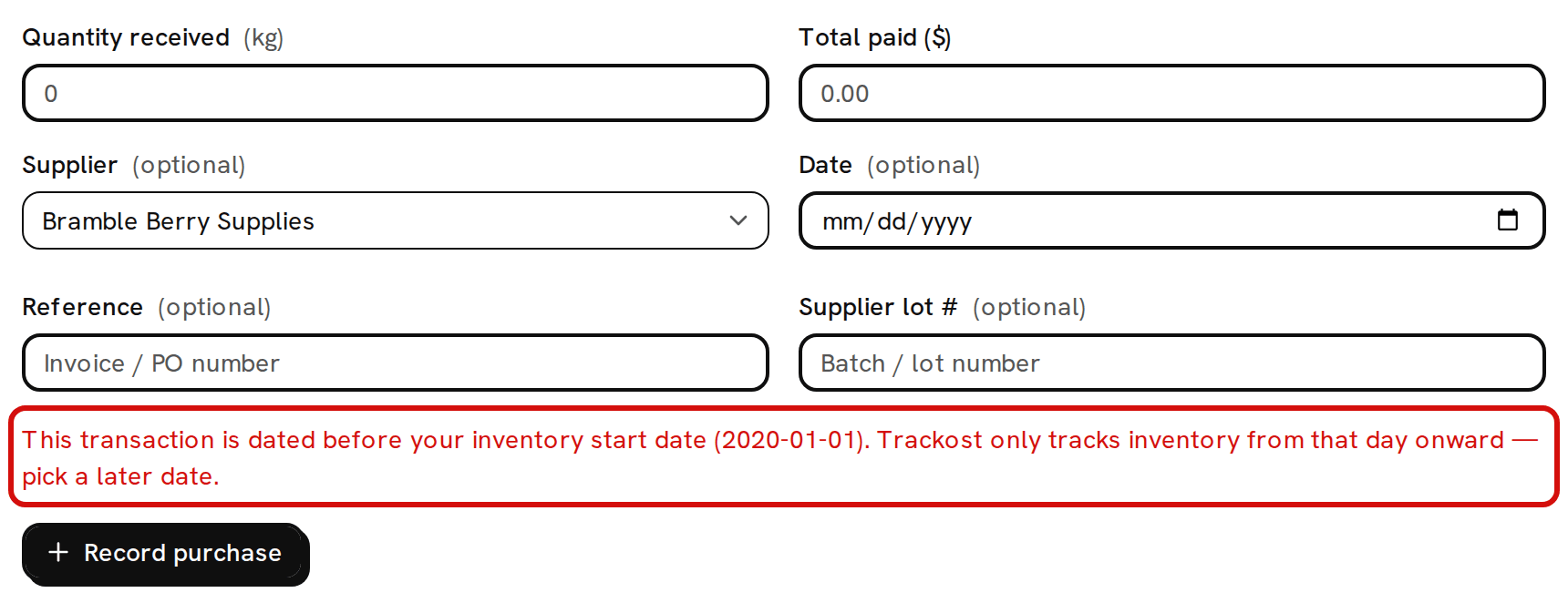
A purchase or an adjustment shows the message inside its form, just above the button. A batch or a shipment shows the same message in a pop-up at the corner of the screen:
'This transaction is dated before your inventory start date (2026-09-01). Trackost only tracks inventory from that day onward — pick a later date.'
The date in brackets is your start date, written year-month-day. Change the transaction's date to that day or later. A refused Record purchase empties its form, so type the whole purchase in again.
Can I change it later?
Yes. Open Get started, choose Your business, change Inventory start date and click Save profile. Everything you already entered stays as it is. The new date only applies to what you enter from then on. An earlier date lets older dates through, and a later one refuses them. If you empty the field and save, Trackost stops checking dates at all.