Reset or change your password
Request a reset link from the sign-in page, or open the reset page while signed in, then choose a new password of at least 8 characters.
You change your password with an emailed link, whether you have forgotten it or want a new one. There is no password setting inside Trackost. If you signed up with Google, you don't need a password. Sign in with Continue with Google on the sign-in page.
Request the reset link
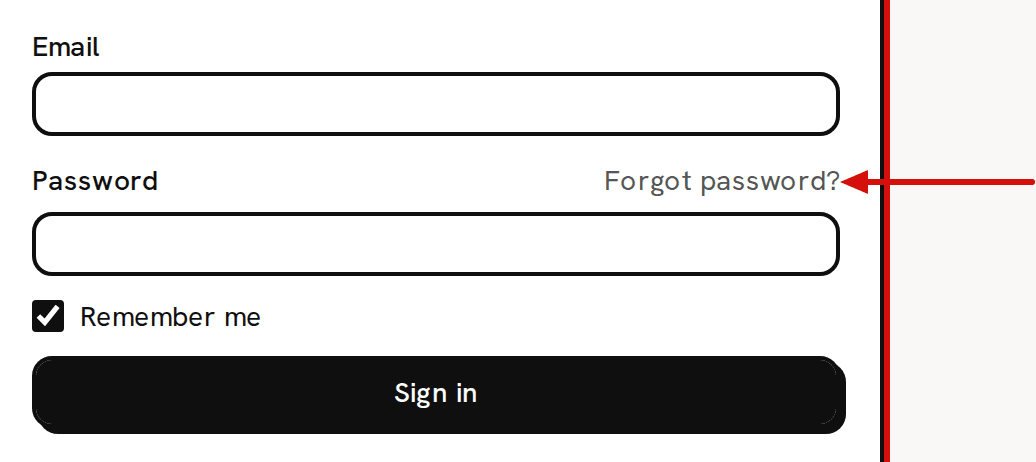
On the sign-in page, click Forgot password? beside the Password label.
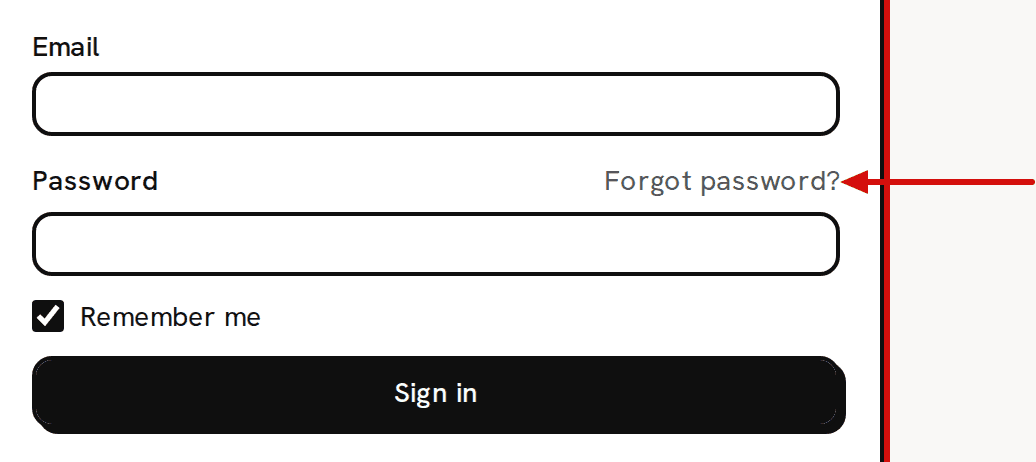
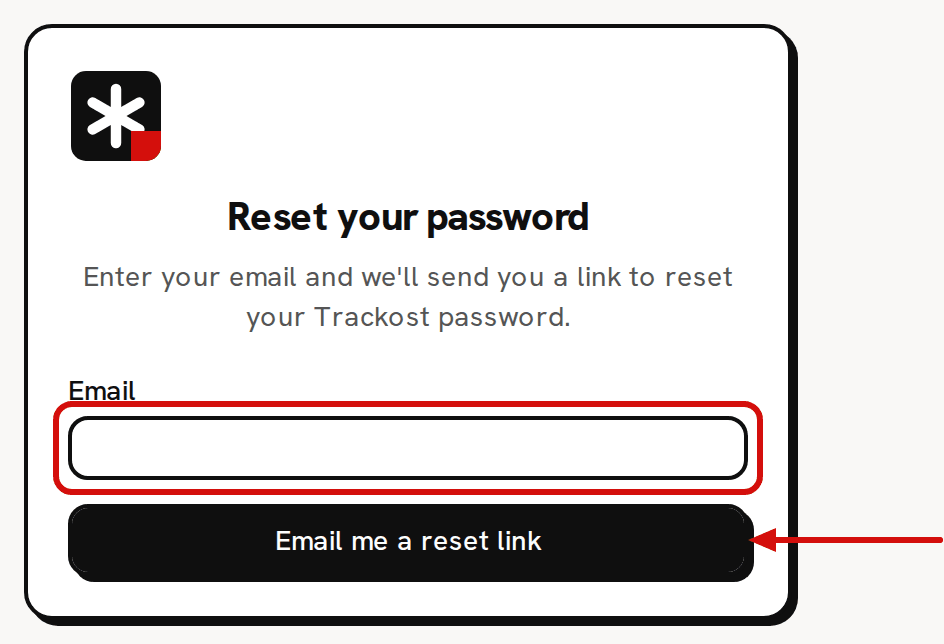
Forgot password? sits beside the Password label. Type your Email and click Email me a reset link. You see 'If an account exists for that address, we've emailed a reset link.' The message is the same whether or not the address has an account, so it never tells anyone who is signed up.
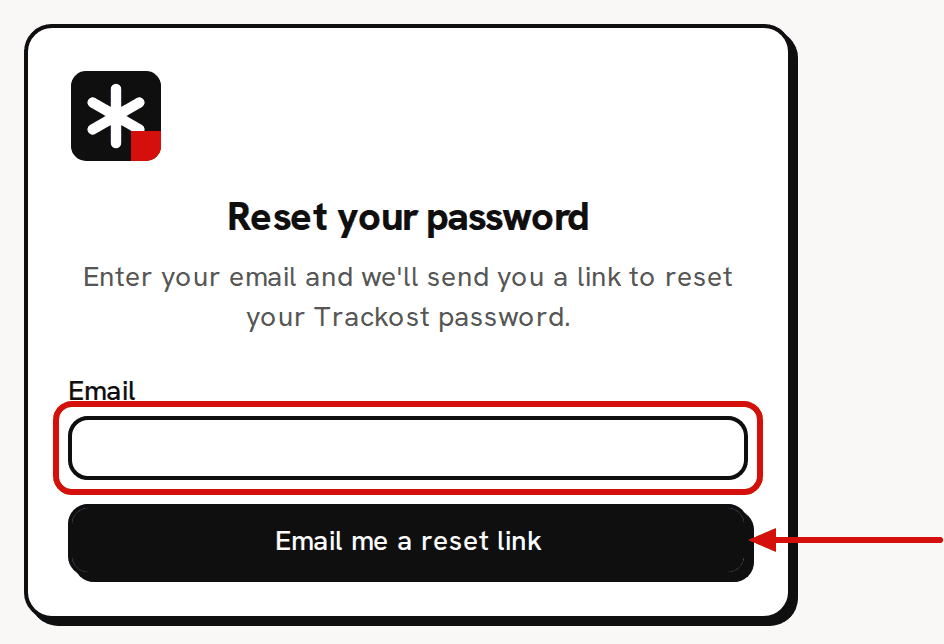
Type your email to get a reset link.
Choose a new password
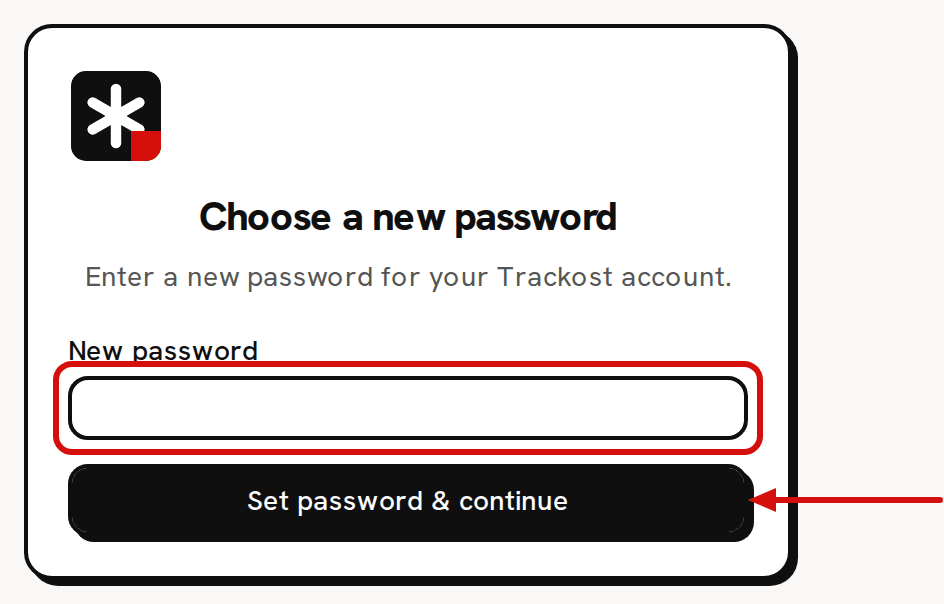
Open the email and click the link. Trackost opens Choose a new password.
Type a New password of at least 8 characters.
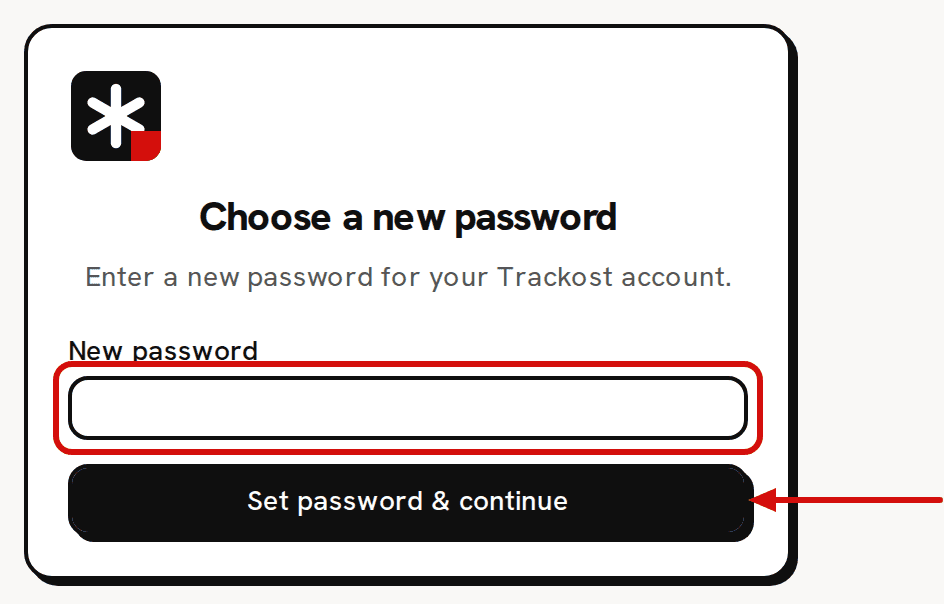
Choose a new password of at least 8 characters. Click Set password & continue. You land on the Dashboard, signed in with the new password.
Change your password while signed in
The sign-in page sends anyone who is already signed in straight to the Dashboard, so its Forgot password? link is out of reach. Open app.trackost.com/auth/forgot-password directly and follow the steps above. Or click Sign out at the top right first, then use Forgot password?.
Didn't get the email?
Check your spam folder, and give it a few minutes. Make sure you typed the address you signed up with. The confirmation looks the same for an address that has no account, so a typo gives no warning. Then request a new link.
The link says it expired
A link that is too old or was already used brings you to the sign-in page with 'That link has expired or was already used. Request a new one.' Request a new link and use the newest email.
Some reset links sign you in and open the Dashboard without asking for a new password. Your old password still works in that case. Open app.trackost.com/auth/forgot-password and request another link.