Sign in and sign out
Sign in with your email and password or with Google, decide whether to stay signed in on this computer, and sign out from the top bar.
You sign in at app.trackost.com/login with your email and password, or with Google if that is how you signed up. You sign out from the top bar of any page.
Sign in
Go to app.trackost.com/login. The panel on the left of the page is a labeled example, not your data.
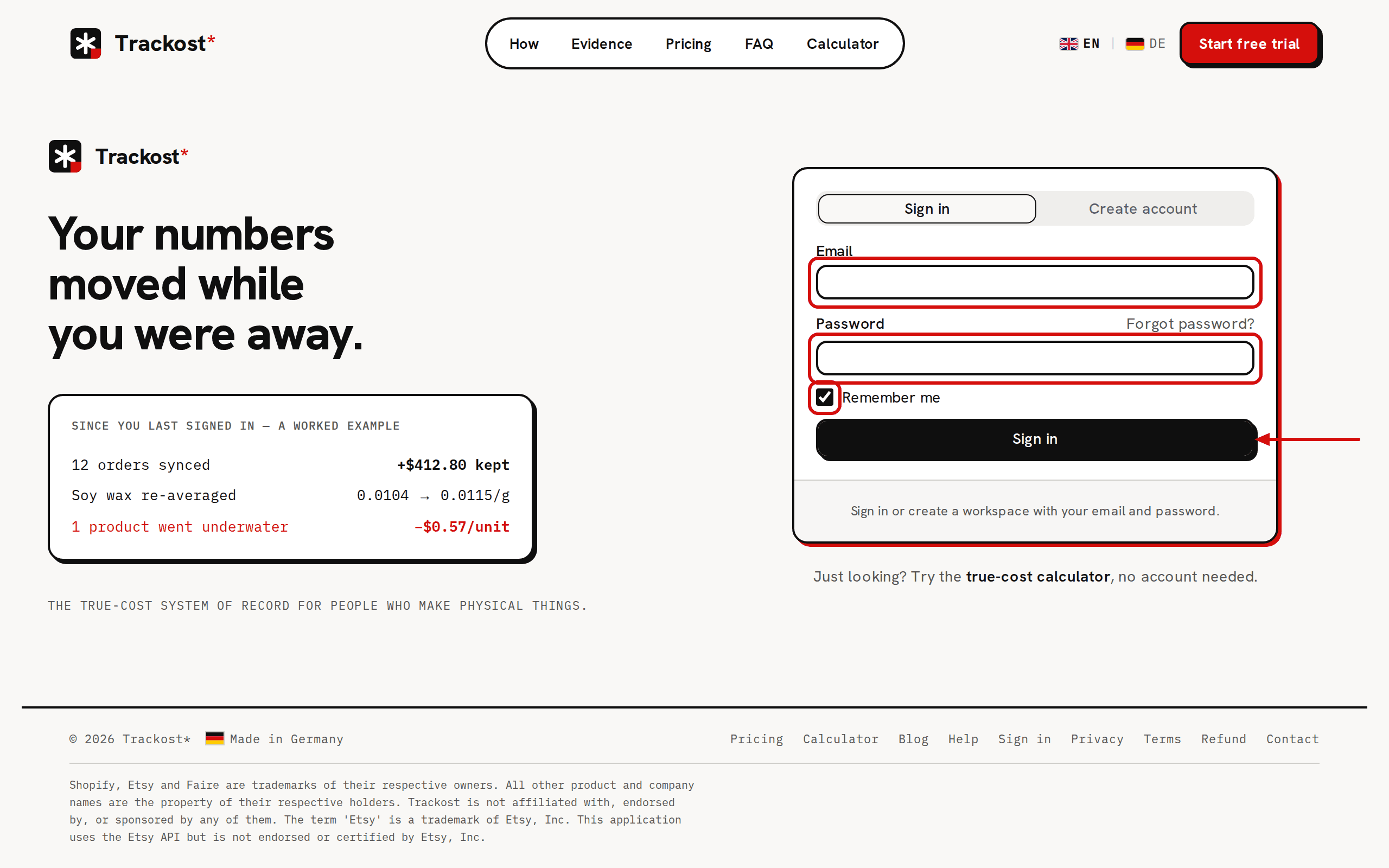
The sign-in page. The panel on the left is a labeled example, not your data. Type your Email and Password.
Leave Remember me ticked to stay signed in after you close the browser. On a shared computer, untick it, and you are signed out when the browser closes.
Click Sign in. You land on the Dashboard, or on the page you were trying to open before you were asked to sign in.
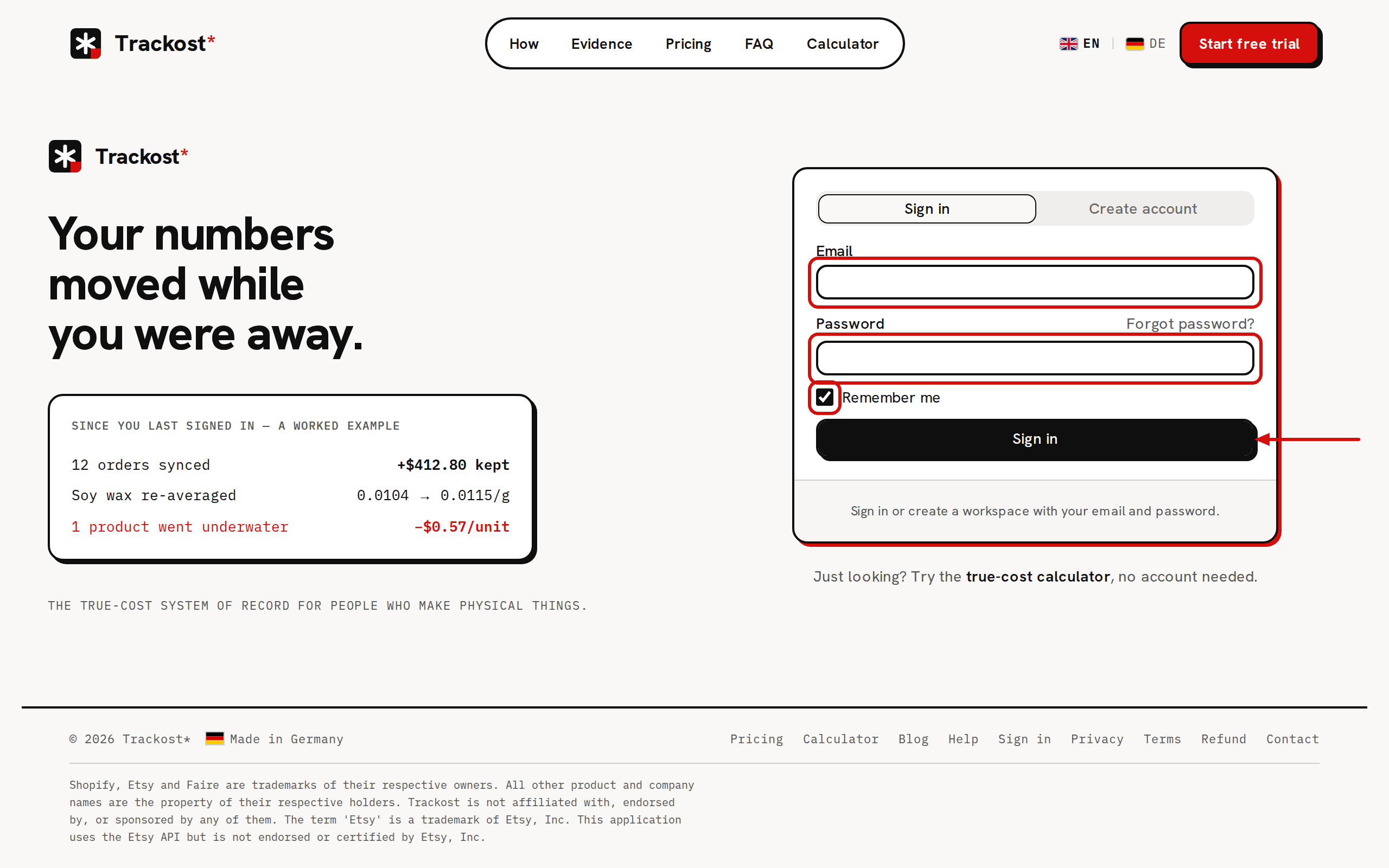
Sign in with Google
If you signed up with Google, click Continue with Google under the form and choose your Google account. A Google sign-in always keeps you signed in. There is no Remember me choice for it.
Sign out
Click Sign out at the top right of any page. You are back on the sign-in page.
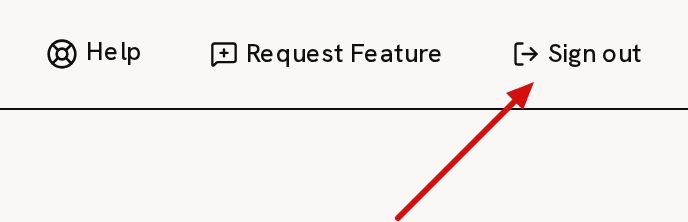
Sign out sits at the top right of every page.
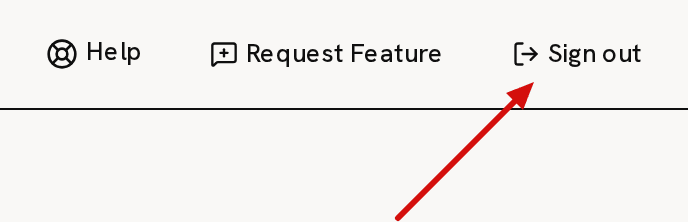
If your workspace is locked behind the plan wall, the top bar can't be clicked. Use the Sign out button at the bottom of the plan wall instead.
A failed sign-in
When a sign-in fails, the reason appears in red just above the Sign in button, for example 'Invalid login credentials'. That text comes from our sign-in provider, so it is always in English and its wording can change. Check the address for typos, then try again. If you don't remember your password, click Forgot password? and follow Reset or change your password.
Switching the language on the sign-in page
The EN | DE switch at the top of the sign-in page shows the page in English or German. Inside Trackost, the language is a setting of this browser, not of your account. Change it on Settings › General in the Language card and click Save language.