Buy in one unit, track in another
Set a tracking unit and a purchase unit, for example kg and g, so purchases convert on their own and the unit cost is per the unit your recipes use.
You buy soy wax by the kilogram, but your recipes use grams. Give the material two units and Trackost does the conversion: you record purchases in kilograms, and it keeps stock and cost in grams. The sample workspace's Soy Wax (GW464) is set up this way. If your trial or plan has ended, Trackost refuses every save with 'Your plan has ended — subscribe to continue making changes.'
- The tracking unit is the unit you count and use the material in. Stock, unit cost, recipes and adjustments all work in it.
- The purchase unit is the unit your supplier sells it in. Purchases are entered in it.
Set the two units
- Open the material's form: Add material for a new material, or Edit on an existing material's page.
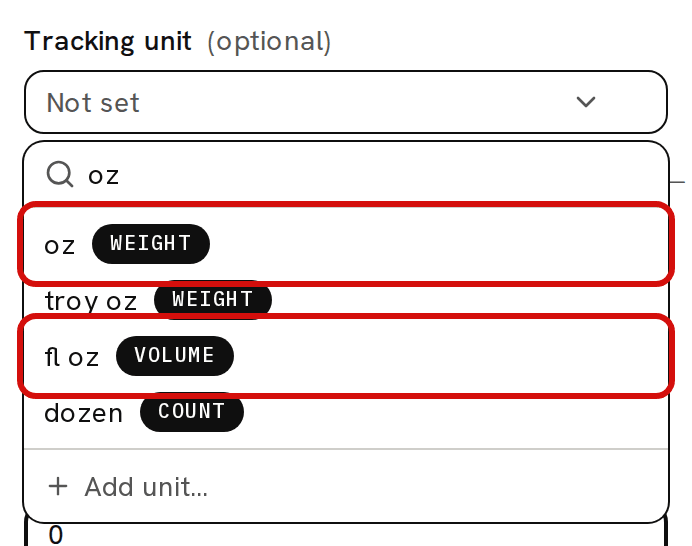
Under Tracking unit, open the picker and choose the unit you use the material in, such as g. Type in the search box to narrow the list. Each unit shows its family beside it, which tells apart the two ounces: oz is a weight, fl oz a volume.
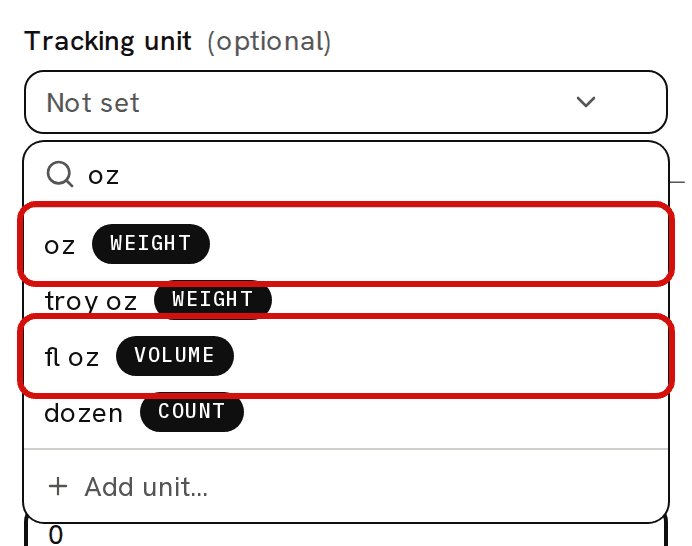
Every unit shows its family: the two ounces are different families. Under Purchase unit, choose the unit you buy it in, such as kg. It must be from the same family as the tracking unit: two weights, two volumes, two lengths or two counts. A pair from different families shows a red message, for example 'g is a weight unit and ml is a volume unit — pick two units from the same family.', and the save button stays disabled until you fix it.

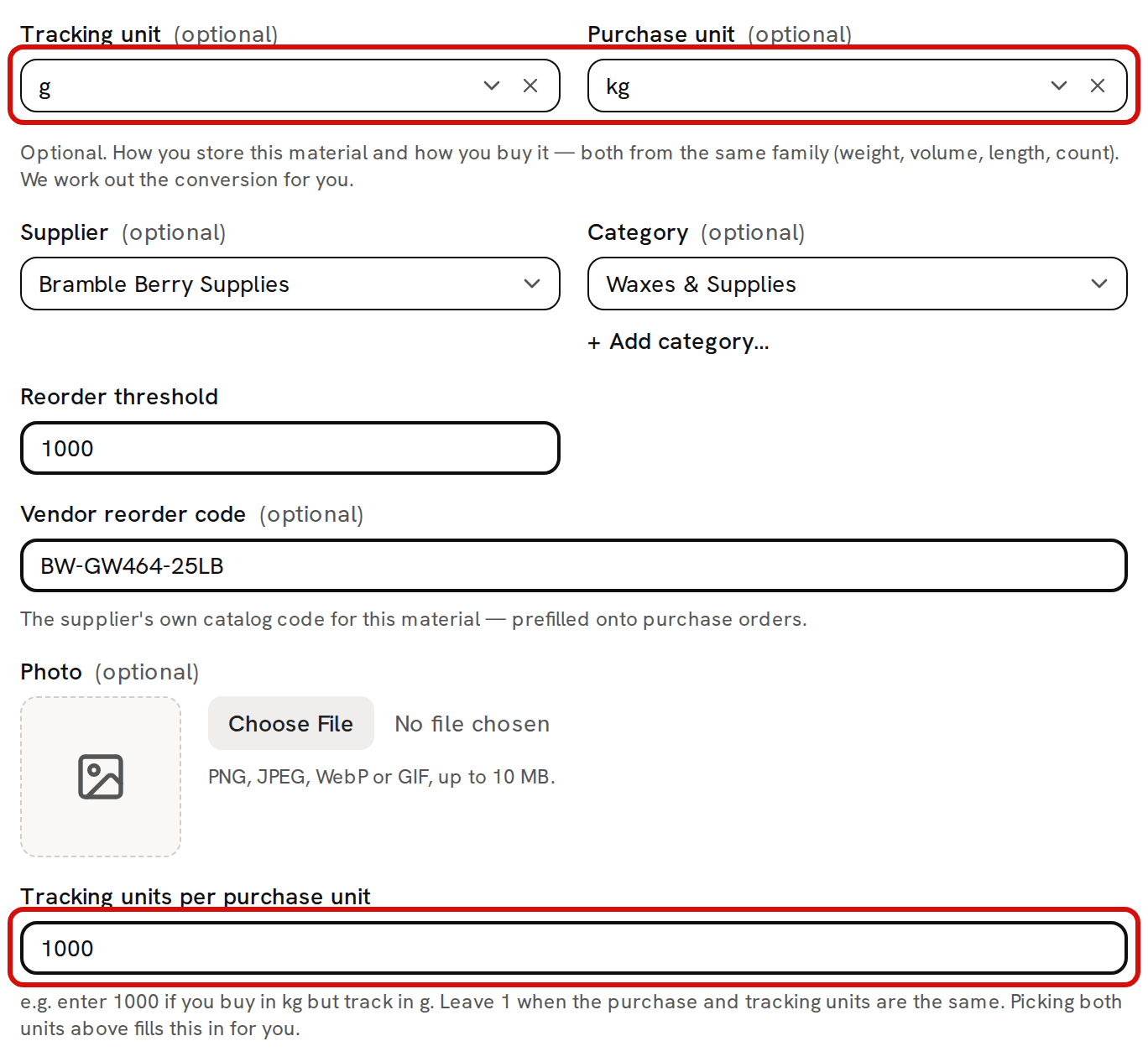
Two units from different families can’t be paired. Check Tracking units per purchase unit. Trackost fills it in from the two units: 1000, because 1 kg is 1,000 g.
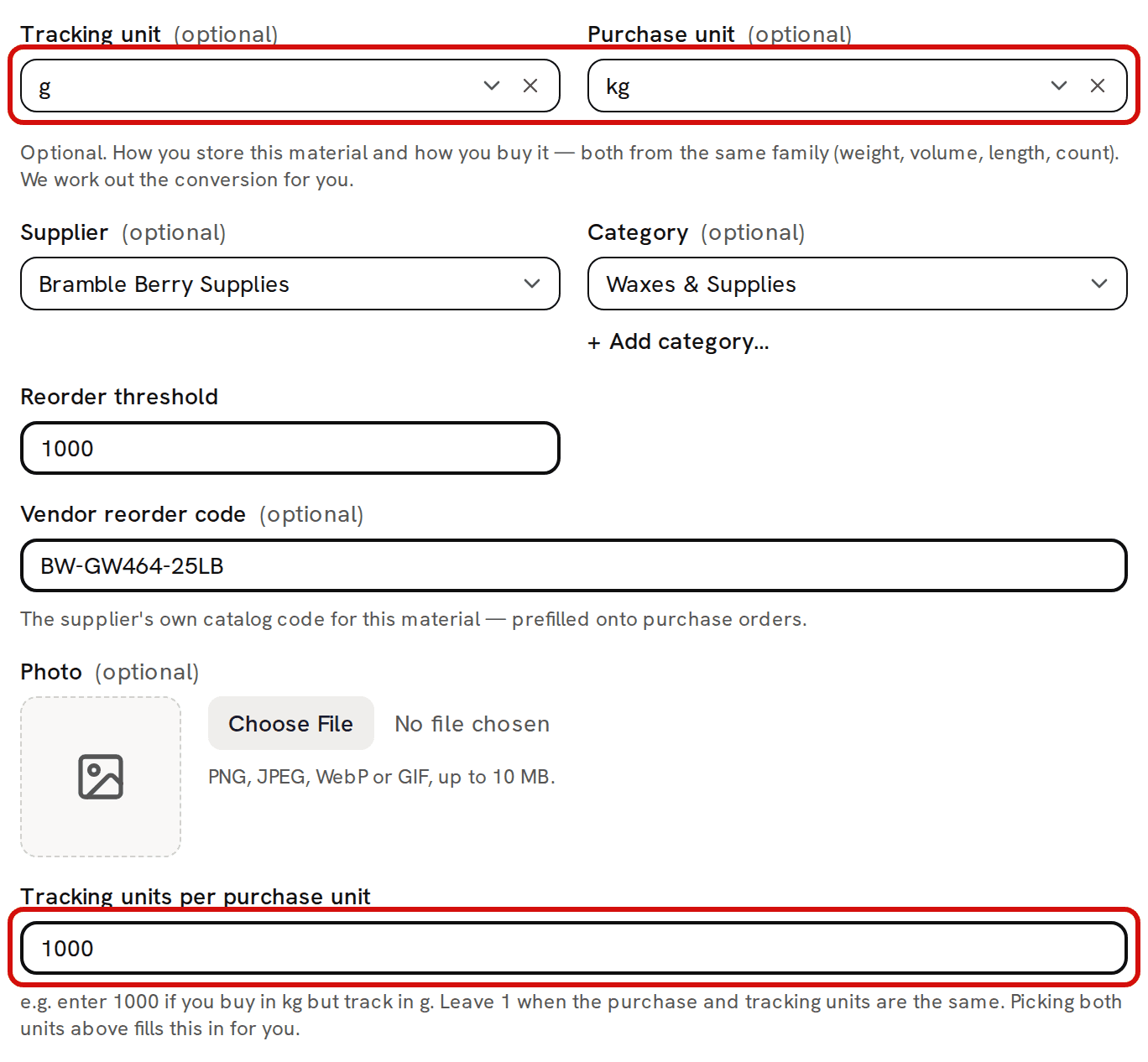
Tracking unit g, purchase unit kg, conversion 1000. - Set Unit to match the tracking unit. Unit is the label printed after every quantity and cost of the material. It only offers g, ml, oz and each, so a material you track in any other unit, such as lb, is labelled with the wrong unit.
- Click Save changes, or Add material on a new one.

The conversion field
Tracking units per purchase unit is how many tracking units one purchase unit holds. Trackost multiplies every purchase quantity by it before adding the purchase to stock.
- It fills itself in whenever you pick two units from the same family. Once you type in the field yourself, picking or clearing units no longer changes it.
- Until you type in it, clearing either picker puts it back to 1.
- With no units picked it stays at 1: you buy and count in the same unit.
- If your supplier sells in a unit that isn't in the list, such as a 25 lb bag, choose Add unit… at the bottom of the picker's list and define it, for example 1 bag = 25 lb. Then pick it as the purchase unit and the conversion follows.
Record a purchase afterwards
Recording a purchase needs money access. A team member without it has no Record purchase form on the material's page, and Trackost refuses the save with 'Recording a purchase requires money access.'
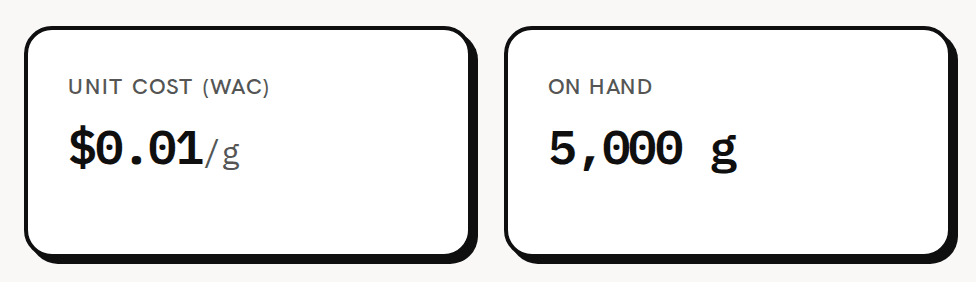
Open the material's page. Its Unit cost (WAC) and On hand cards count in the tracking unit: $0.01/g and 5,000 g for Soy Wax (GW464).
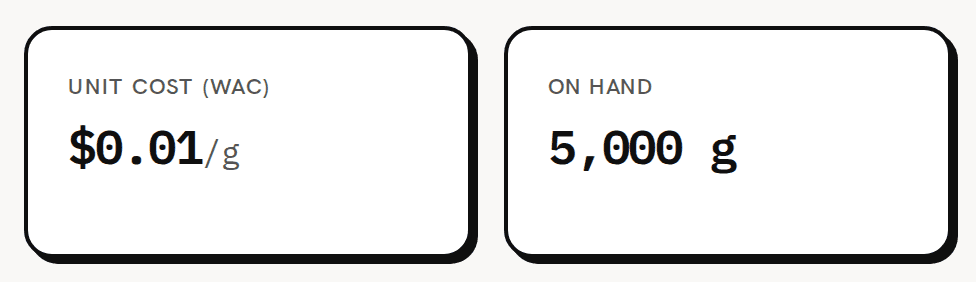
Stock and unit cost are per gram, the tracking unit. - In Record purchase, the label reads Quantity received followed by the purchase unit, (kg).
- Type the quantity in the purchase unit: 2 for a 2 kg delivery. Type Total paid ($) for the whole delivery.
- Click Record purchase. On hand goes up by 2,000 g, to 7,000 g, and Unit cost (WAC) stays a cost per gram.
On a purchase order, the unit beside each line's quantity is the purchase unit too.

The unit beside the quantity is the purchase unit.

Which fields use which unit
| Purchase unit (kg) | Tracking unit (g) |
|---|---|
| Quantity received on Record purchase | On hand, on the list and the material's page |
| Quantity in Purchase history | Unit cost (WAC) and every cost per unit, such as $0.01/g |
| Qty ordered on a new purchase order | Reorder threshold and Reorder at |
| Ordered and Received on a purchase's page | Opening quantity when you add the material |
| Outstanding and Receive now on Receive items | Quantity returned on a vendor credit |
| Qty on the printed purchase order | Recipe quantities and inventory adjustments |
Recipes use the tracking unit with no conversion. A candle that needs 200 g of wax takes 200 from stock, never 0.2.
Vendor credits use the tracking unit
When you return material to your supplier with Record vendor credit, Quantity returned is counted in the tracking unit, and its label names no unit. The line under the field shows how much you have, in that unit. Returning 2 kg of wax is a credit of 2000, not 2.
Fixing a wrong conversion
Open the material, click Edit, correct the units or Tracking units per purchase unit, and click Save changes. The new conversion applies to the purchases you record from then on. It doesn't change stock or costs already booked.
Stock booked with the wrong conversion stays wrong until you correct it. Count what is on your shelf, then fix the quantity and its cost on Inventory with Adjust, as Costing troubleshooting describes.