TUTORIAL: Introduction to materials
About 20 minutes: add your first raw material field by field, pick its tracking and purchase units, enter what you already hold, and read its page.
Why tracking materials matters
A material is anything you buy and use up to make your products: wax, oils, fragrance, wicks, jars, labels, boxes. For each one, Trackost keeps two numbers: how much you have on hand, and what one unit of it cost you on average (its weighted-average cost).
Everything else is built on those two numbers. A recipe costs itself from its materials. A batch takes its materials out of stock at that cost. The cost of a sale is the product's weighted-average cost, which your batches build up. Get your materials right and your product costs follow.
In this tutorial you add one material, Coconut Oil, bought by the kilogram and used by the gram, with 2 kg already on your shelf. Use a material you really stock, with its real quantity and cost. Once saved, a material can't be deleted or archived.
Ways to add a material
- One at a time, with Add material on the Materials page. That is what this tutorial does.
- A whole list from a spreadsheet or another tool: open Migration in the sidebar and ask us to import it for you.
Step 1: Open Materials
- Click Materials in the sidebar.
Click Add material at the top right.

Add material is at the top right of Materials.

Step 2: Name, SKU and unit
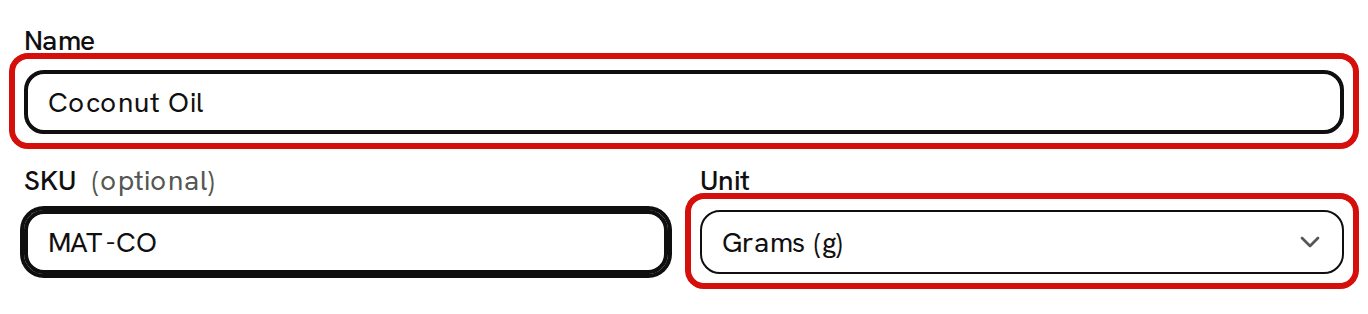
- Type the Name: Coconut Oil.
- If you use your own item codes, type one in SKU, for example MAT-CO. You can leave it empty.
Leave Unit on Grams (g). Unit is the label Trackost prints after every quantity and cost of this material ("2,000 g", "$0.01/g"). It offers Grams (g), Milliliters (ml), Ounces (oz) and Each, and it doesn't follow the tracking unit you pick next, so keep the two matching.
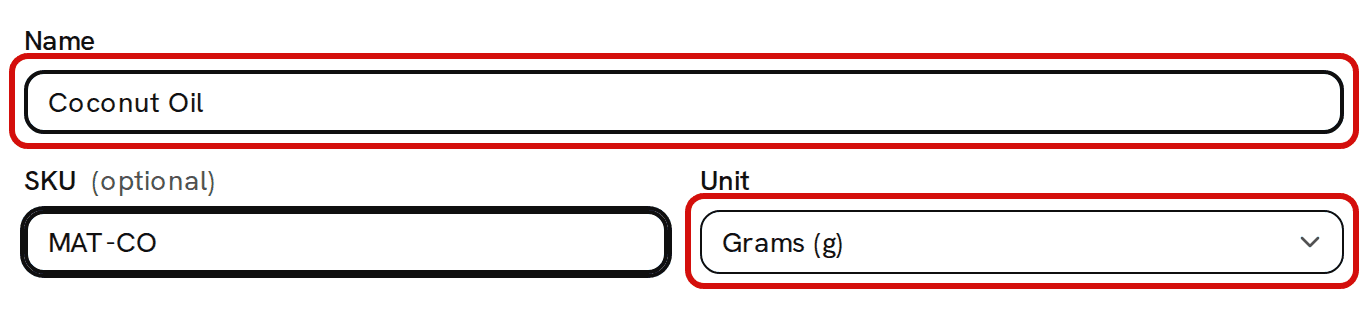
Only Name and Unit are required.
Step 3: Tracking unit, purchase unit and the conversion
Coconut Oil comes in 1 kg tubs, but your recipes use grams. Two optional pickers tell Trackost that.
- Under Tracking unit, pick g. This is the unit you count and use the material in. Stock, cost and recipes all work in it.
- Under Purchase unit, pick kg. This is the unit you buy it in. Both units must come from the same family: two weights, two volumes, two lengths or two counts.
Check Tracking units per purchase unit. Trackost filled in 1000, because 1 kg is 1,000 g.
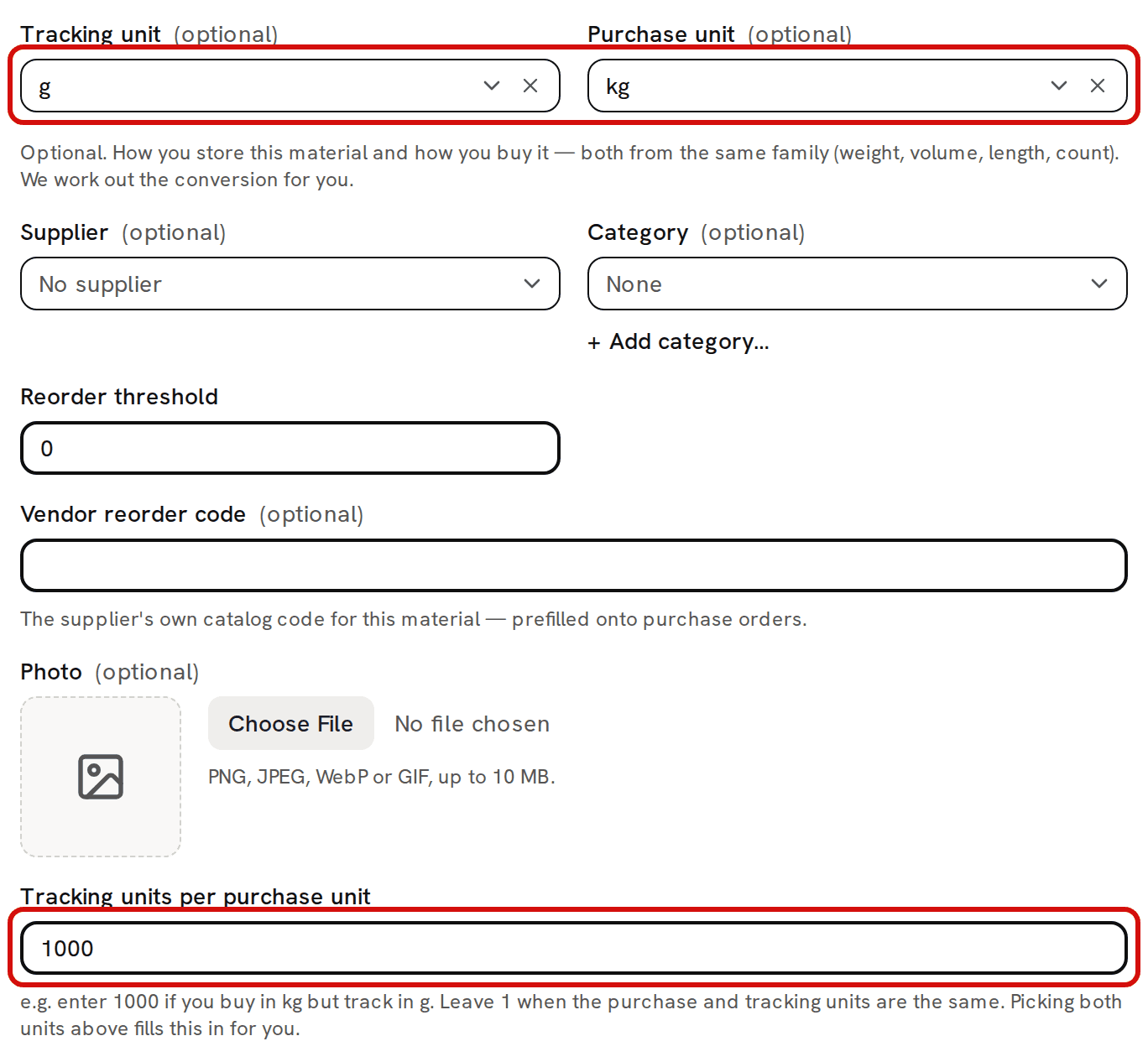
Buy in kg, track in g: the conversion fills in for you.
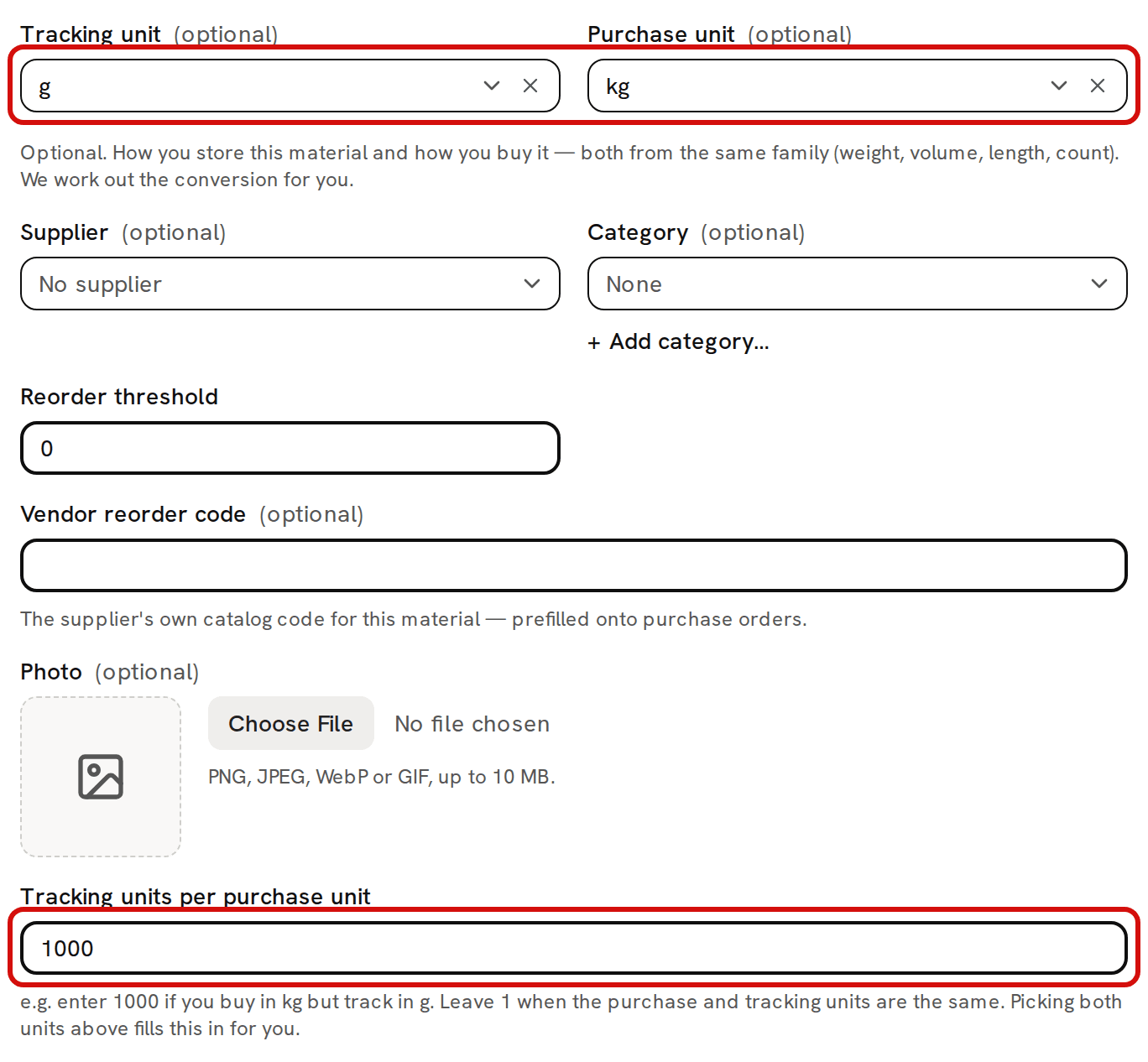
From now on you record purchases of Coconut Oil in kilograms, and Trackost adds them to stock in grams. Buy in one unit, track in another covers which screens use which unit.
Step 4: Supplier, category, reorder threshold and the rest
All of these are optional.
- Pick a Supplier if you have one. Suppliers are added under More › Suppliers first (Add a supplier).
- Pick a Category to group your materials. To make a new one, click + Add category… under the picker.
- Set a Reorder threshold in the tracking unit, for example 500 for 500 g. When the amount on hand drops to that number or below, the material is flagged Low stock.
- Type the supplier's own catalog code in Vendor reorder code. Trackost copies it onto your purchase orders.
- Add a Photo if you want one on the list and the material's page.
- Leave Track as inventory (uncheck for tools / equipment) checked. Uncheck it only for a tool, such as a pouring pitcher: a tool's purchases are booked as overhead and it can't go into a recipe. You can't change this after the material is saved.
Step 5: Opening stock
Fill this in if you already have some of the material. Here, that is the 2 kg on your shelf, which cost you $24.00.
- Type the Opening quantity in the tracking unit: 2000, for 2,000 g. The field shows no unit and doesn't convert from kilograms, so typing 2 here would give you 2 g.
Type the Opening total cost ($): 24.00, the total you paid for those 2,000 g, not the price per gram.
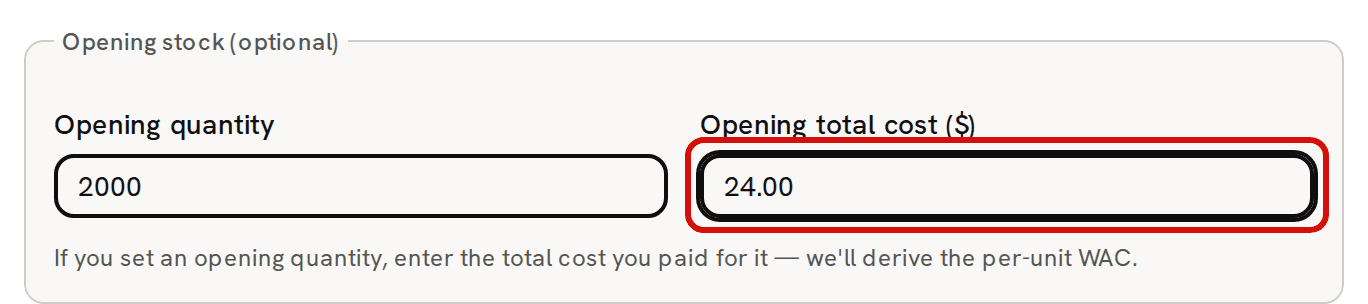
2,000 g for $24.00 in total.
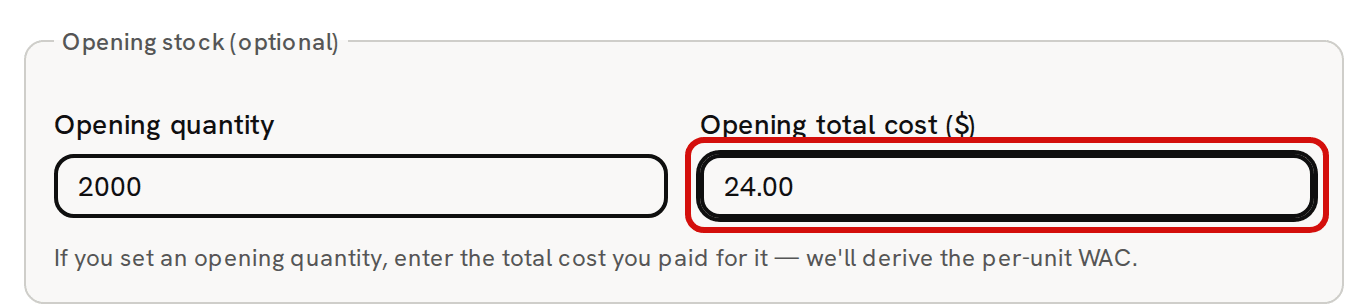
Trackost divides the total by the quantity to set the material's first unit cost: $24.00 ÷ 2,000 g = $0.012 a gram. A quantity without a valid total is refused with 'Opening cost is required (valid dollar amount) when opening quantity is set'.
Opening stock is recorded as an opening adjustment, not a purchase, so it never appears in the material's Purchase history. It is dated today. If your inventory start date is later than today, Trackost can't book it: the material is saved with nothing on hand, and the page shows an error instead of a message. In that case, leave opening stock empty and record the stock with a purchase dated on or after your start date.
You need money access to enter opening stock. A team member without it doesn't see the Opening stock (optional) section.
Step 6: Save and read the material page
- Click Add material. You see 'Material added' and go back to the list.
Click the Coconut Oil row to open its page.
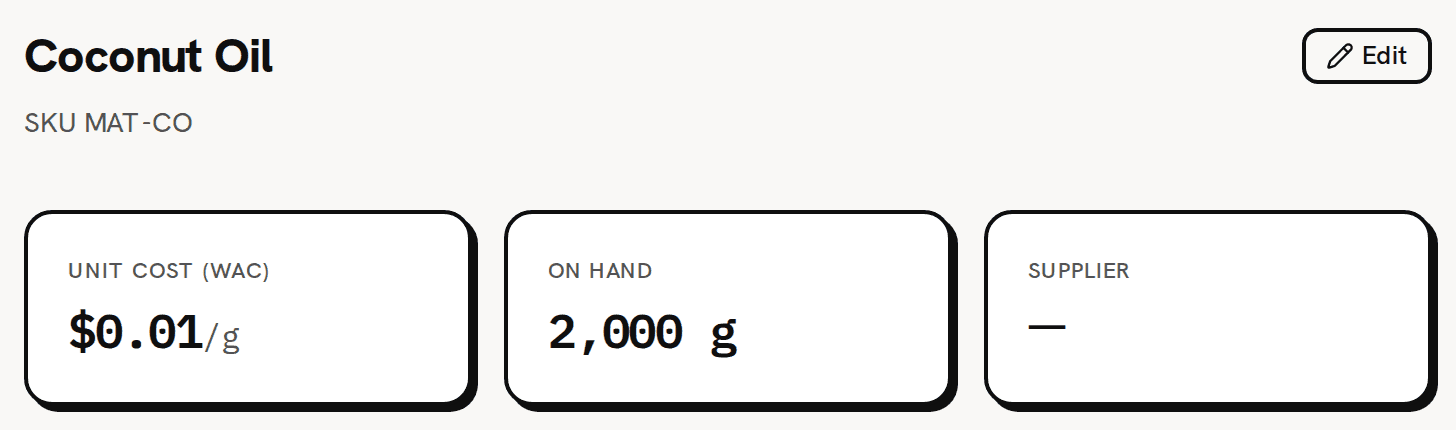
The new material’s page: unit cost, stock on hand and supplier.
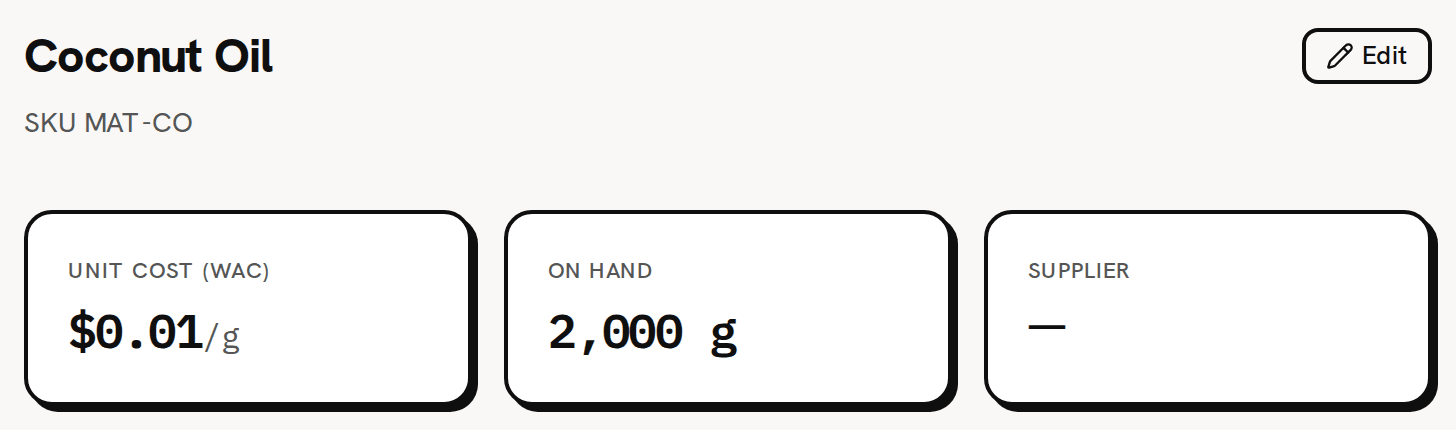
The page opens with three cards:
- Unit cost (WAC): $0.01/g. Trackost keeps the cost to a thousandth of a cent ($0.012 here) and shows it rounded to the cent.
- On hand: 2,000 g.
- Supplier: the supplier you picked, or a dash if you left it empty.
Below them are Record purchase and Record vendor credit, then Purchase history, which is still empty.
If your trial or plan has ended, Trackost refuses the save with 'Your plan has ended — subscribe to continue making changes.'
What you have now
- A material with a tracking unit (g), a purchase unit (kg) and the conversion between them.
- Its opening stock, 2,000 g, at a unit cost of $0.012 a gram.
- A page where every future purchase, vendor credit and batch moves its stock and cost. You never type those two numbers yourself.
Next, record what you buy: TUTORIAL: Introduction to purchases.