Add a supplier
Create a supplier once, then pick it on your materials, quick purchases, purchase orders and vendor credits. Only the name is required.
A supplier is the vendor you buy raw materials from. Once it exists, you can pick it on a material, on a quick purchase, on a purchase order and on a vendor credit. The purchase forms have no way to add a supplier on the spot, so add it here first.
If your trial or plan has ended, Trackost refuses the save with 'Your plan has ended — subscribe to continue making changes.'
Open Suppliers
In the sidebar, under More, click Suppliers.
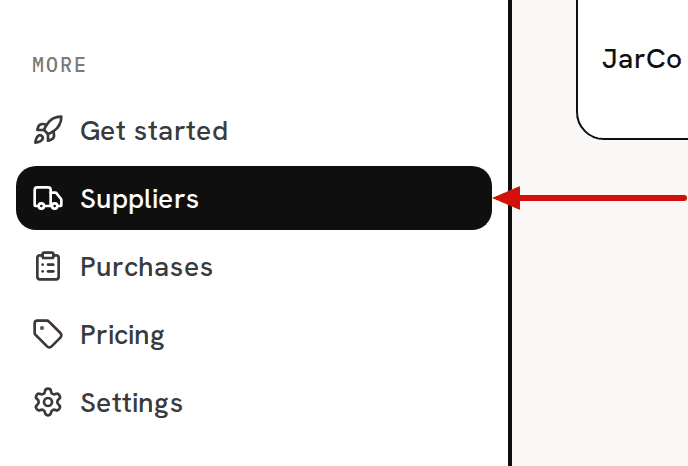
Suppliers is under More in the sidebar. - Click Add supplier at the top right of the page.
Add the supplier
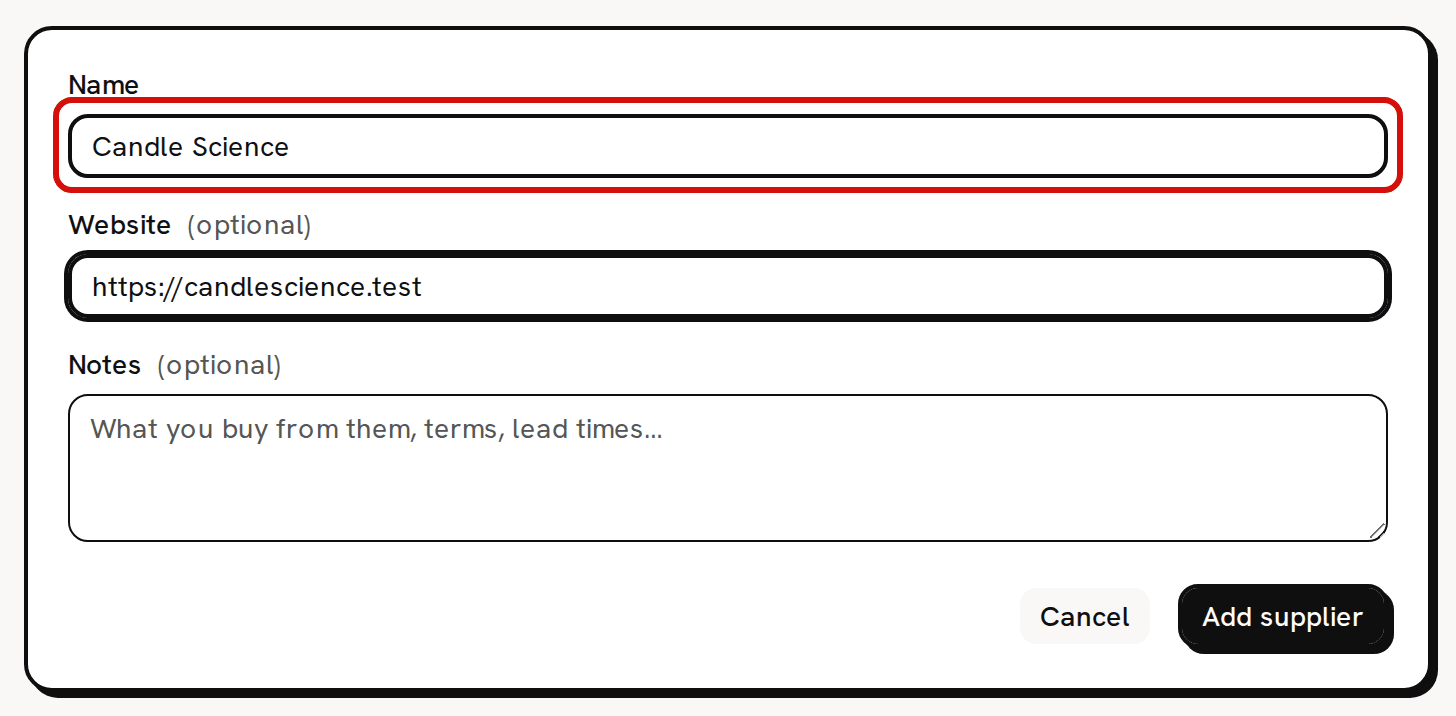
Type the supplier's Name. It is the only field you have to fill.
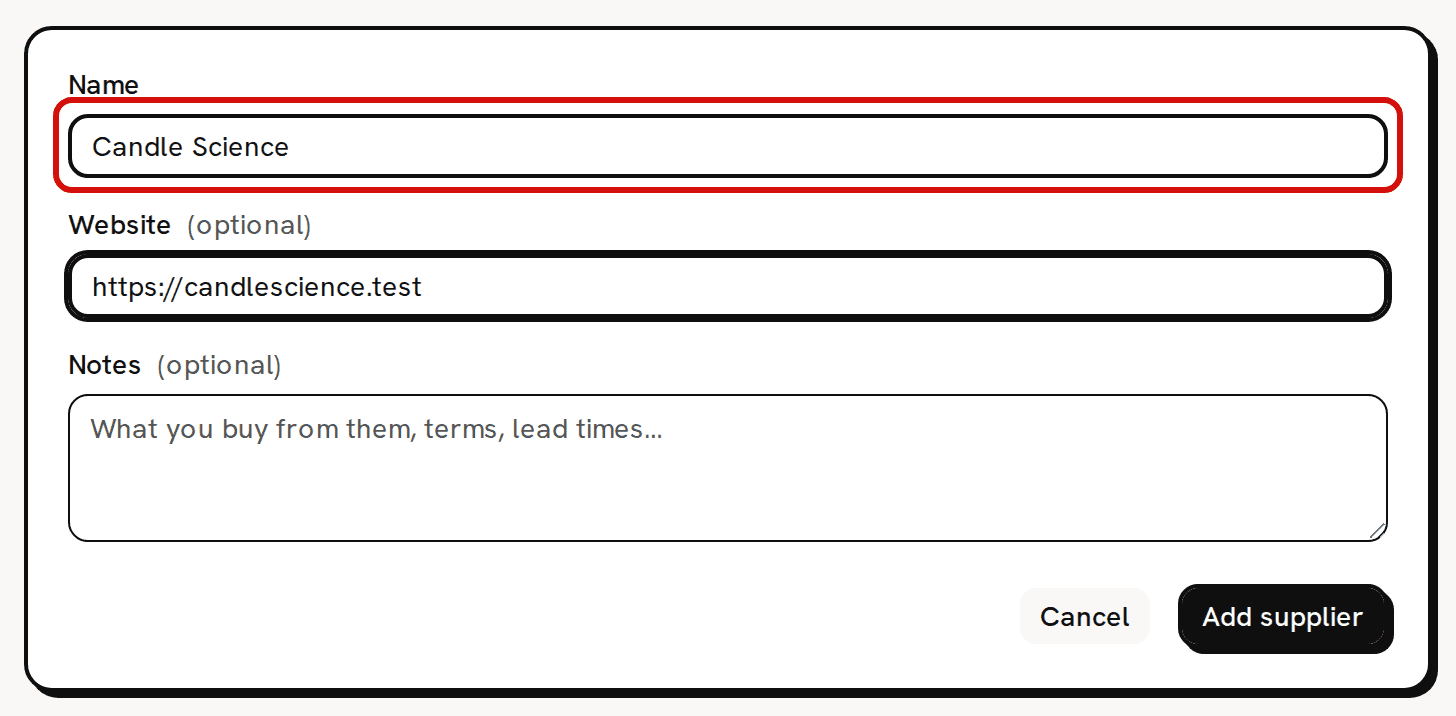
Only the name is required. - If you like, add their Website. Type the full address, starting with https://, or the form won't save.
- If you like, add Notes: what you buy from them, their terms, how long delivery takes.
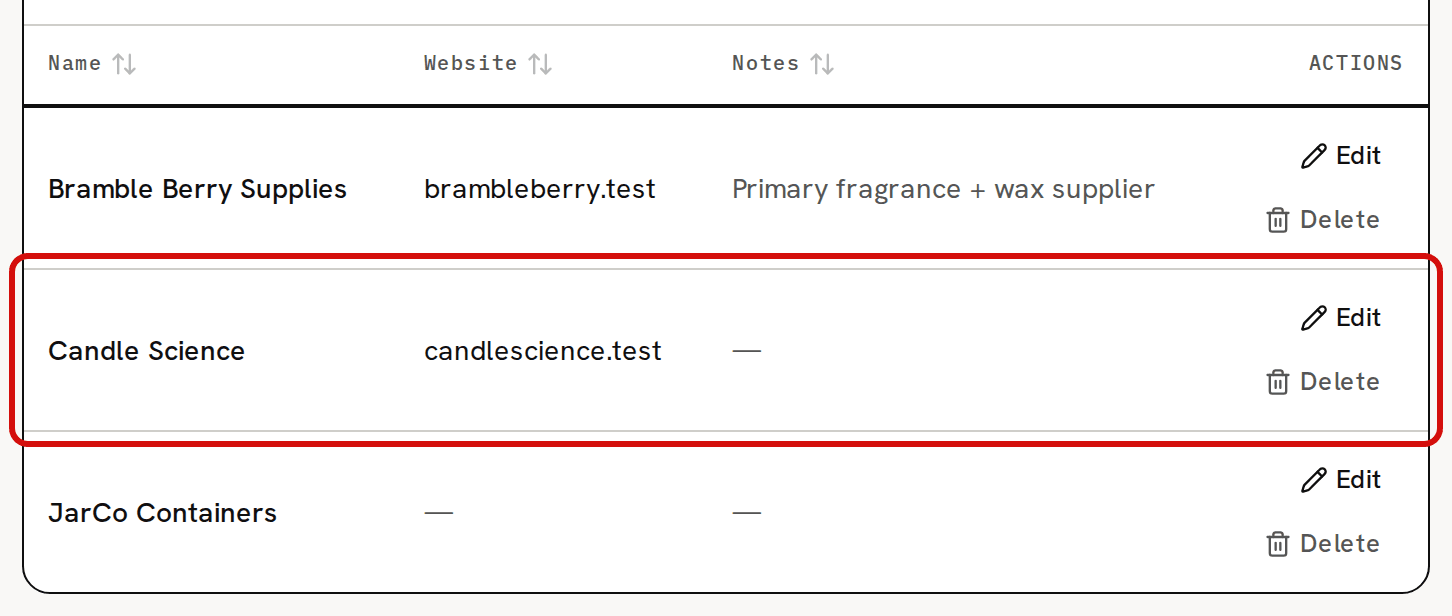
Click Add supplier. You see 'Supplier added' and land back on the list, where suppliers are sorted by name.
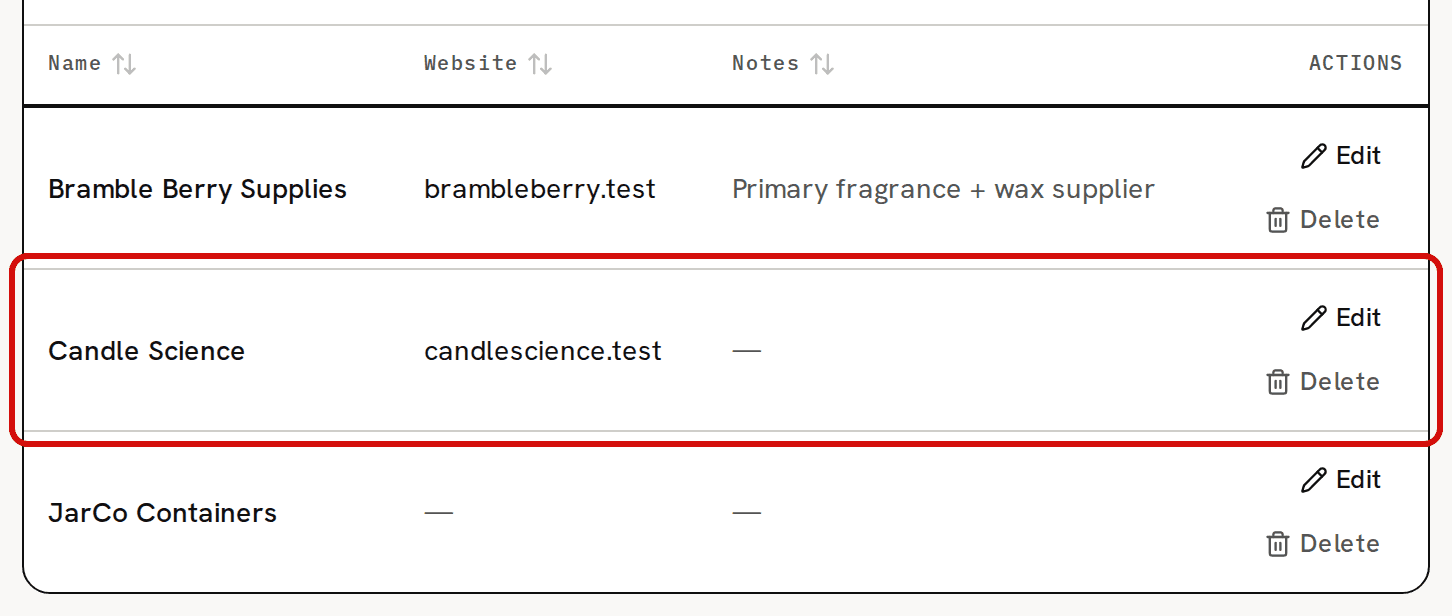
The new supplier appears in name order.
A name made only of spaces is refused with 'Name is required'.
Attach it to a material
- Open Materials in the sidebar and click the material.
- Click Edit at the top right.
- Pick the supplier under Supplier.
- Click Save changes.
The material's page now shows the supplier in its Supplier card. Its Record purchase and Record vendor credit forms start with that supplier picked, and the Material Reorder report lists it beside the material when stock runs low. You can still pick a different supplier on any single purchase.
Change or remove a supplier later
A supplier has no page of its own. Clicking its row on Suppliers opens Edit supplier, where you change the name, website or notes and click Save changes.
Delete on the row opens a confirmation page. Deleting can't be undone. The supplier's name disappears from every material, purchase and vendor credit that used it; those records stay, with no supplier.