Receive items into stock
Book a delivery against an ordered purchase, all of it, some lines or part of a line, and see the landed cost and new unit cost before you confirm.
Receiving is the step that puts a purchase order into stock. Each line you receive adds its quantity to the material, at its landed cost: its subtotal plus its share of the shipping and tax, less its share of the discount. The material's unit cost is re-averaged, and the purchase is recorded in your books. Nothing before this step, not creating the order, marking it ordered or marking it paid, does any of that.
Before you receive
- The purchase must be Ordered or Partially received. A draft has no Receive button: click Mark ordered first. See Create a purchase order.
- If a material on the order has fallen below zero and the delivery wouldn't lift it above zero, Trackost can't book it. You see an error page instead of a message, and Receive items may not open at all, because every line starts filled in. Bring the count above zero first, with Record purchase on the material's page or Adjust on Inventory, then receive.
- Receiving needs money access. Without it, Trackost refuses with 'Managing purchases requires money access.' If your trial or plan has ended, it refuses with 'Your plan has ended — subscribe to continue making changes.'
Receive the delivery
- Open the purchase from Purchases and click Receive.
- If the delivery came on an earlier day, set the Received date. Leave it empty for today. It can't be earlier than your inventory start date: Trackost refuses with 'This transaction is dated before your inventory start date (2026-09-01). Trackost only tracks inventory from that day onward — pick a later date.', with your own start date.
Check each line. Every line starts filled in with its full Outstanding quantity, in the purchase unit.
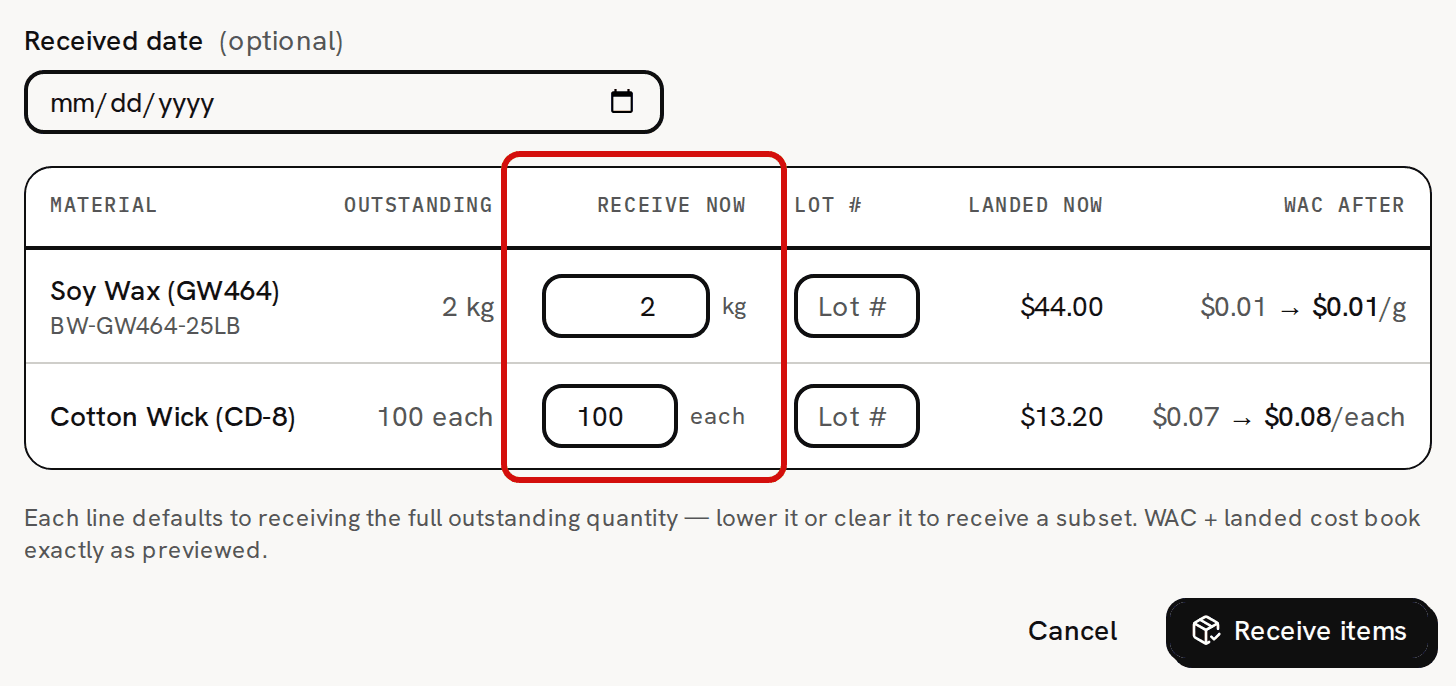
Every open line starts with its full outstanding quantity; lower or clear what didn’t arrive. - For a line that came only in part, lower its Receive now. For a line that didn't come at all, clear it. The box won't take more than the outstanding quantity. If a larger number gets through anyway, Trackost refuses it with 'Cannot receive more than ordered on line', followed by the line's internal id.
- If you like, type the supplier's Lot # for each line.
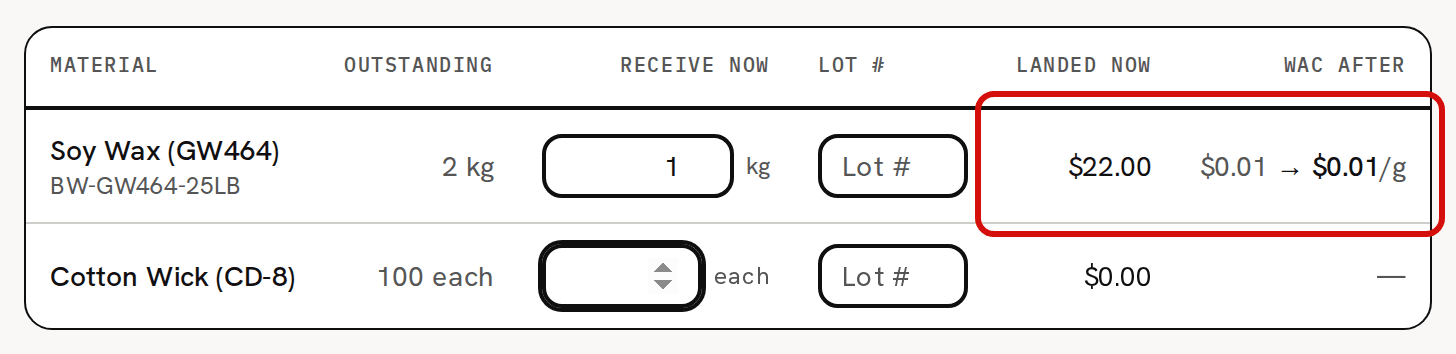
- Check Landed now, the cost each line will add, and WAC after, each material's unit cost before and after. A tool's line shows 'expense (overhead)' instead: its cost is booked as overhead and its unit cost doesn't change.
- Click Receive items. You see 'Items received' and go back to the purchase.
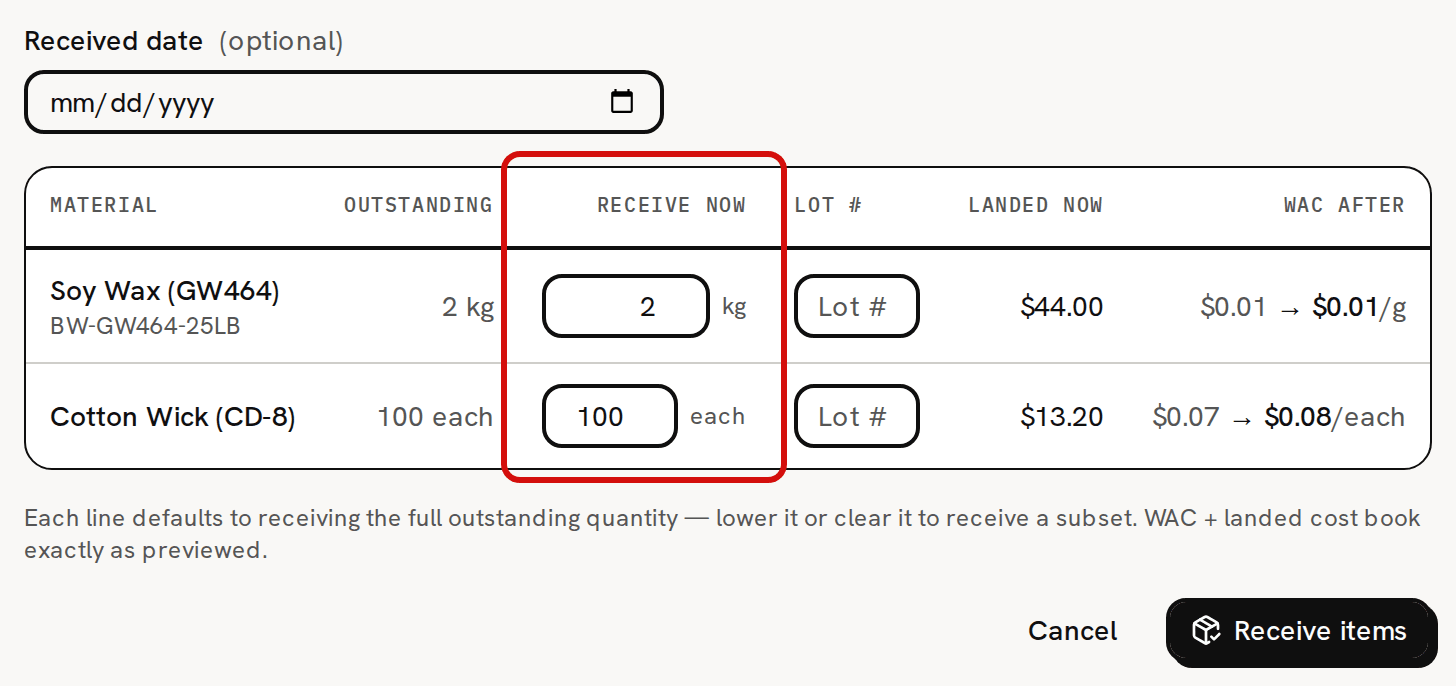
If you clear every line, Trackost refuses with 'Enter a quantity to receive on at least one line.'
Receiving only part of an order
Suppose only 1 of the 2 kg of Soy Wax (GW464) came, and the wicks are still on the way.
On Receive items, type 1 in the wax line's Receive now and clear the wick line. Landed now shows $22.00 for the wax, half of its $44.00 landed cost, and nothing for the wicks.
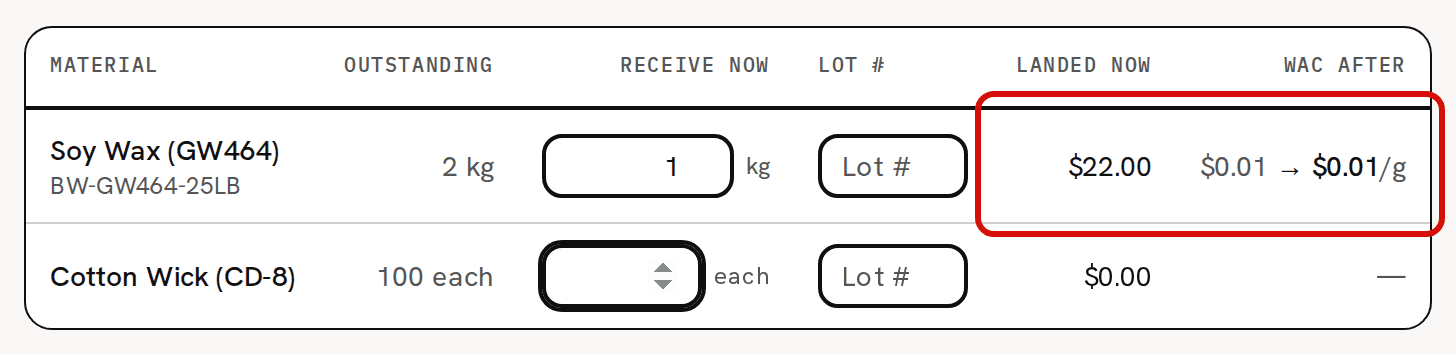
Landed now and WAC after preview exactly what will book. Click Receive items. The purchase now reads Partially received. On its page, the Received column shows what has arrived on each line, and Landed recv. the cost booked so far.
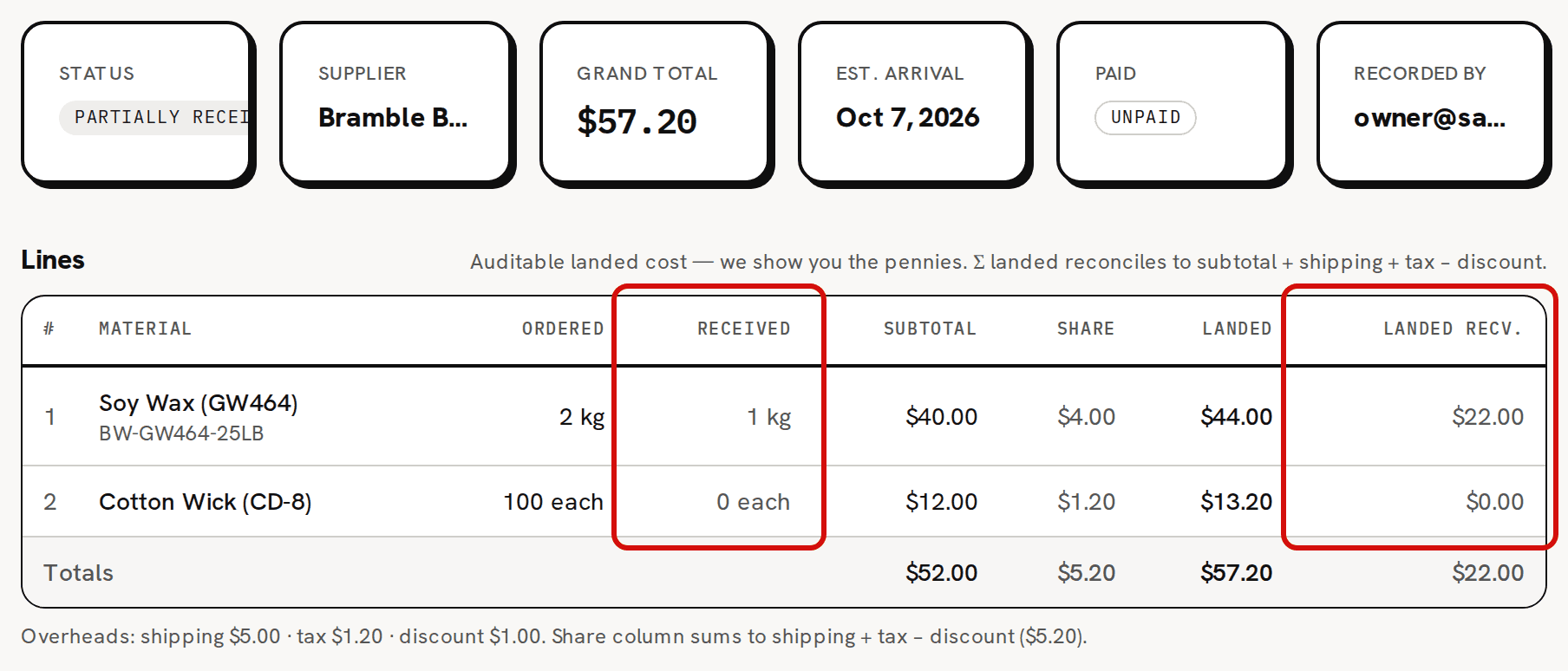
Partially received: the Received and Landed recv. columns track what has arrived. - When the rest arrives, click Receive again. Each line now starts at what is still outstanding.
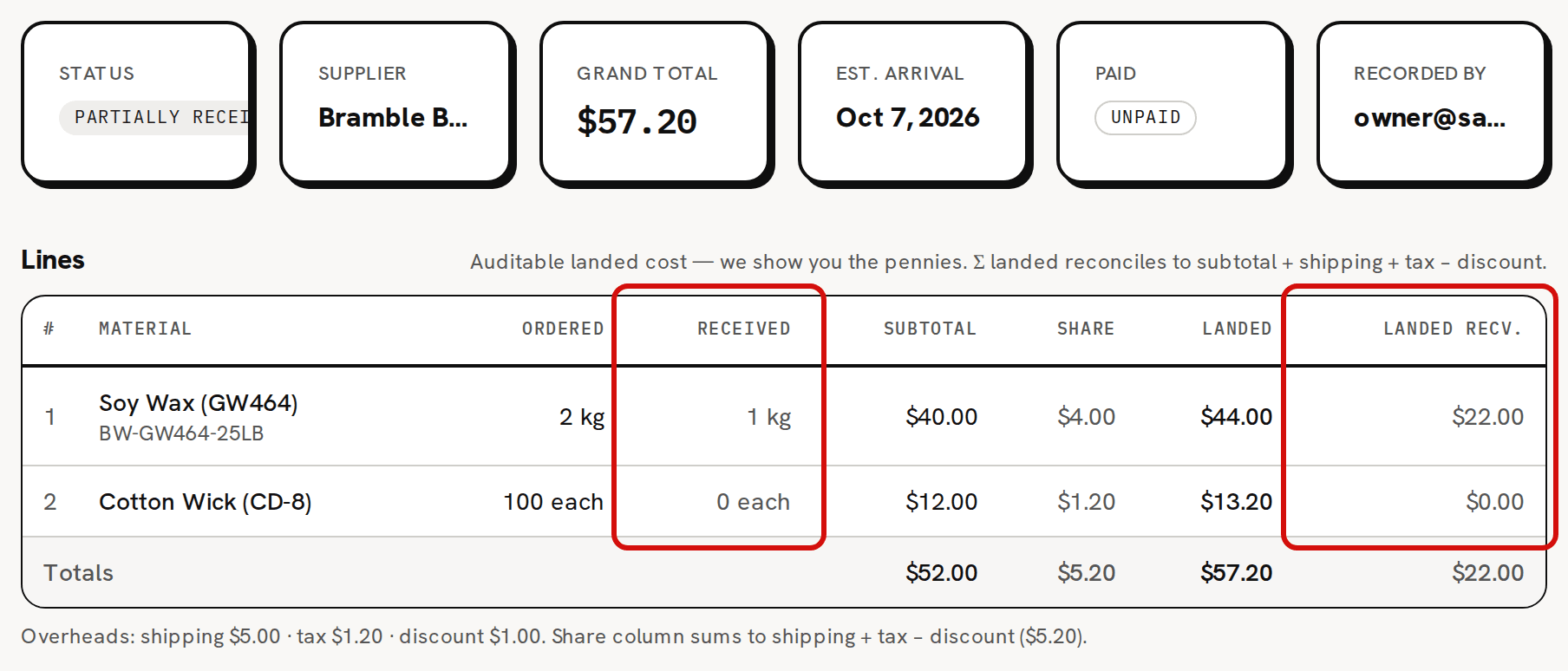
Trackost books each delivery's part of the line's landed cost, rounded to the cent, and the last delivery books exactly what is left. A line's receipts always add up to its landed cost to the penny.
What changes on each material
- Open the material from Materials. On hand has gone up by the quantity received, converted to the tracking unit: 1 kg of wax adds 1,000 g. Unit cost (WAC) has blended in the delivery at its landed cost, as the preview showed.
Look at Purchase history. Each line you received adds a row, with the quantity, the landed amount under Total, the WAC after, the supplier, the purchase's reference and the lot number.

Each received line is a row in the material’s purchase history, at its landed amount.

After everything has arrived
When every line has been received in full, the purchase reads Received. Edit and Cancel disappeared with the first delivery. Mark paid, Mark unpaid and Print stay.
A receipt can't be edited or reversed. If you received the wrong quantity, or send material back, record a vendor credit on the material's page. Costing troubleshooting explains how.