Create a purchase order
Build a purchase with several lines, shipping, tax and a discount, preview the landed cost of each line, save it as a draft, then mark it ordered.
A purchase order records what you ordered from a supplier: the materials, what each line cost, and the shipping, tax and discount on the invoice. Trackost spreads those extras across the lines so each material's cost includes its share.
Creating a purchase order moves no stock and no cost, and adds nothing to your books. That happens only when you receive the items.
Before you start
- Purchases need money access. Without it, Purchases is hidden and Trackost refuses the save with 'Managing purchases requires money access.'
- Add the supplier first under More › Suppliers. The purchase form can't create one. See Add a supplier.
- Every line is a material you already have in Trackost. Add any new material first.
- If your trial or plan has ended, Trackost refuses the save with 'Your plan has ended — subscribe to continue making changes.'
Fill in the header
- In the sidebar, under More, click Purchases, then New purchase.
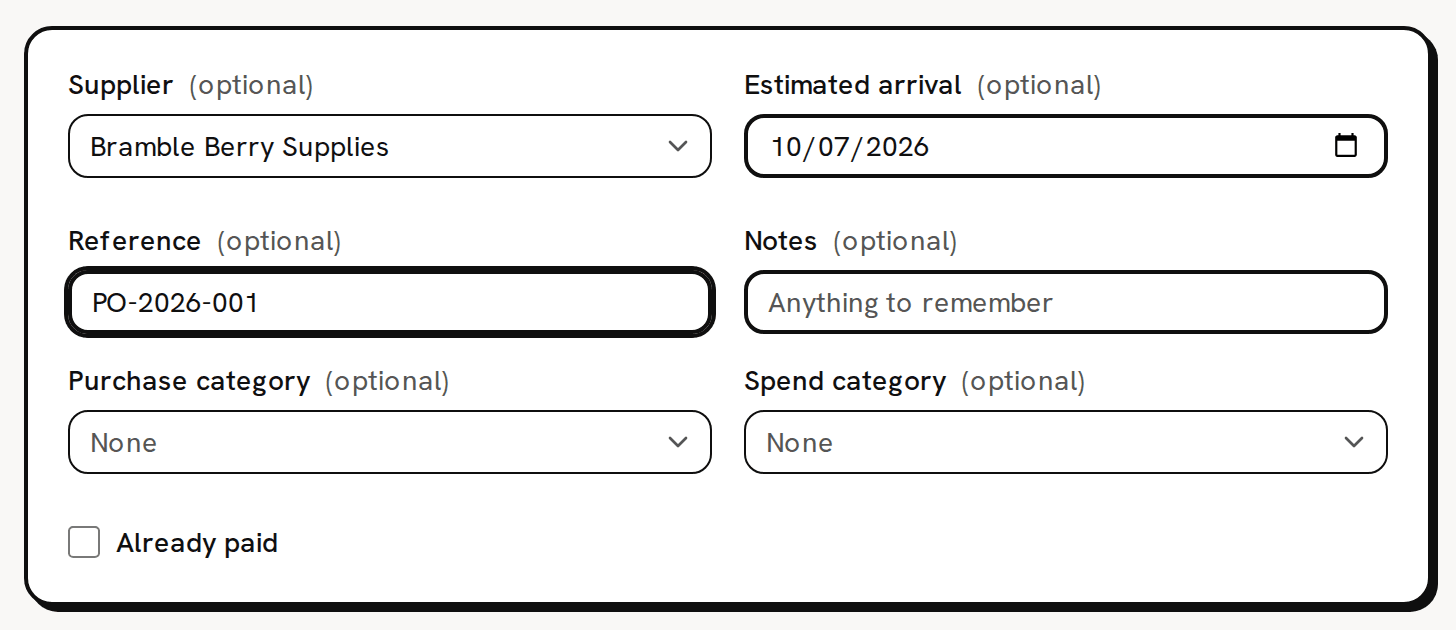
Pick the Supplier, and the Estimated arrival date if you know it. Type the supplier's order or invoice number as the Reference, and anything to remember under Notes. All of these are optional.
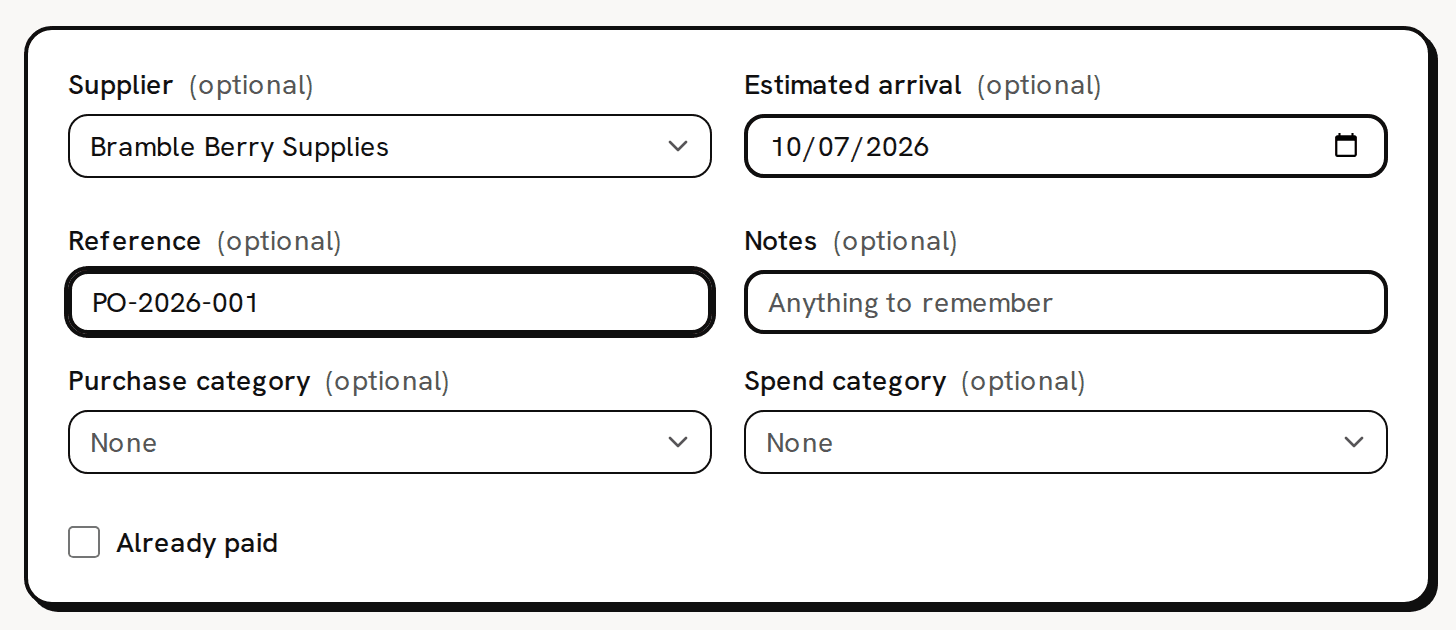
The header: supplier, expected arrival, reference, notes, categories and the paid box. - If you like, pick a Purchase category and a Spend category, and tick Already paid if you have paid. None of them changes the cost. The categories group purchases on the Purchases by category report, and the purchase category also splits Purchase spend by category on Profit & Loss. A new workspace has no categories to pick.
Add the lines
- In the first line, pick the material under Material.
- Type the Qty ordered, in the unit shown beside the box. That is the material's purchase unit: kg for a wax you count in grams.
- Type the line's Subtotal ($): the total for the line, not the price per unit.
Click Add line for each further material on the invoice. The trash icon at the end of a line removes it. A purchase always keeps at least one line.
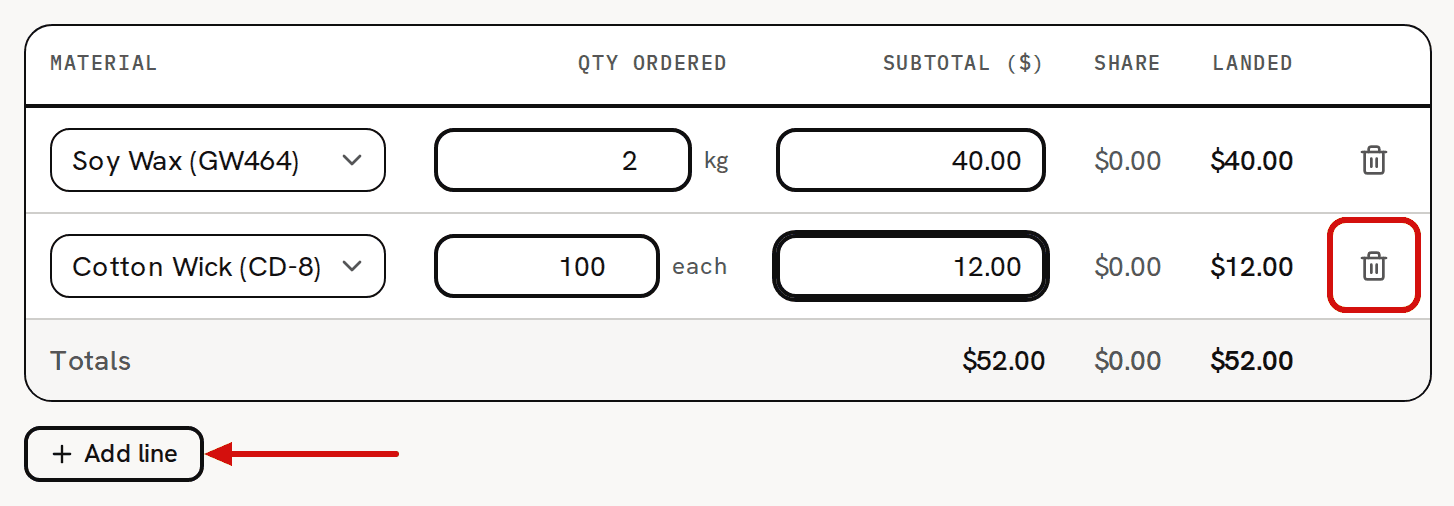
Add a line for each material on the invoice.
Add shipping, tax and discount
- Type the Shipping ($), Tax ($) and Discount ($) from the invoice. Leave any you don't have empty.
- Choose how to spread them under Allocate by. By value (goods subtotal) is the default and splits them by each line's subtotal. By quantity splits them by each line's quantity, counted in the tracking unit. By weight adds a Weight column, and every line needs a weight.
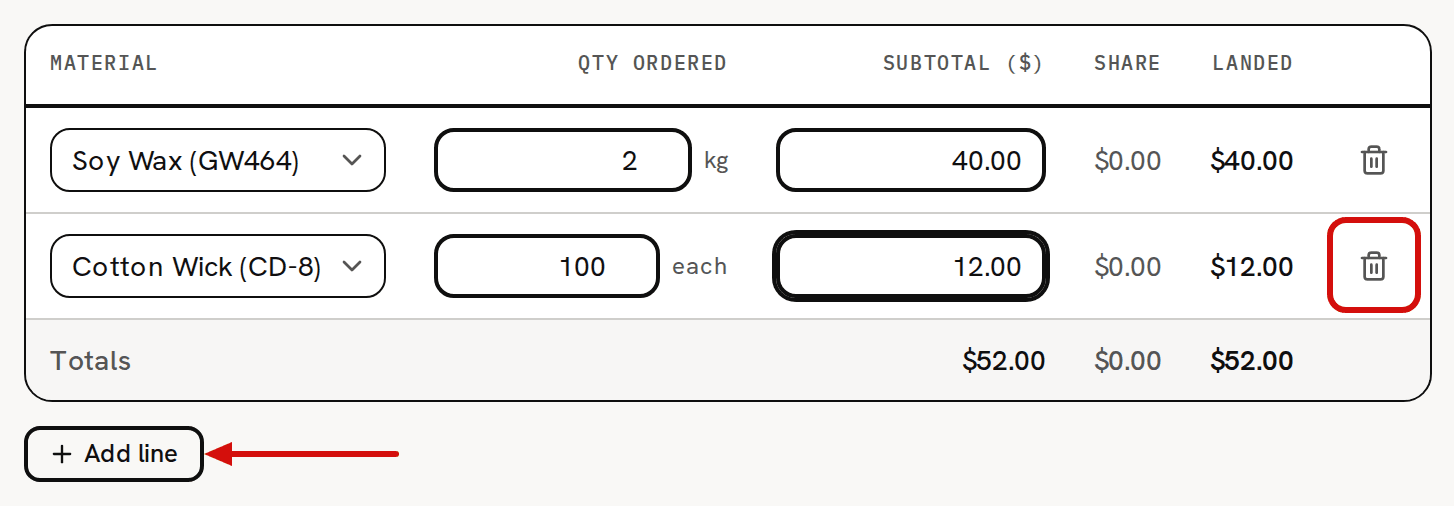
Watch the Share and Landed columns fill in as you type. Check that the Totals row's landed figure matches the invoice's grand total.
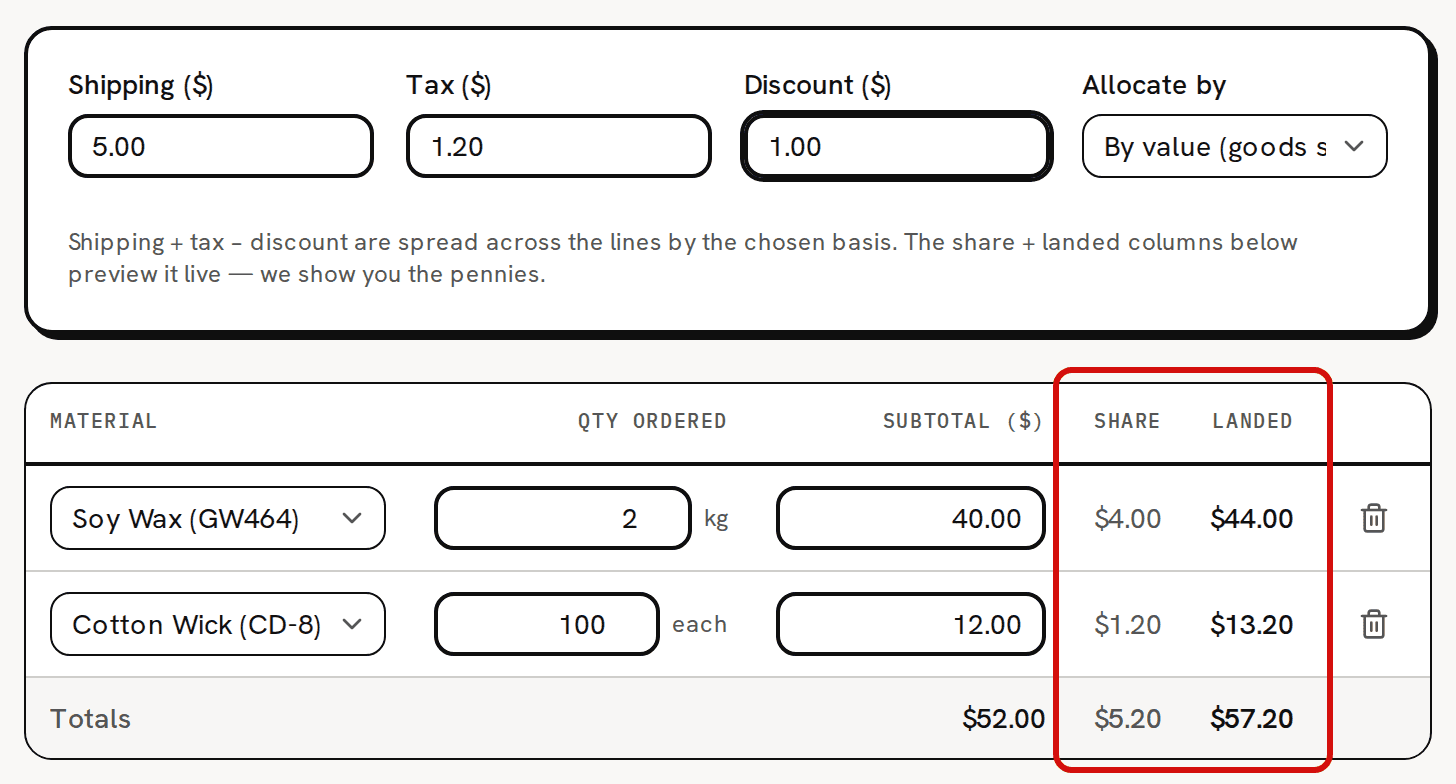
Shipping, tax and discount are spread across the lines as you type. - Click Create purchase. You see 'Purchase created' and the purchase's page opens, with the status Draft.
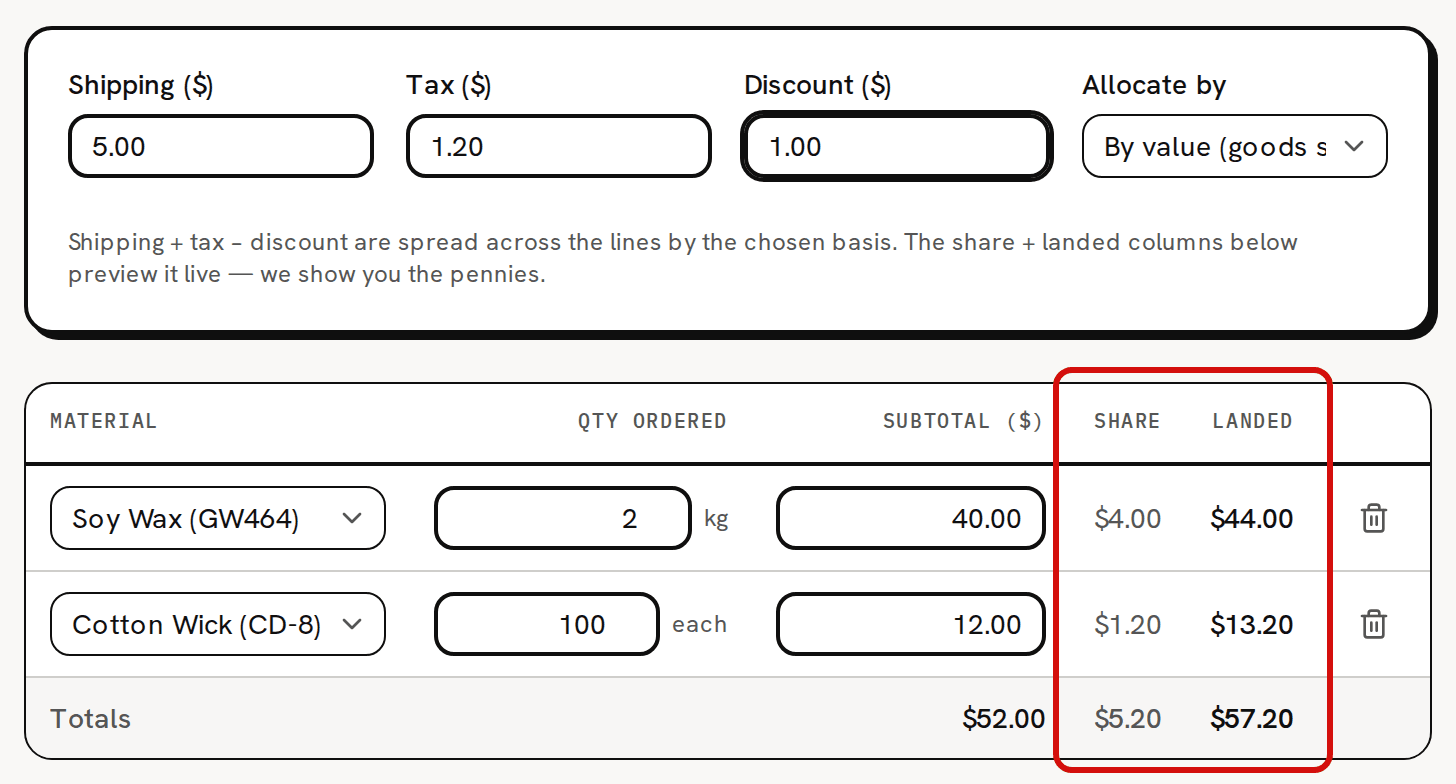
Reading the live preview
In the picture, 2 kg of Soy Wax (GW464) for $40.00 and 100 Cotton Wick (CD-8) for $12.00 carry $5.00 shipping, $1.20 tax and a $1.00 discount: $5.20 of extras in all.
- Share is each line's part of the extras. By value, the wax gets $5.20 × 40 ÷ 52 = $4.00 and the wicks $1.20.
- Landed is the subtotal plus the share: $44.00 and $13.20. This is the amount each material's stock takes on when you receive it.
- The Totals row adds them up: $52.00 of goods, $5.20 of extras, $57.20 landed.
The shares always add up to the extras exactly. Where a split doesn't come out to whole cents, the leftover cents go to the lines with the largest remainders. A discount bigger than the shipping and tax gives negative shares, which lower each line's landed cost.
The preview warns you, and the save is refused, when the split can't work. 'A discount share exceeds a line's value, producing a negative landed total (reduce the discount or reallocate).' means the discount would push a line below zero. By weight with a line left empty shows 'by_weight allocation requires a weight on every line (a line is missing its weight).'
Other refusals on save:
- 'Add at least one line with a material and quantity.': no line has a material picked.
- 'Line 2: ordered quantity must be greater than 0.': that line's Qty ordered is empty or 0.
- 'Line 2: subtotal must be a valid dollar amount.': that line's Subtotal ($) isn't a money amount.
What a draft does, and doesn't do
A draft is a note of what you plan to buy. It changes no stock, no unit cost and nothing in your reports, and it doesn't count as on order. You can open it again from the Purchases list and use Edit, Mark paid, Print or Cancel.
Mark it ordered
- When you send the order to the supplier, open it from the Purchases list.
Click Mark ordered at the top of the page. You see 'Marked as ordered'.

Mark ordered is the main button on a draft. The Status card reads Ordered, and a Receive button appears.
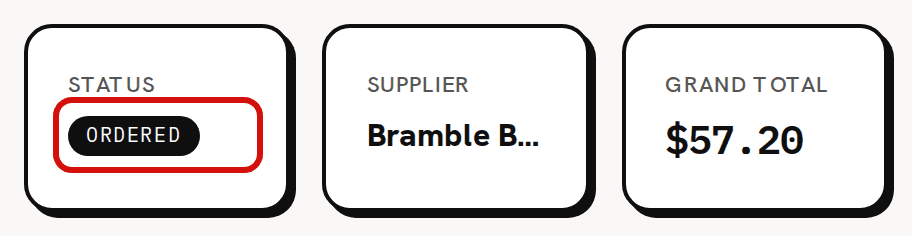
The status now reads Ordered.

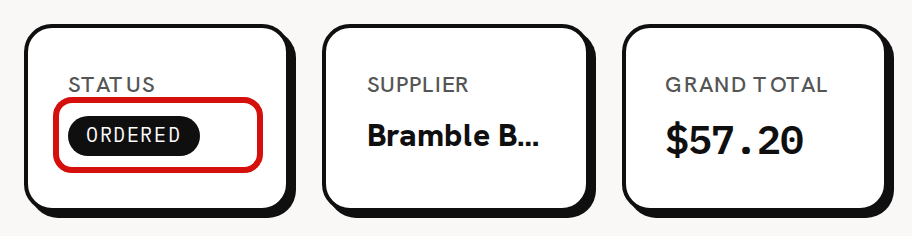
Marking it ordered still moves no stock and no cost. Trackost notes the date you ordered, and the quantities count as on order: the Material Reorder report takes them off what you still need to buy. Cancel is available until something is received. It also has no confirmation and can't be undone.