About production runs (batches)
What a batch is in Trackost, the four statuses it moves through, and how each step changes your stock, your costs and your stock value.
The short answer
- A batch turns materials into finished stock. Trackost takes the recipe's materials out of stock, works out what each unit cost, and adds the units to the product at that cost.
- Make it now does all of that in one click. Schedule for later splits it into steps. Nothing moves until you Start the batch, and the units arrive when you Complete it.
- Starting a batch takes its materials out of stock at today's cost. Their value moves into work in progress, which sits beside your inventory total, not inside it.
- A completed batch's cost never changes, and a canceled batch can't be restarted.
What does a batch do?
A batch, or production run, records that you made a number of one product variation from its recipe. When it's done:
- Every component in the recipe leaves stock: the recipe's quantity, plus its waste %, scaled to the number of units you make. It leaves at its current weighted-average cost, and that cost doesn't change.
- Trackost works out the batch's Unit cost: the components it used plus your labor, divided by the units made.
- The finished units are added to the variation, and its weighted-average cost blends in the batch's unit cost.
All of it is written to your records at once, so your stock, your costs and your reports always agree. About a batch's unit cost and total cost explains the numbers.
Make it now, or schedule for later?
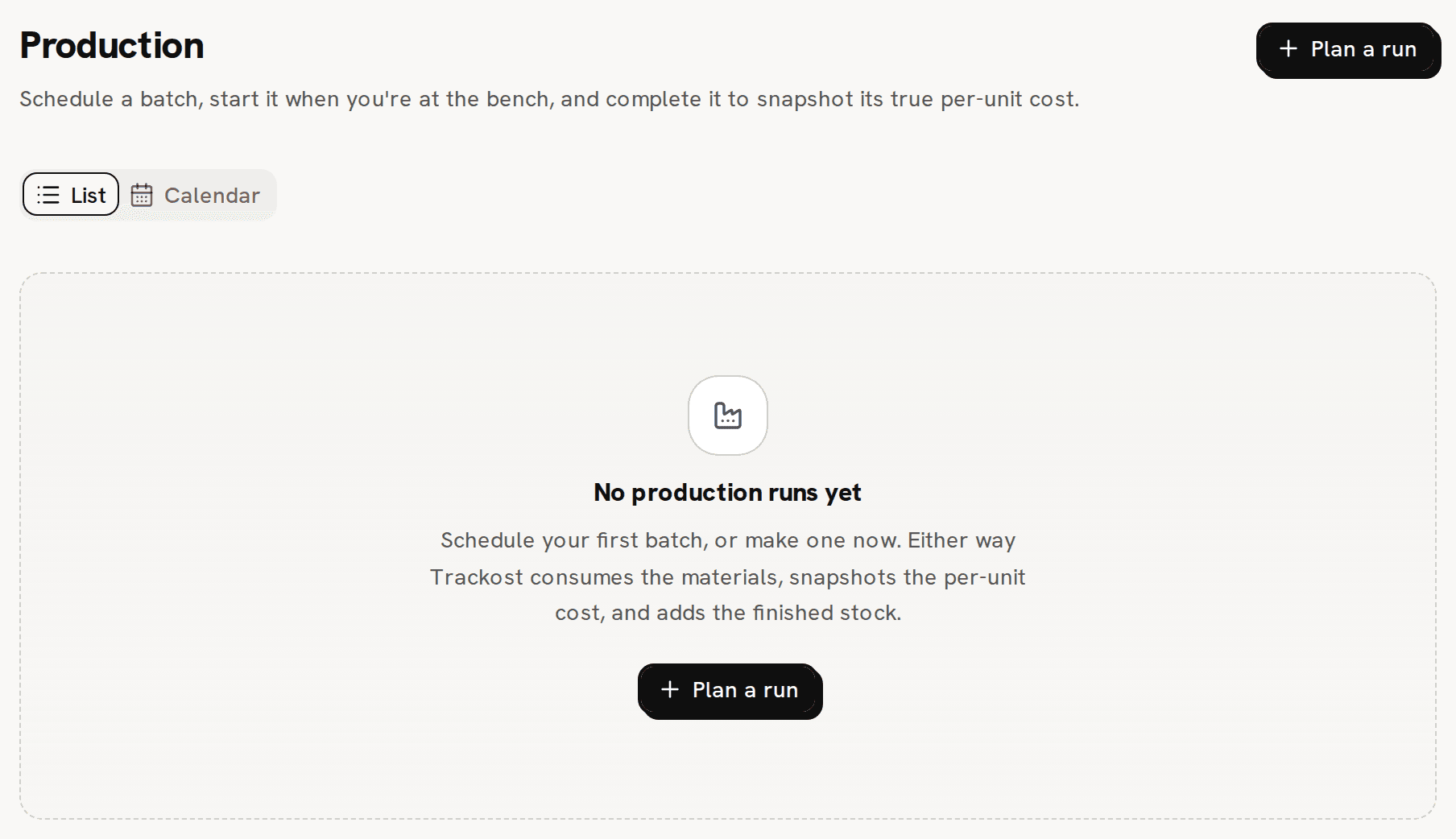
Make it now is for a batch you have already made. One click, no confirmation, dated the moment you click. The materials leave, the cost is worked out and the finished units are added, all at once. Make a batch now walks through it.
Schedule for later is for a batch you plan to make. It puts the batch on a day of your production calendar and uses nothing. When you're at the bench you Start it, and when it's done you Complete it. Schedule a batch for a later day and Start and complete a scheduled batch walk through them.
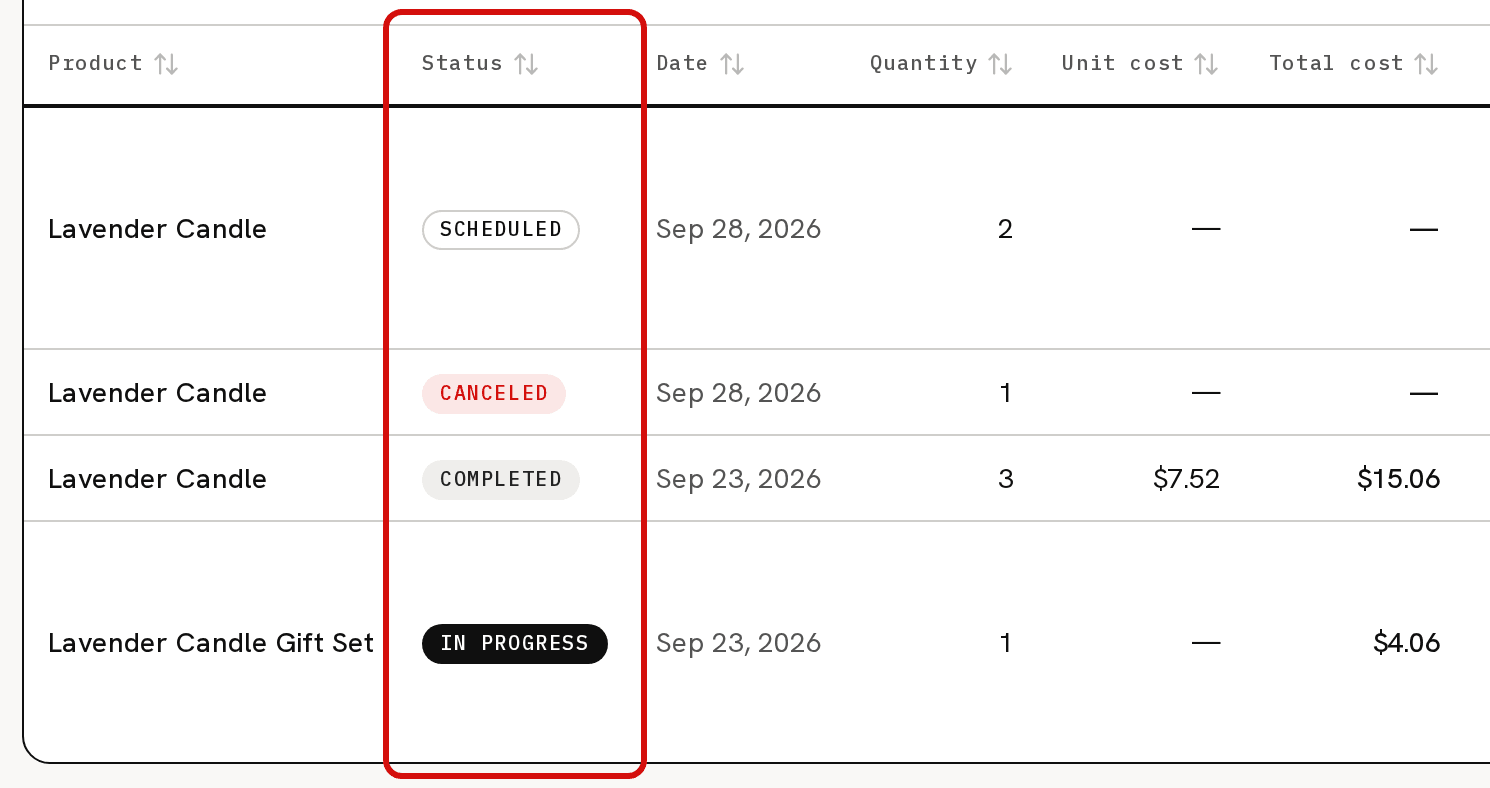
What do the four statuses mean?
| Status | What has happened | What you can do |
|---|---|---|
| Scheduled | It's on the calendar. Nothing has been used and it has no cost yet. | Start, Cancel, or move it to another day |
| In progress | Started. Its materials left stock at that day's cost, and what it used is frozen. | Complete, Cancel, or move it to another day |
| Completed | The finished units were added to stock at the batch's unit cost. | Nothing. It stays in your history. |
| Canceled | Stopped. A started batch put its materials back. | Nothing. Schedule a new batch instead. |
A batch only offers the buttons its status allows. You find them on the batch in the calendar, at the top of its own page, and at the right end of its row on the list. The list is wider than the page, so you may have to scroll the table sideways to reach them.
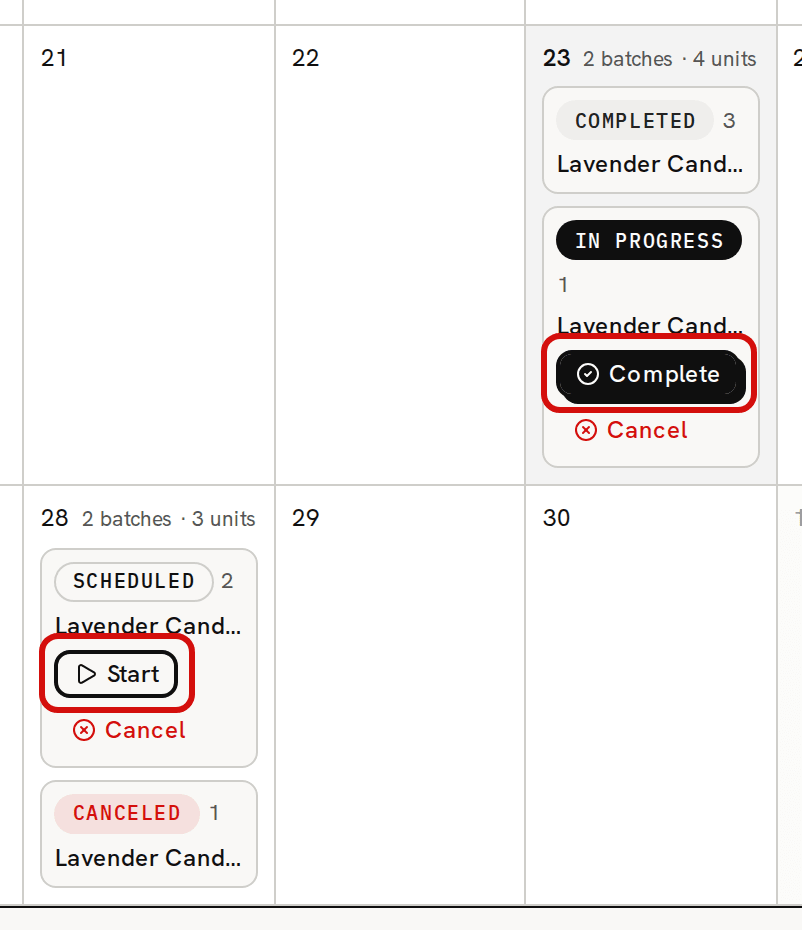
Start and Complete have no confirmation. To move a scheduled or in-progress batch to another day, pick a new date in the date box beside its buttons on the list, in the calendar's Week view, or on the batch's page. The Month view has no date box. The batch moves as soon as you pick, with no Save button, and 'Batch moved' confirms it. Moving a batch changes nothing but its planned day.
Cancel asks first, in a 'Cancel this batch?' dialog, and it can't be undone. Its message depends on the status. For a scheduled batch it says nothing moved and there is nothing to reverse. For an in-progress batch it says every component goes back into stock at the quantities frozen when it started. Click Cancel batch to go ahead, or Keep it to close the dialog and change nothing. Once canceled, a scheduled or started batch stays in your history as Canceled, and you schedule a new one if you still want it.
What moves at each step?
- Scheduling moves nothing: no stock, no cost, no record in your books.
- Starting takes every component out of stock at its weighted-average cost that day, and freezes the list: the exact quantities and costs. That value moves into work in progress. On Inventory, Total inventory valuation drops by that amount, and In progress beside it shows it.
- Completing adds the finished units at the batch's unit cost, worked out from the frozen list plus labor. Work in progress drops back by the components' value.
- Make it now does all three at once, so it never holds work in progress.
- Canceling a started batch puts every component back at the frozen quantities. Canceling a scheduled one changes nothing but its status.
Short stock of a material never blocks a batch. If a component is Short, starting or making the batch still takes it out, its stock goes below zero, and Trackost warns you: 'Stock went negative' when you start, 'Completed with warnings' when you make it now. Record the missing purchase to put things right. Costing troubleshooting explains what that does to the cost. A product used inside the recipe is different: with none in stock and no recipe of its own, the batch is refused with 'A component is missing cost data — check the recipe before producing.'
Where do batches appear?
- Production opens on the list: one row per batch, with its Status, Date, Quantity, Unit cost, Total cost, Lot #, Expiry and who recorded it. Date is the planned day until a batch is completed, and the day it was completed after that. A canceled batch shows the day it was first scheduled for, even if you moved it before canceling. Total cost fills in when a batch starts, Unit cost when it completes.
- Calendar, next to List, shows the same batches on a month or week grid. A completed batch sits on the day it was completed, and a scheduled or in-progress batch on its planned day. A canceled batch sits on the day it was first scheduled for, even if you moved it before canceling. Calendar days follow the UTC calendar.
- A batch's own page opens when you click its product name, on the list or on the calendar. Only the name is a link; the rest of the row isn't.
Who can do what?
A team member without money access can plan, make, start, complete, move and cancel batches like anyone else. They see no costs: the Unit cost and Total cost columns and cards, and the planner's projected cost, are hidden.
When your trial or plan has ended, every button here answers 'Your plan has ended — subscribe to continue making changes.' Your batches stay as they are.