Schedule a batch for a later day
Put a batch on your production calendar without using any stock, then start it on the day you're at the bench.
Schedule for later puts a batch on a day of your production calendar. It uses no stock and records no cost until you start it, so you can plan the week's batches and buy what's short before you begin. If you have already made the batch, record it with Make a batch now instead. When your trial or plan has ended, scheduling answers 'Your plan has ended — subscribe to continue making changes.'
Schedule the batch
Open Production in the sidebar and click Plan a run.
Pick the Product and type the Quantity to produce. The first product in the list is already picked when the page opens, so check it. A Short component in the Consumption preview doesn't stop you scheduling.
Optionally type a Lot # and pick an Expiry date.
In the right card, pick the day in Schedule for. The field starts empty on purpose, and Schedule for later stays unavailable until you pick a full date.
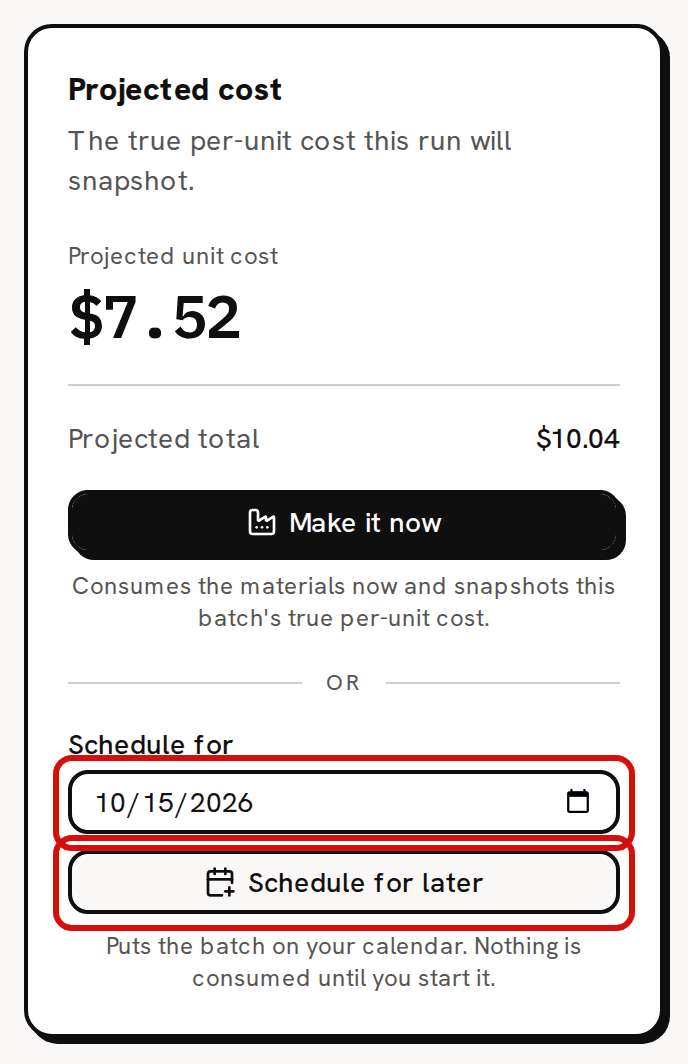
Pick a day, then Schedule for later. Click Schedule for later. The button reads Scheduling… while Trackost works. 'Batch scheduled' appears with the quantity, the product and the day, such as '2 units of Lavender Candle — Lavender / 8oz, on Oct 15, 2026.', and the calendar opens on that month with the batch on its day.
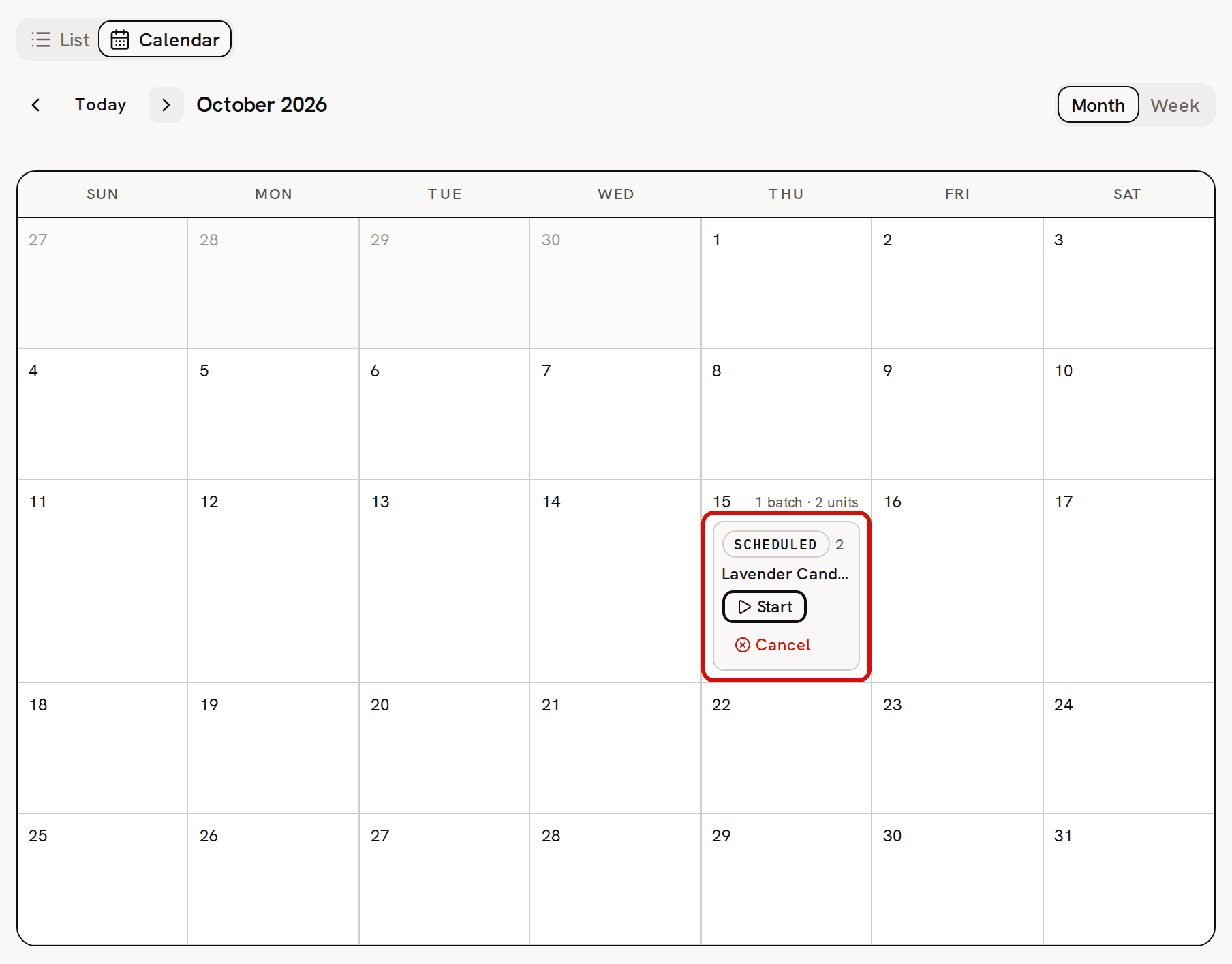
The batch sits on its planned day, with Start and Cancel at hand.
Check it on the list
Click List above the calendar.
Find the batch. Its status reads Scheduled, its Date is the day you planned, and its Unit cost and Total cost read '—'.
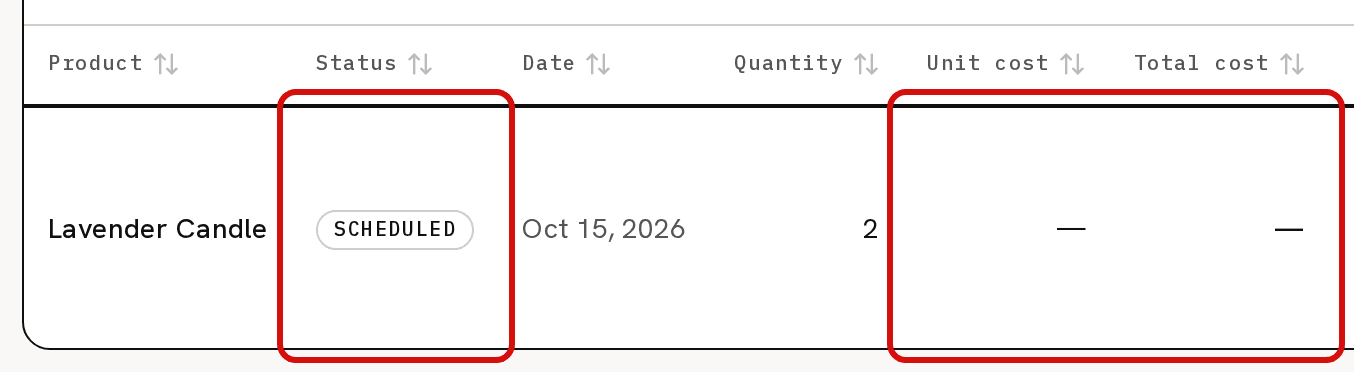
A scheduled batch has no cost yet.
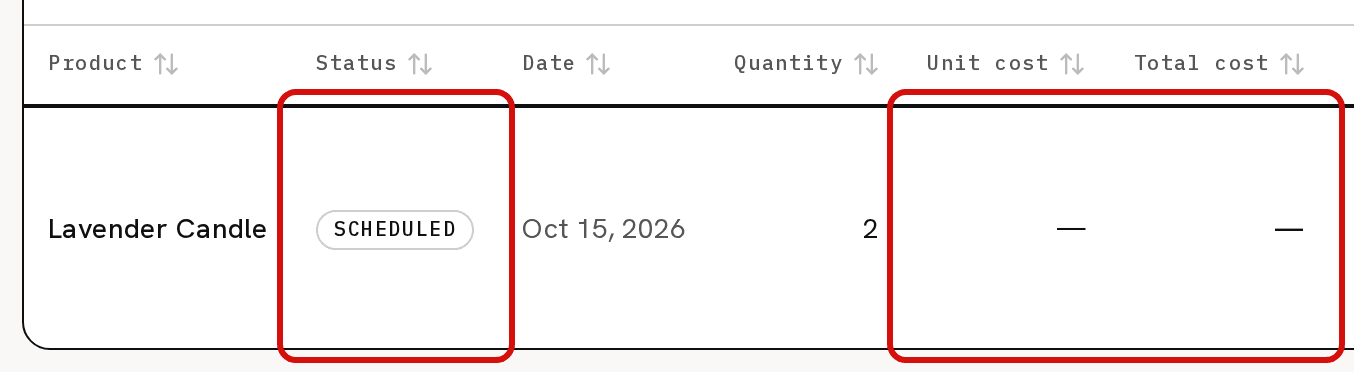
What a scheduled batch does, and doesn't do
A scheduled batch is a plan. Nothing has been used, nothing is recorded in your books, and it has no cost yet. Its page says 'Nothing has been consumed yet. This batch's components — and the exact cost of each — are frozen the moment you start it.' The materials leave stock, at what they cost that day, only when you start the batch.
There is no deadline field. The Schedule for day is the plan, and it is the only thing you can change later. The product, the quantity, the Lot # and the Expiry date stay as you scheduled them, and completing the batch adds exactly that quantity. To change them, cancel the batch and schedule a new one.
To move a batch to another day, pick a new date in the date box beside its buttons on the list, in the calendar's Week view, or on the batch's page. It moves as soon as you pick the date, and 'Batch moved' confirms it. The Month view has no date box.
Scheduling isn't checked against your inventory start date. Starting and completing are, but both are dated the moment you click, not the day you planned. So a start is refused while your inventory start date is after today, whatever day the batch was scheduled for.
A team member without money access can schedule batches too. The calendar shows no costs to anyone.
Next: start it
On the day, click Start on the batch in the calendar or at the top of its page. Start and complete a scheduled batch explains what happens next. If you no longer need the batch, Cancel removes it from your plans. It stays in your history as Canceled and can't be restarted.