Start and complete a scheduled batch
Start a scheduled batch to take its materials out of stock at today's cost, then complete it to add the finished units at the batch's unit cost.
A scheduled batch takes two more clicks. Start it when you begin making it, and its materials leave stock at what they cost today. Complete it when the units are ready, and they're added to stock at the batch's unit cost. Neither asks you to confirm, and each is dated the moment you click. When your trial or plan has ended, both answer 'Your plan has ended — subscribe to continue making changes.'
What starting does
- Only a Scheduled batch can start.
- Every component leaves stock at its weighted-average cost today. Trackost freezes the list of what the batch used, with each quantity and cost, and your labor rate with it. A purchase, a recipe edit or a labor-rate change after this doesn't change the batch.
- The value of those materials moves into work in progress. On Inventory, Total inventory valuation drops by that amount, and In progress beside it shows it until you complete the batch.
- Short stock of a material doesn't stop a start. The short material goes below zero, and 'Stock went negative' warns you: 'This batch consumed more than you had on hand. Log the missing purchase so your costs stay right.' A product used inside the recipe is different: with none in stock and no recipe of its own, the start is refused with 'A component is missing cost data — check the recipe before producing.'
- The start is checked against your inventory start date. It's refused while that date is after today, and east of UTC a start date of today can refuse it too, early in your day.
Start the batch
Open Production and click the batch's product name, on the list or in the calendar. The batch's own page opens.
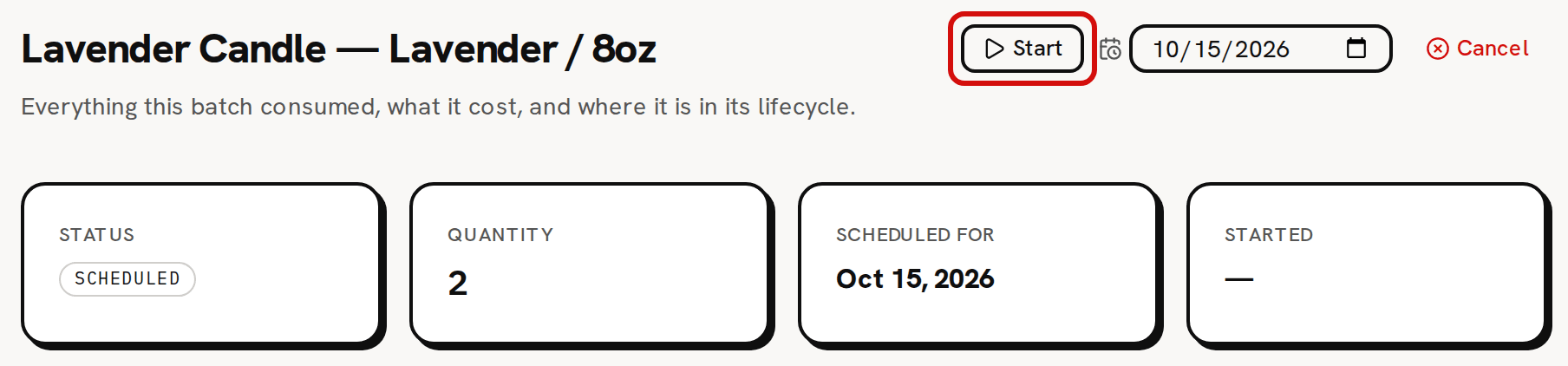
Click Start at the top of the page. 'Batch started' tells you what moved, such as '$10.04 of components moved into work in progress.', and the status becomes In progress.
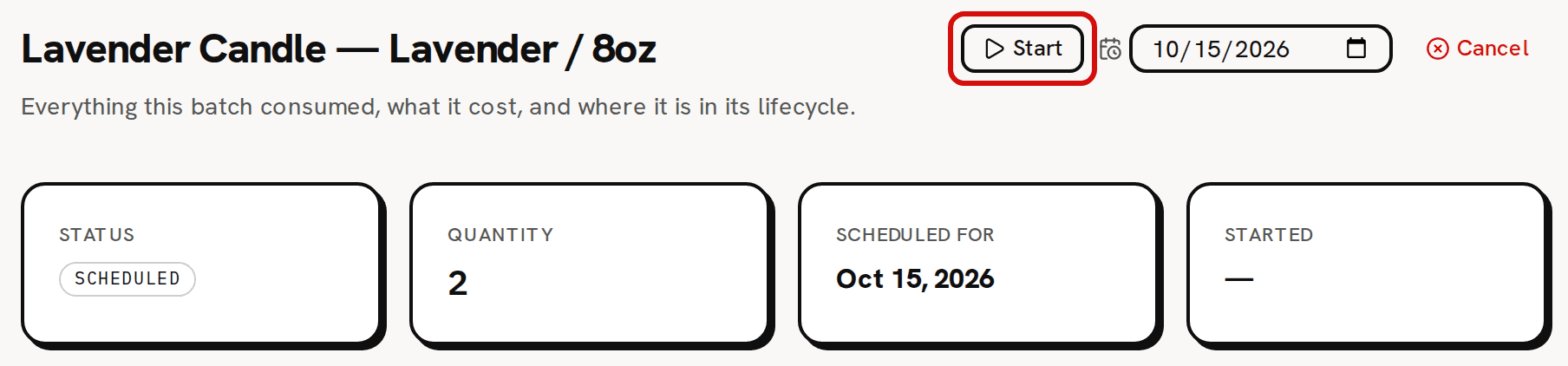
Start uses the components now, at today’s weighted-average cost. To see where the value went, open Inventory. In progress (1 batch) holds it, beside a Total inventory valuation that is lower by the same amount.

Work in progress sits beside the total, not inside it.

What completing does
- Only an In progress batch can complete.
- The finished units are added to the variation at the batch's unit cost: the frozen materials plus the frozen labor, divided by the quantity. The variation's weighted-average cost blends it in.
- It adds exactly the Quantity the batch was scheduled with. There is no box to change it, and a completed batch can't be canceled, edited or moved. If some units didn't turn out, complete the batch anyway, because their materials really were used. Then take the failed units out with Adjust on the Products tab of Inventory, with the reason Spoilage / loss. If you made fewer because you used fewer materials, cancel the batch instead, which puts its materials back. Then record what you really made with Make it now.
- Work in progress drops back by the components' value, and In progress on Inventory goes down with it.
- The batch is dated the day you complete it, and from then on its Date on the list is that day. Completing is checked against your inventory start date too.
- If you have sold more of the product than you had, and this batch wouldn't bring its count above zero, completing is refused with 'A component is missing cost data — check the recipe before producing.' The batch stays In progress. Cancel it, which puts its materials back, and make a batch bigger than the shortfall.
Complete the batch
Open the In progress batch's page from Production.
Click Complete at the top of the page.
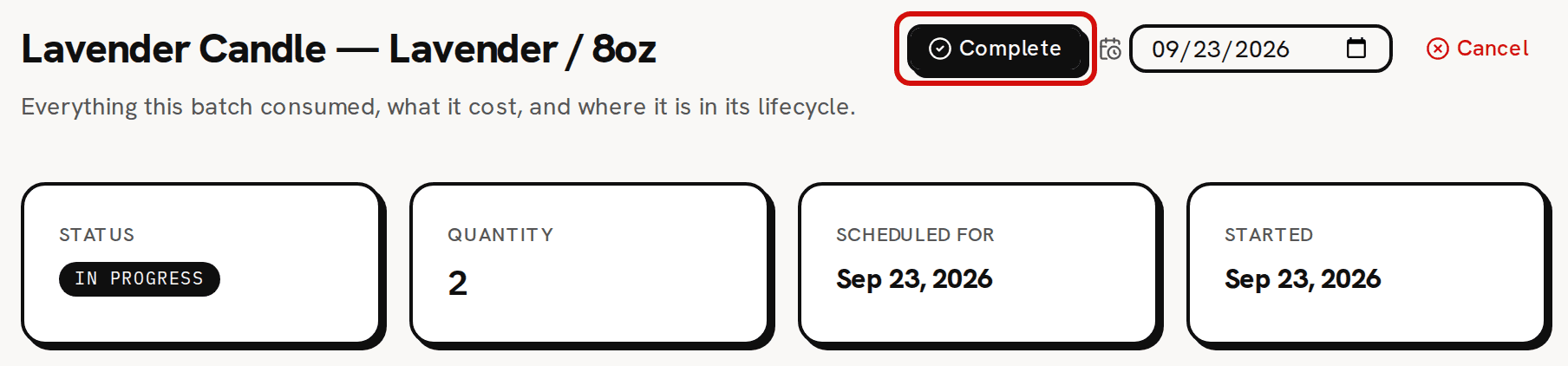
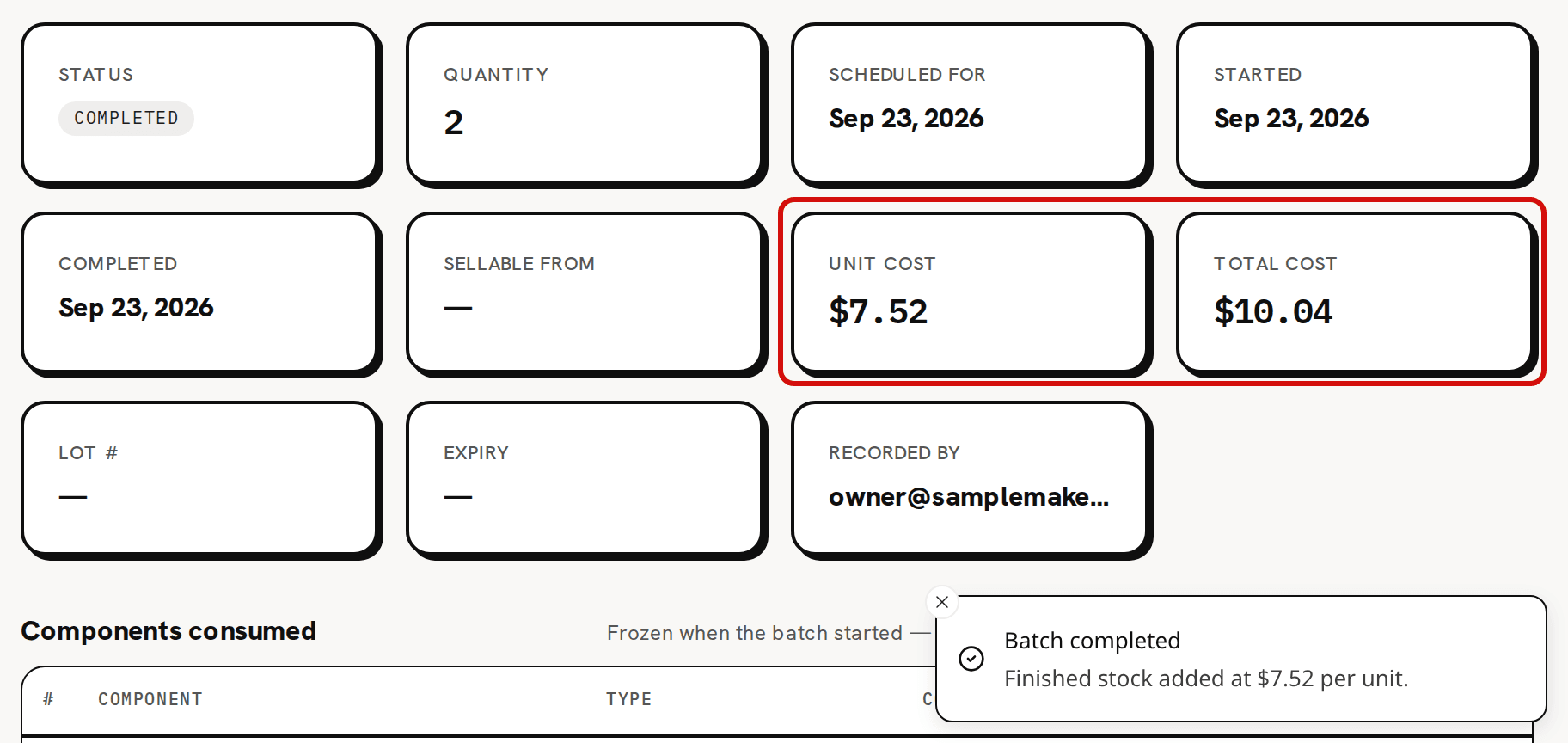
Complete adds the finished units to stock. 'Batch completed' tells you the unit cost the finished units were added at, such as 'Finished stock added at $7.52 per unit.' The status becomes Completed, and the Unit cost card fills in.
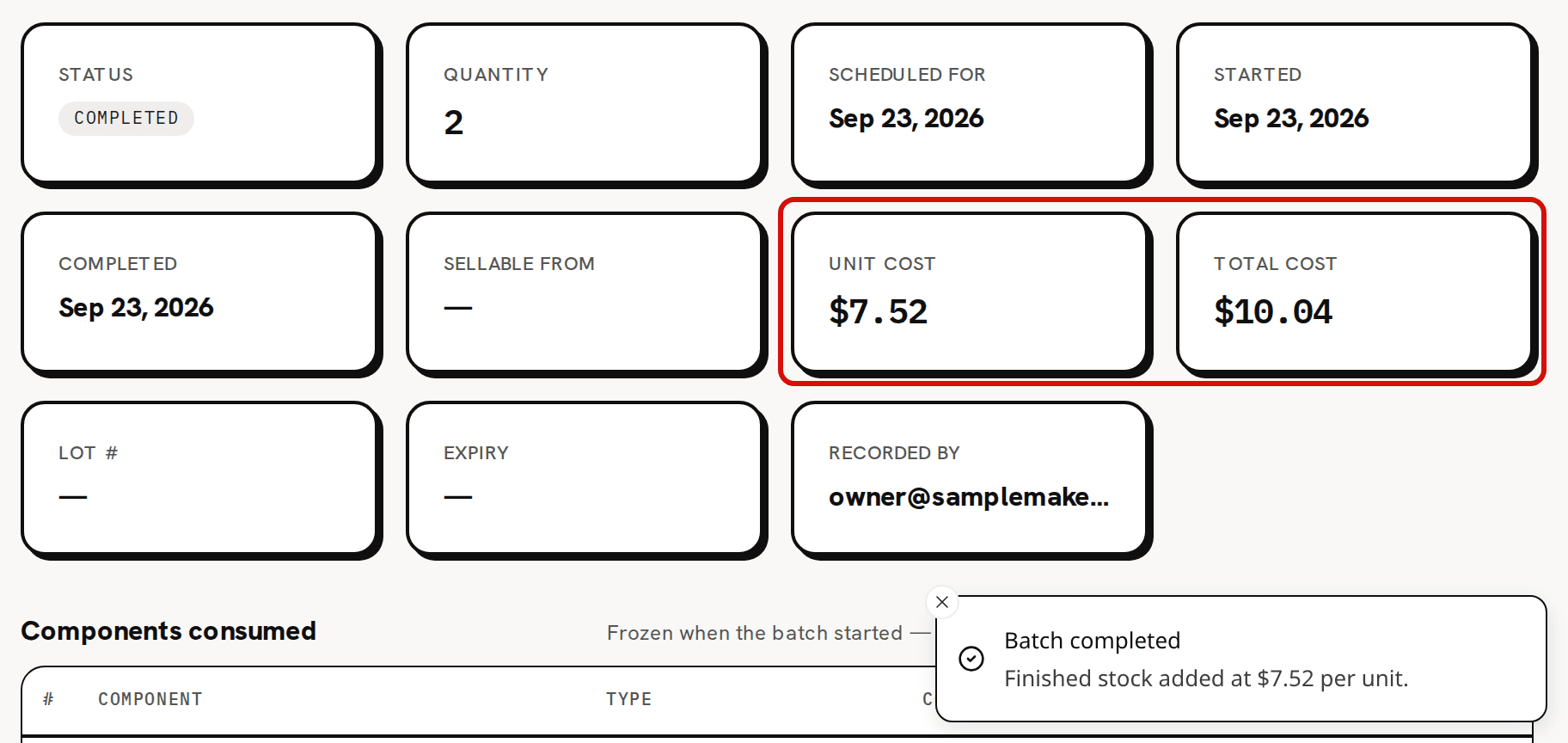
Finished stock added at $7.52 a unit; the batch now carries its costs. Read Components consumed below the cards. It lists what the batch used, frozen when it started.
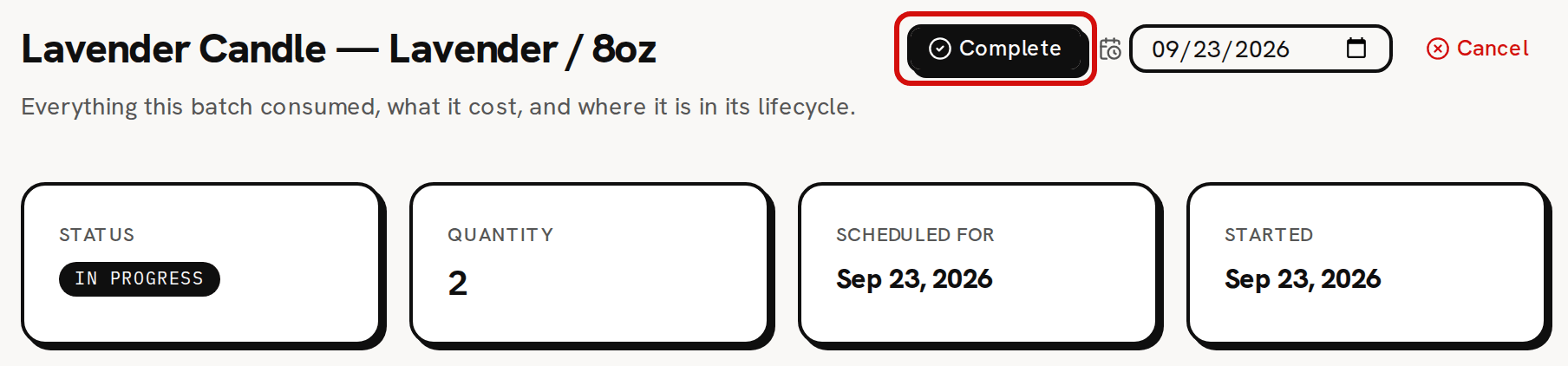
Start and Complete are also on the batch in the calendar, and at the right end of its row on the list. The list is wider than the page, so you may have to scroll the table sideways to reach them.
Where the numbers show up
- On the list, the batch's Total cost fills in when it starts and Unit cost when it completes. Unit cost includes labor: $7.52 for a sample candle. Total cost is what the components cost, without labor: $10.04 for two candles, not 2 × $7.52. About a batch's unit cost and total cost explains why.
- On the batch's page, Started and Completed give the two dates, and the Components consumed table ends with a Components total equal to the Total cost.
- On the Products tab of Inventory, the variation's On hand and Unit cost include the new units.
A team member without money access can start and complete batches too. They see the same messages without the amounts: 'Components consumed into work in progress.' and 'Finished stock added to inventory.'
If you need to stop a batch you've started, Cancel puts every component back into stock at the quantities frozen when it started. It asks first, and it can't be undone. The batch stays Canceled and can't be restarted.